
Introducing
Streamlined User Creation
Adding a new team member now takes three guided steps. Enter their details and access, verify their email and mobile number, then review and save, with two-factor authentication switched on automatically from day one.
A Faster, Safer Way to Add Users
Creating a new user is now a single guided wizard instead of a scattered set of forms. Details and access are set in one place, identity is verified before the account ever exists, and nothing is written to the system until a final review confirms everything is correct.
Details & Access
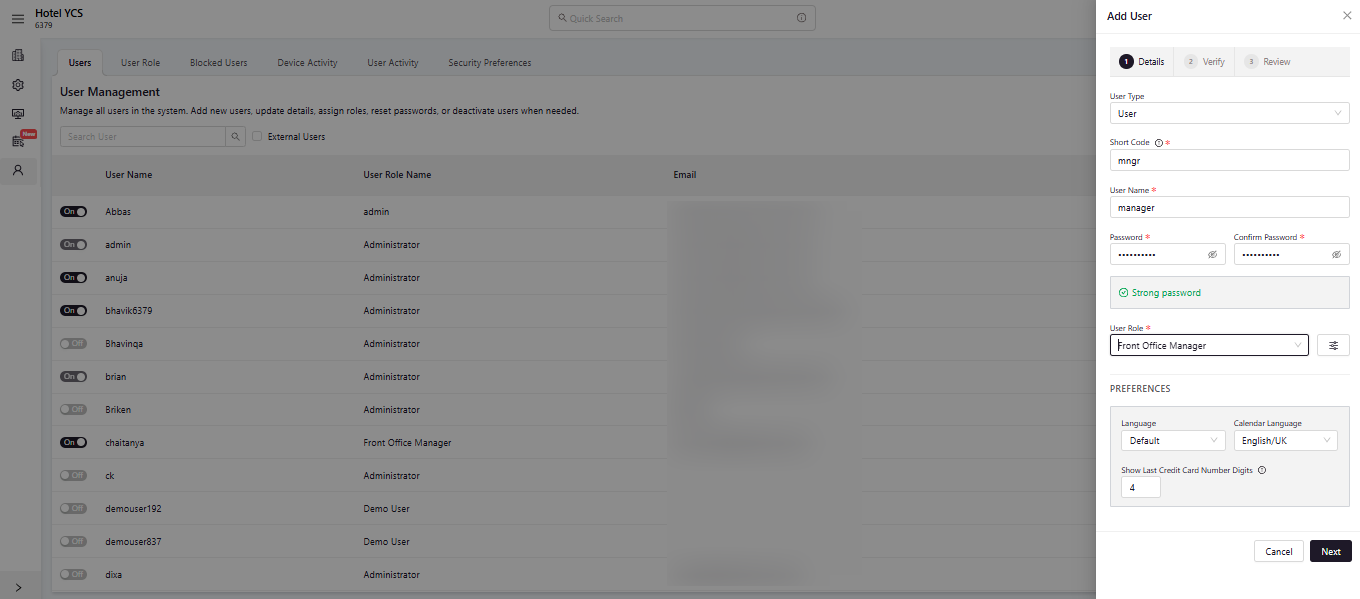
The first step captures who the user is and what they’re allowed to do. Short Code, User Name, Password, Confirm Password, and User Role are required; language, calendar, and card-display preferences are optional and come with sensible defaults.
Short code, username, password, and role. A live check confirms the password is strong enough before moving on.
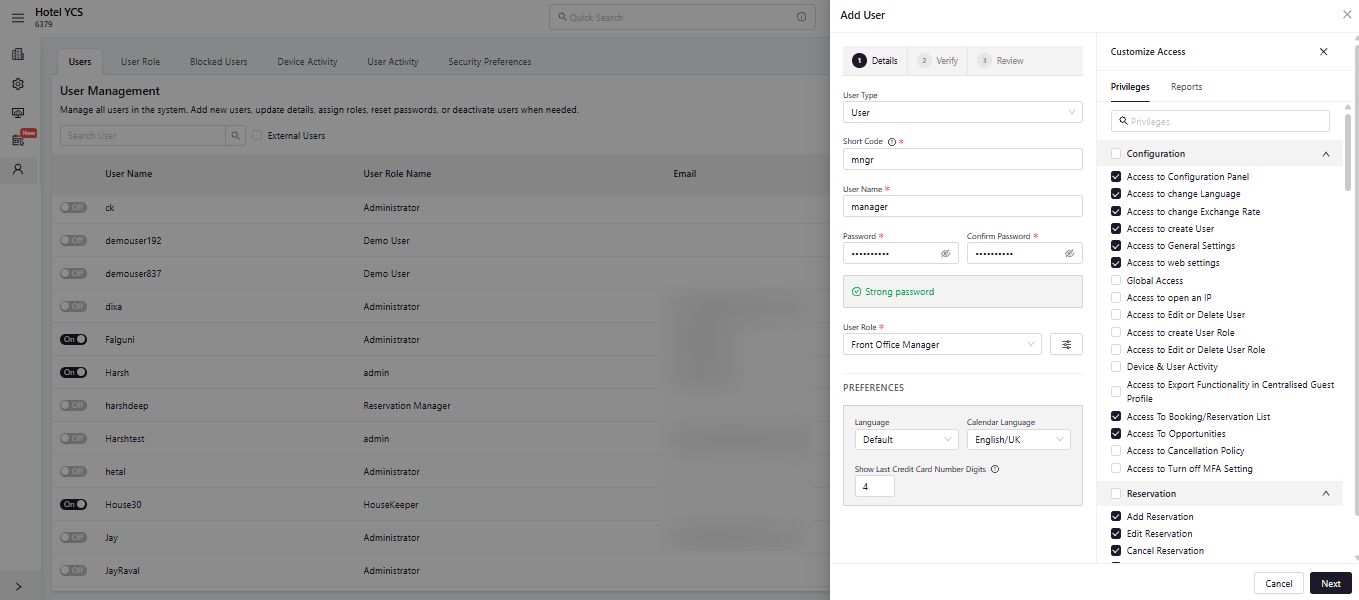
The role sets a starting point. Customize Access lets you tick or clear individual privileges, like creating other users or exporting guest data, just for this person.
Details: short code, username, password, and role
Customize Access: individual privileges by area
Verify Email & Mobile
Before the account can be created, both the email address and the mobile number must be verified. This confirms the contact details genuinely reach the new user, and doubles as the setup for their sign-in security.
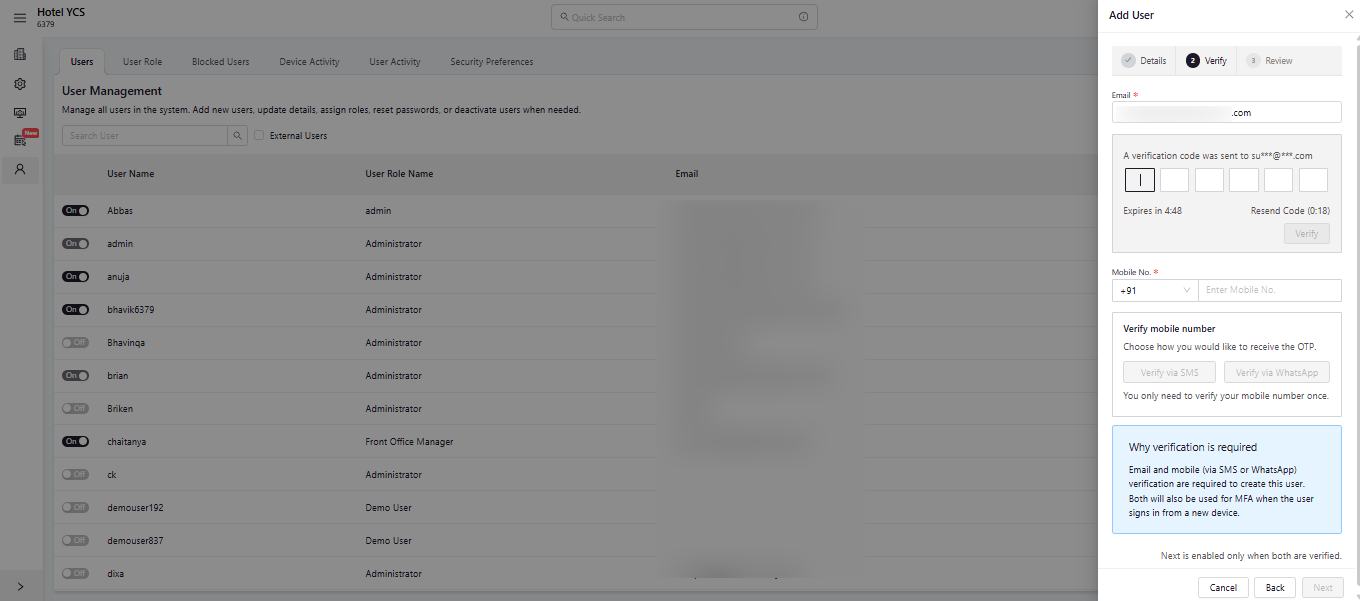
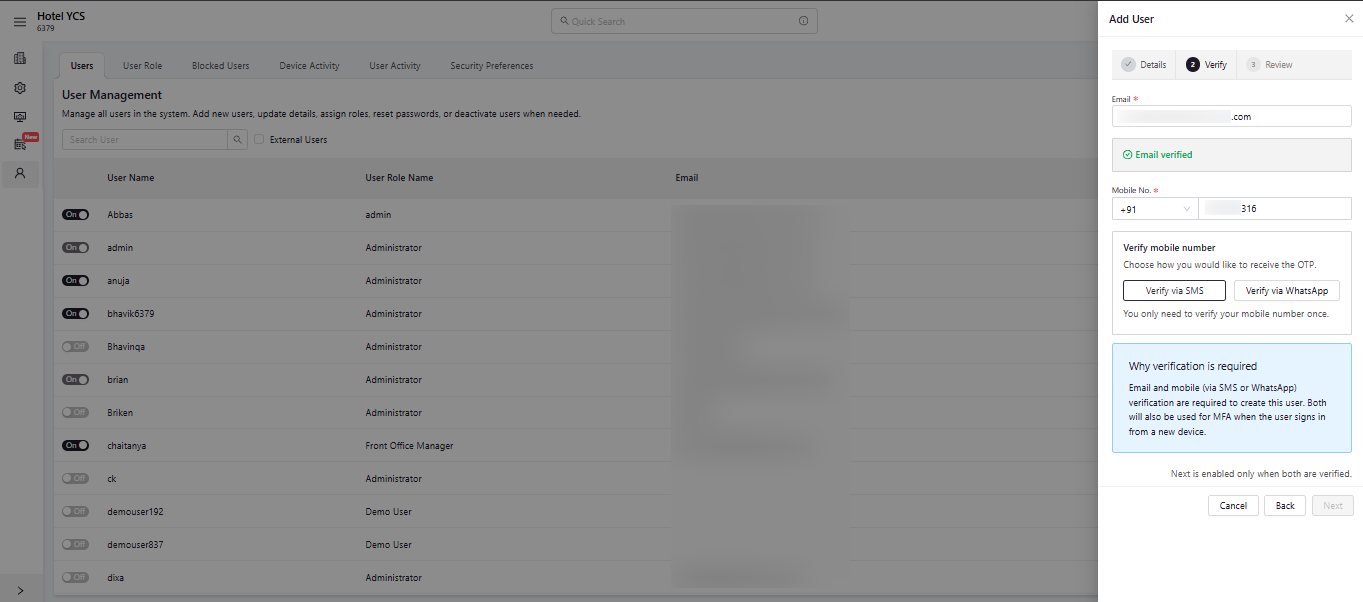
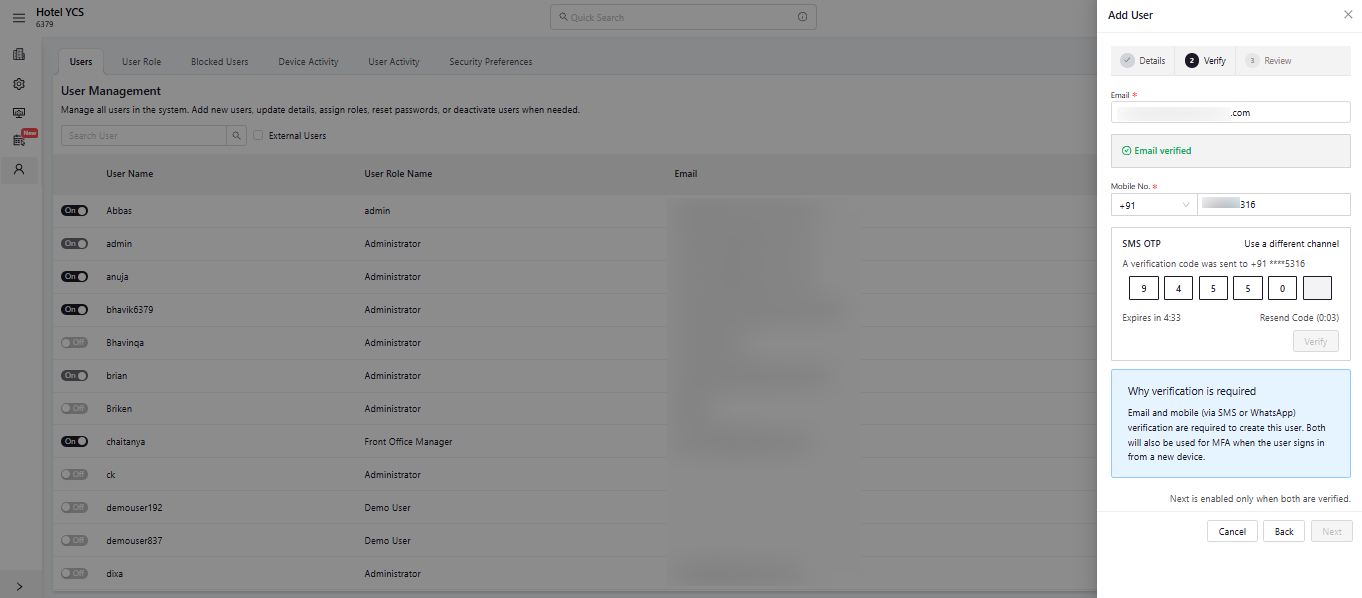
Email and mobile verification are both mandatory. For mobile, verify over WhatsApp (available everywhere) or SMS (India only), just one channel is needed, not both.
A code is sent to the address on file. Enter it before the countdown runs out to mark the email verified.
Pick WhatsApp, available worldwide, or SMS, available in India only, then enter the 6-digit code sent to the number to mark it verified too.
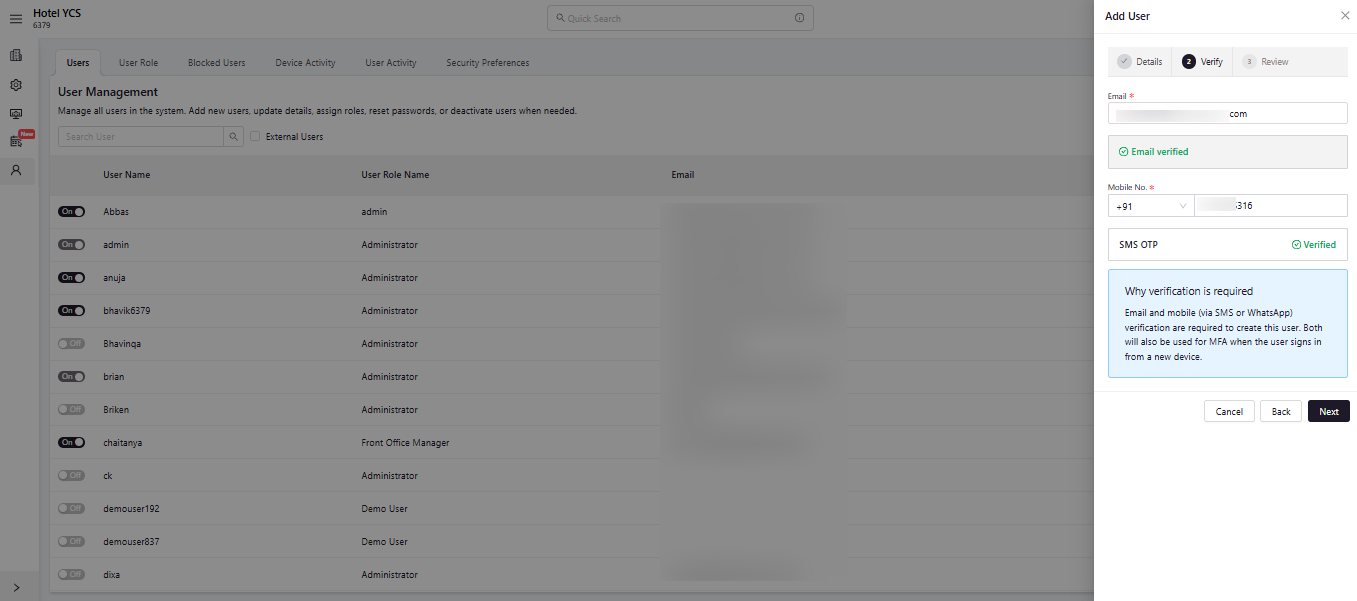
Once email and mobile both show verified, Next unlocks and the account moves to Review.
A code is sent to verify the email
Email verified, mobile number entered next
Entering the WhatsApp or SMS OTP
Both verified, Next is now enabled
Review & Save
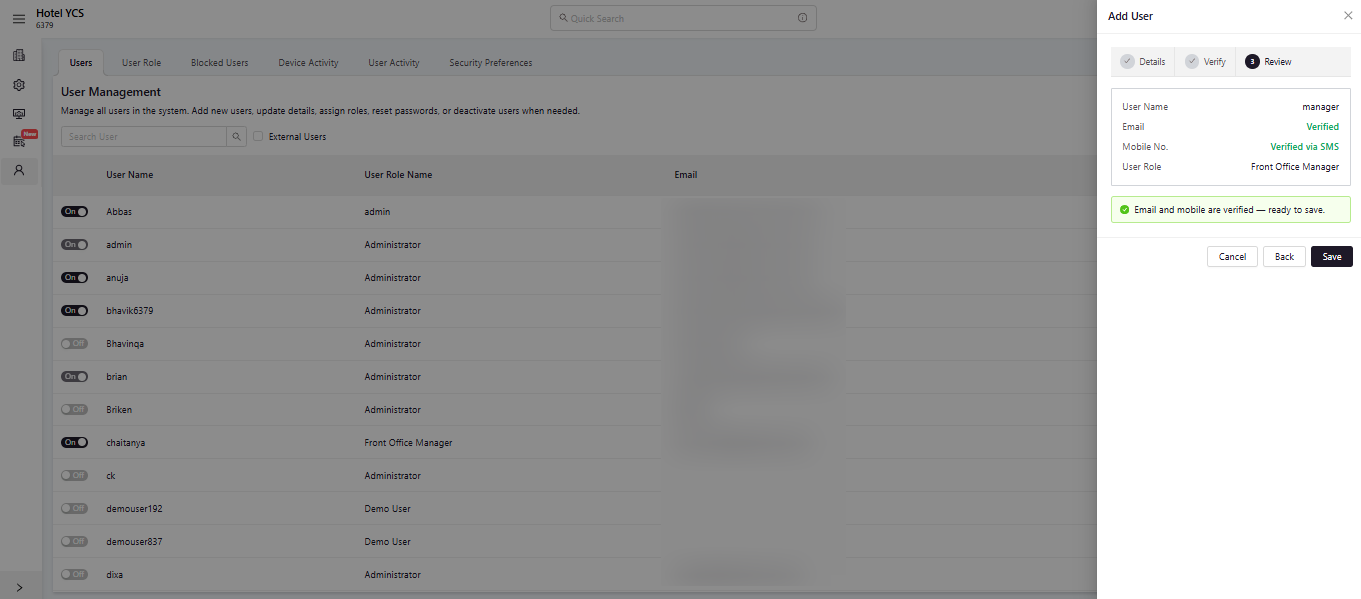
The last step is a final summary, username, verified email, verified mobile, and role, with nothing written to the system until Save is selected.
A clean summary, ready to save
Because email and mobile were verified during creation, both are already registered as the new user’s sign-in methods. The very first time they sign in from a new device, they’ll be asked for a one-time code, no separate setup required.
What’s Better About It
The same information is still being collected, it’s just organised into a flow that’s harder to get wrong and faster to finish.
Three clear steps instead of scattered fields, each one unlocking the next.
Customize Access lets you fine-tune privileges for this one user, beyond their role.
Email and mobile are confirmed real before the account is ever created.
Verify mobile over WhatsApp worldwide, or SMS if the user is in India.
Every new account starts protected, with no separate setup step required.
A final summary means nothing gets written until everything checks out.
Why This Matters
Every account starts on the right foot, verified, correctly scoped, and protected.