We are excited to introduce a new Simplified Payment Flow, designed to make payment collection more transparent, faster, and flexible for your team.
This enhancement improves how payments are collected, recorded, and managed across both individual reservations and group bookings while keeping the overall experience intuitive and easy to use.
What’s New?
The updated flow brings several key improvements:
Clear payment options:
Process with Integrated Gateway
Record Only
Improved payment screen:
Cleaner interface
Reduced navigation steps
Enhanced capabilities:
Remote collections via Payment Links
POS terminal payment support
Credit card saving and pre-authorization
System enhancements:
Automatic generation of receipt numbers for all payments
How the Simplified Payment Flow Works
The system now organizes payments into two clearly defined options:
Process with Integrated Gateway The system initiates and completes the payment through your connected payment gateway.
Record Only Used to manually record payments such as cash or offline transactions.
Detailed Payment Flow
For every payment, users can choose between:
Process with Integrated Gateway (Applicable when a payment gateway is integrated and used for transaction processing)
Record Only (Used to log manual payment entries directly into the system)
Step 1: How to Access the Payment Page
There are three ways to reach the Add Payment screen. Use whichever suits the moment:
1
While Making a New BookingWhen creating a new reservation, payment options are presented as part of the booking flow. You can collect or record a payment right at the time of booking without needing to navigate anywhere separately.
2
From an Existing ReservationOpen the reservation → Click More Options (top right) → Select Add Payment.Use this when a guest is already booked, and you want to collect an advance, top-up, or outstanding payment at any point during their stay.
3
From Folio Operations Open the reservation → Click on Edit Reservation → Go to Folio Operations → Select Add Payment.Use this when you are already working inside the guest folio reviewing charges, posting extra charges, or reconciling and want to add a payment without leaving that screen.
Tip: Whichever way you access the payment screen, the Add Payment panel works the same way. The payment amount is fully editable you can collect partial payments, advance deposits, or any custom amount.
Part A: Process with Integrated Payment Gateway
Prerequisite: Payment Gateway Must Be Integrated The payment methods in this section Payment Link, POS Terminal, and Credit Card are only available if a Payment Gateway has been integrated with your account.If your account does not have an integrated gateway, these options will not appear in the payment screen. In that case, please use the Record Only methods described in Part B of this guide.
Method 1: Send a Payment Link
Best for: Collecting payment remotely before or during a guest’s stay without needing a physical card.
Scenario: A guest booked a room but has not yet paid. You want to send them a secure link so they can pay online from their phone or laptop before arrival.
How to Send a Payment Link
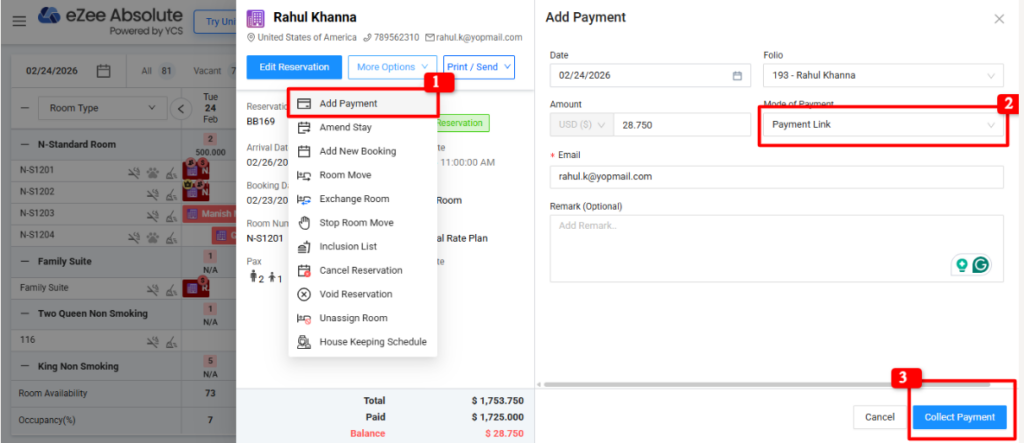
Open the reservation and go to More Options → Add Payment.
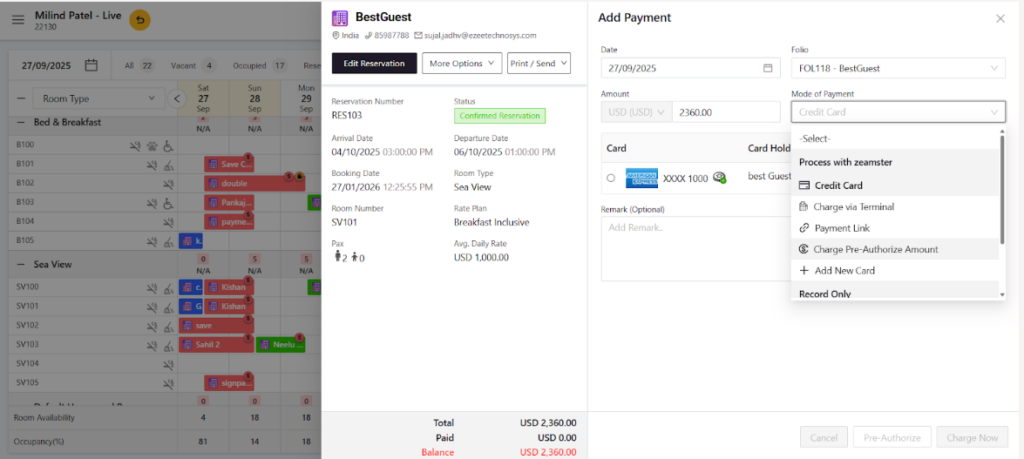
Enter the payment Amount. Under Mode of Payment, select Payment Link.
The guest’s email address will be auto-filled from the guest details that you have filled while booking. Verify it is correct, or you may edit it.
Click Collect Payment.
✅ What happens next: A secure payment link is sent to the guest’s email. The guest clicks the link and completes the payment online. Once paid, the payment is automatically reflected in the folio & Reservation Due amount.
Method 2: Charge via POS Terminal
Collecting payment at the front desk using a physical card machine (EMV terminal).
Option A: Charge Immediately
Scenario: A guest is checking out and wants to pay the full balance. You want to charge the confirmed amount directly to their card right now.
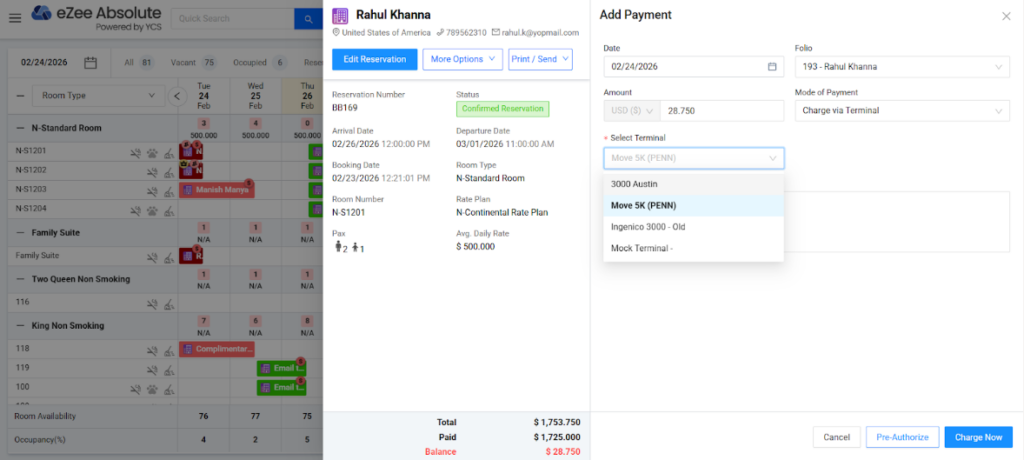
Open the reservation and go to More Options → Add Payment.
Enter the Amount to be charged.
Under Mode of Payment, select Charge via Terminal.
Select the connected POS terminal.
Click Charge Now.
The guest completes the payment by tapping, swiping, or inserting their card on the POS device.
✅ What happens next: The payment is processed immediately. The charged amount is posted to the guest’s folio, and the balance is updated.
Option B: Pre-Authorize (Block Funds)
Scenario: A guest is checking in, and you want to hold a security deposit on their card without actually charging them yet. You will charge the final amount at checkout.
Open the reservation and go to More Options → Add Payment
Enter the Amount you want to hold (e.g., security deposit).
Under Mode of Payment, select Charge via Terminal.
Choose the connected POS terminal.
Click Pre-Authorize.
The guest taps or swipes on the POS device. The amount is blocked on their card but not charged.
✅ What happens next: The specified amount is temporarily held on the guest’s card. No actual charge is made at this point. At checkout, you can capture this pre-authorized amount as the final charge.
Method 3: Charge a Credit Card
Best for: Manually entering card details and saving the card to the reservation for charging or pre-authorization.
Scenario: A guest provides their credit card details over the phone or at the front desk. You want to add the card to the system and charge it directly.
Step 1 Add the Card
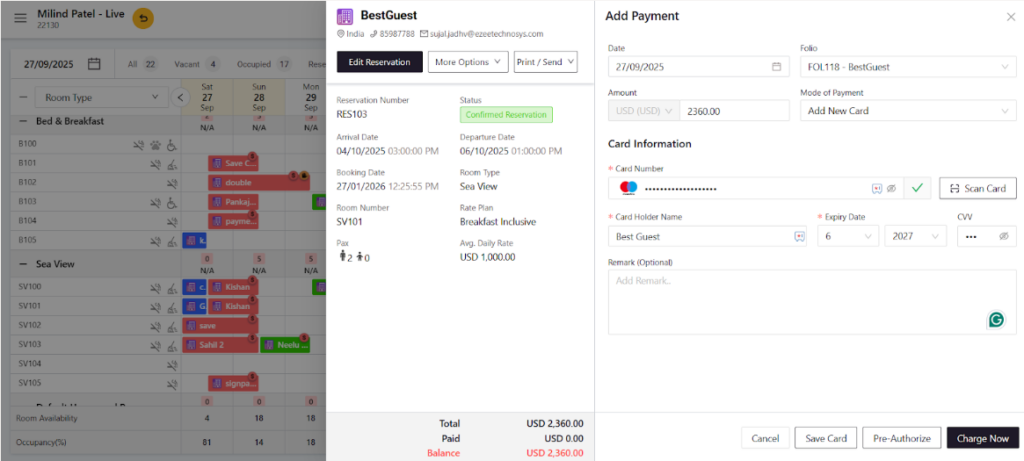
Open the reservation and go to More Options → Add Payment.
Under Mode of Payment, select Add New Card.
Click Add New Card.
Enter the card details: Card Number, Cardholder Name, Expiry Date, and CVV.
Click Save Card to store the card.
Step 2: Select and Charge the Card
The saved card now appears in the card list. Select it.
Enter the Amount.
Choose one of the available actions: Charge Now immediately charges the entered amount to the card. Pre-Authorize blocks the amount on the card without charging it.
✅ What happens next: If you selected Charge Now, the payment is posted to the folio immediately. If you selected Pre-Authorize, the funds are held on the card and can be captured later at checkout.
Capture a Pre-Authorization
Scenario: You pre-authorized an amount at check-in. Now the guest is checking out and you want to finalize and charge the held amount.
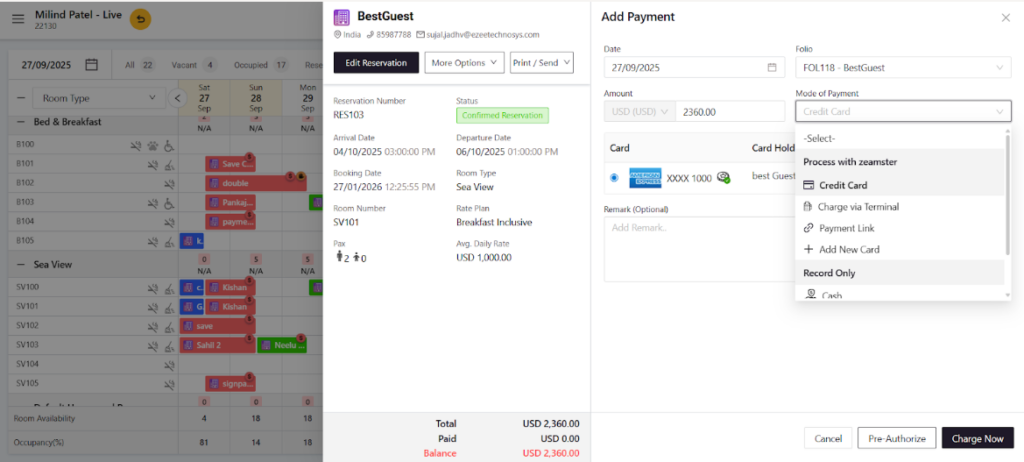
Open the reservation and go to More Options → Add Payment.
Under Mode of Payment, select Credit Card.
Choose the saved card from the list.
From the payment options dropdown, select Charge Pre-Authorized Amount.
✅ What happens next: The previously blocked amount is captured and charged to the guest’s card. No need to re-enter card details.
Part B: Record Only (No Gateway Required)
About Record Only PaymentsUse these methods when the payment has already been collected outside the system for example, cash collected at the front desk, a bank transfer received, or a corporate billing arrangement. No payment gateway is required. These are bookkeeping entries that update your folio balance and reports.
Method 1: Record a Cash Payment
Best for: Logging a cash payment that was collected at the front desk or in person.
Scenario: A guest paid the full amount in cash at the front desk. You need to record this in the system for accounting purposes.
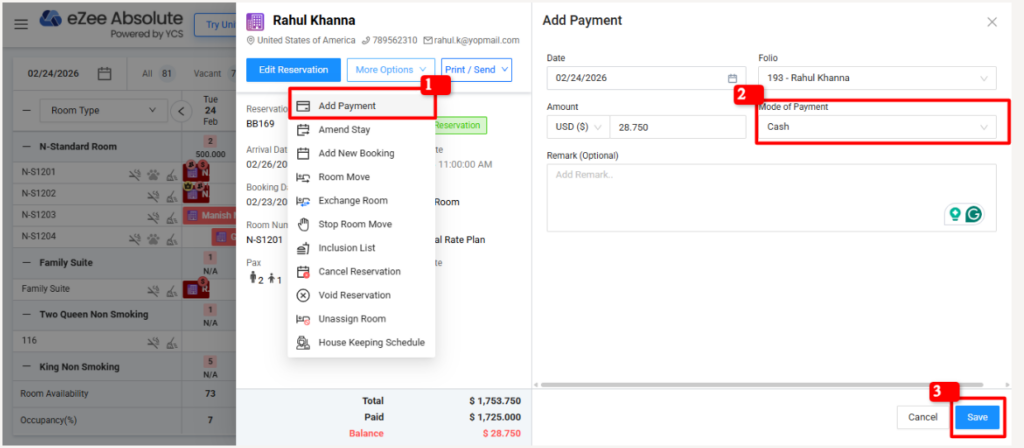
Open the reservation and go to More Options → Add Payment.
Enter the payment Amount.
Under Mode of Payment, select Cash (under the Record Only section).
Add a Remark if needed (e.g., “Cash collected at front desk”).
Click Save.
✅ What happens next: The cash payment is recorded in the system and the folio balance is updated. No payment gateway is involved this is a bookkeeping entry only.
Method 2: Record a Business Source / Corporate Payment
Best for: Corporate bookings or travel agent accounts where payment is settled later based on a billing agreement on the account of the business source.
Scenario: A guest is staying under a corporate contract. The company will settle the invoice later. You need to mark the payment as owed by the business, not the guest.
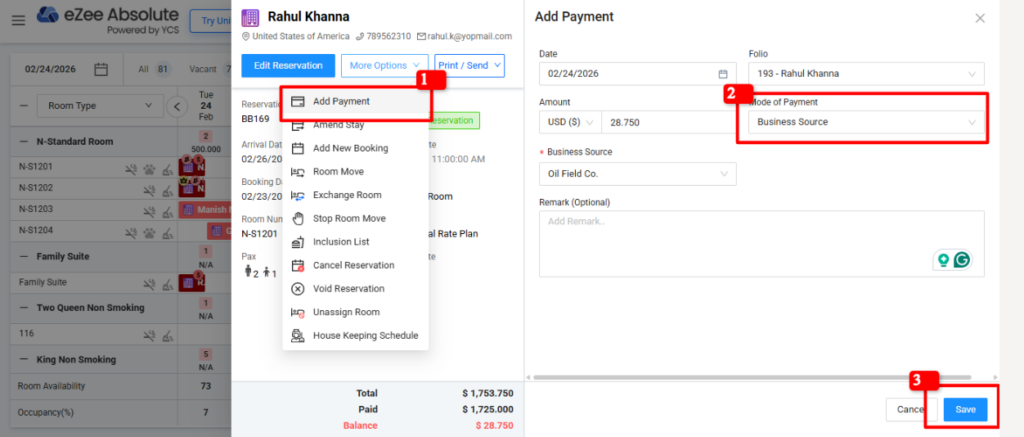
Open the reservation and go to More Options → Add Payment
Under Mode of Payment, select Business Source (under the Record Only section).
Choose the company or travel agent name from the list.
Enter the amount to be credited to that account.
Add a Remark if needed (e.g., “Corporate billing Invoice #1234”).
Click Save.
✅ What happens next: The amount is recorded as owed by the business source. It will appear in corporate billing reports and can be settled when the company pays their invoice.
Method 3: Record an Other / Unmapped Payment
Best for: Payments made via UPI, bank transfer, cheque, or any other method not listed separately.
Scenario: A guest paid via UPI (or a bank wire transfer, cheque, etc.) outside the system. You want to log this payment so the folio balance reflects the correct amount.
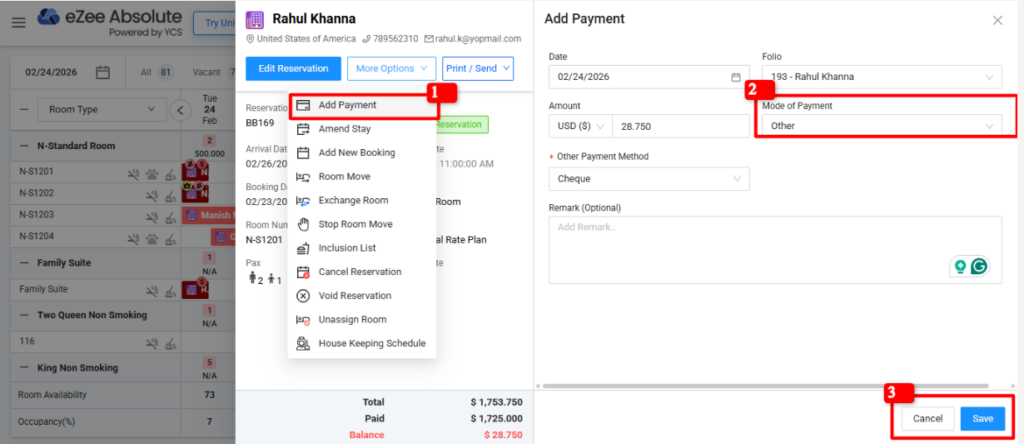
Open the reservation and go to More Options → Add Payment.
Under Mode of Payment, select Other (under the Record Only section).
Enter the payment Amount.
Optional: In the Remark field, note the payment type (e.g., “Paid via UPI Ref: UPIXXXX”).
Click Save.
✅ What happens next: The payment is logged in the system under a generic payment category. The folio balance is updated. Use the remark field to preserve a clear record of how the payment was made.
Group Bookings: How to Handle Payments
Payments for group bookings work slightly differently depending on when you are adding the payment and whether it covers the whole group or a specific room.
During Group Booking Creation
Scenario: You are creating a group reservation for a tour operator and want to collect a deposit for the entire group at the time of booking.
All payment methods are available, both gateway-based (Payment Link, POS Terminal, Credit Card) and Record Only (Cash, Business Source, Other).
Any payment made at this stage is posted to the Group Owner’s Folio.
The full group amount can be collected in a single payment entry.
After a Group Booking Is Created
Scenario: The group booking already exists. You now want to add a payment either for the whole group or for one specific room in the group.
For the Entire Group:
Only Record Only payment methods are available at the group level (Cash, Business Source, Other).
Payment Links can still be sent as usual they are used to send previously.
Integrated gateway charging (POS Terminal, Credit Card) is not available at the group level after creation.
For an Individual Room Within the Group:
Open the individual room’s reservation within the group.
All payment methods are available both gateway and Record Only.