
Exchange Rate
Update
Handling payments in foreign currencies has always required a bit of mental gymnastics — what is the exchange rate right now? How much does $50 translate to in Rupees? And if the rate changed between two payments on the same booking, which rate applies?
Every payment, in any currency, converted correctly, every single time.
This release removes all the guesswork. The system now shows the live exchange rate and the converted amount directly on the payment screen — in real time, as you type. Every transaction stores the exact rate that was used, and your folios can be printed in the guest’s preferred currency at any time.
What’s New
Six key capabilities that make foreign currency payments effortless across your property.
See the exact rate and converted amount as you enter a payment — no switching tabs or calculating manually.
Each payment locks in the rate applied at that moment. Future rate changes do not alter past transactions.
Print the guest folio in Rupees, USD, THB, or any configured currency — the system converts everything correctly.
Choose per currency: let the system fetch live market rates automatically, or set and control the rate yourself.
Reservation Card, Add Reservation, Cashiering Centre, Expense Vouchers — the conversion bar appears everywhere you take a payment.
Each new payment uses the latest configured rate. If the rate has changed since the last payment, the system picks it up automatically.
How Each Feature Works
A closer look at what is new and why it matters for your daily operations.
Live Exchange Rate Conversion Bar
The moment you switch the payment currency to a foreign option — say, USD instead of Rupees — a conversion bar appears right below the amount field. It shows two things instantly: the equivalent of the amount you typed converted to your property’s base currency, and the current exchange rate being applied. As you type more or change the amount, the conversion updates in real time. Switch back to your base currency and the bar disappears — no clutter.
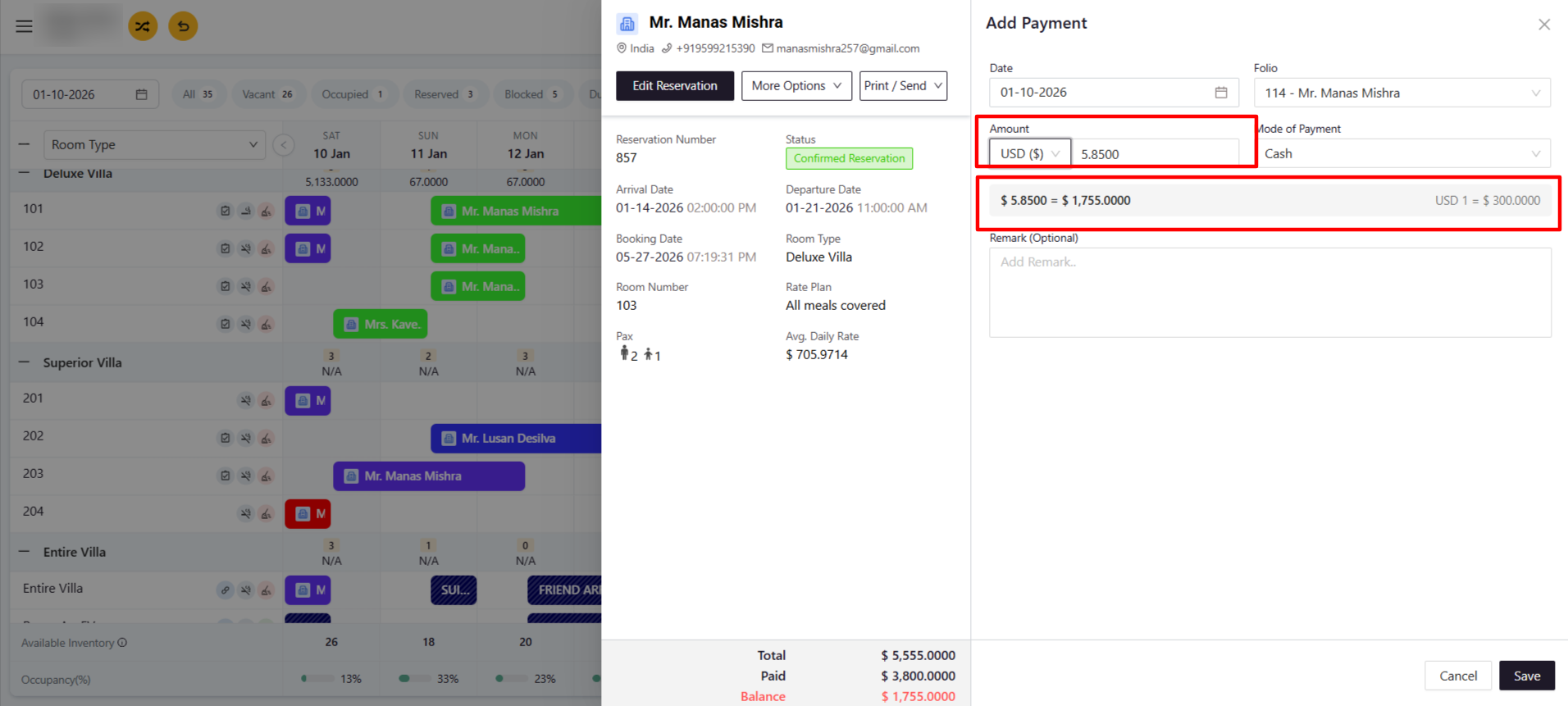
The conversion bar is available on:
- Reservation Card > Folio Operations > Add Payment
- Insert Transaction and Add Reservation > Add Payment
- Simplified Reservation > Add Payment
- Cashiering Centre > Incidental Voucher and Expense Voucher
- Cashiering Centre > New Payment
Each Payment Remembers Its Own Rate
Exchange rates fluctuate. A guest might make a partial payment today and settle the balance three days later — by which time the rate may have changed. The system now handles this cleanly. Past transactions are never touched. Only new payments pick up the latest rate. This gives you a clean, dispute-proof audit trail for every booking.
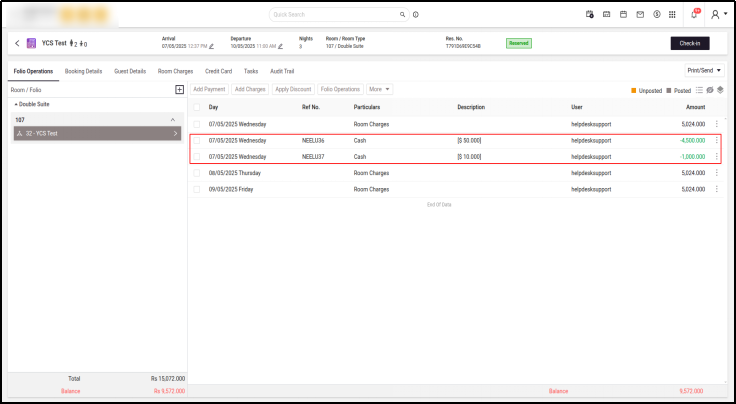
Guest pays $50 today
Rate at that moment: 1 USD = Rs 90
Folio records: -Rs 4,500
Rate stored: Rs 90 per USD
Guest pays $10 later
Rate has updated: 1 USD = Rs 100
Folio records: -Rs 1,000
Each transaction is independently accurate
Print Folios in Any Currency
When it is time to hand over the final bill, guests can receive their folio in whatever currency makes sense for them. At the Print Invoice screen, simply select the currency from the dropdown — Rupees, USD, THB, NZD, BDT — and the system converts every line item and payment automatically.
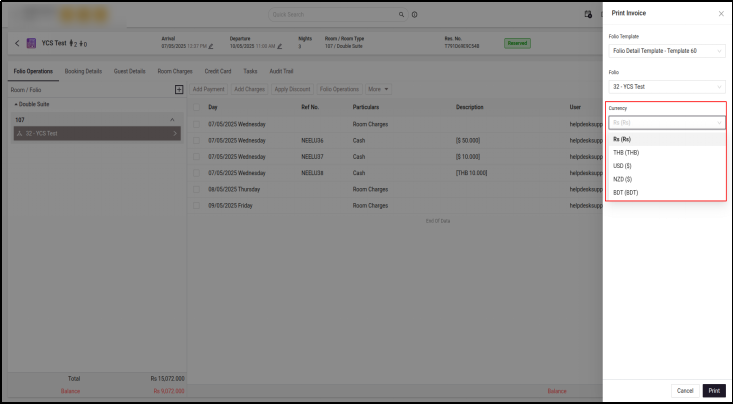
How the folio conversion works:
- Room charges are converted using the current exchange rate for the selected currency
- Each payment line reflects the rate that was applied when that payment was taken
- The grand total, balance, and currency label all update to match
- The folio footer clearly states which currency it is printed in
Auto Update vs Manual Rate Control
Not every currency needs the same update approach. Some properties want live market rates pulled in automatically; others prefer to lock a rate and control when it changes. Now you can decide this per currency.
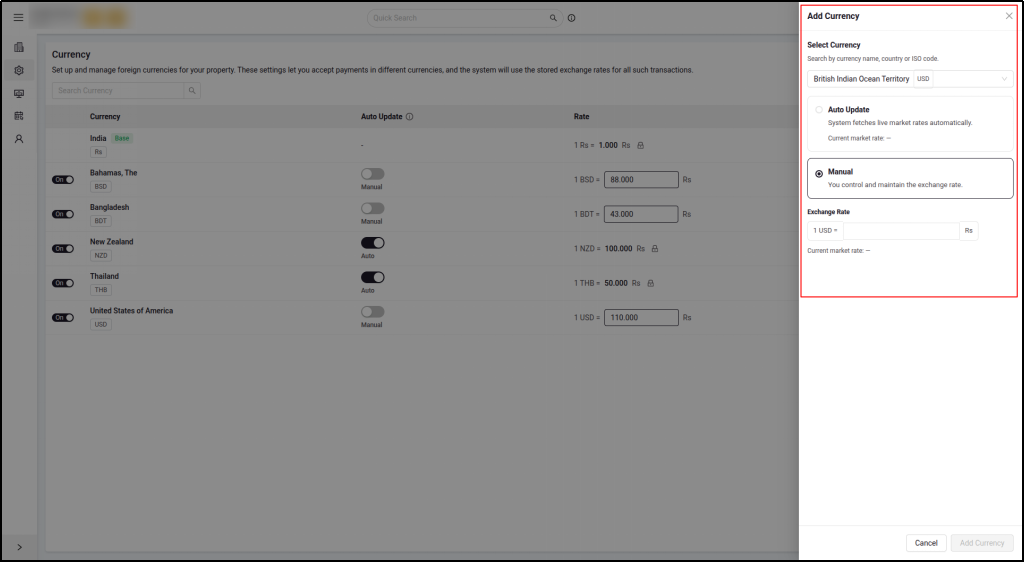
The system fetches the latest market rate automatically — twice a day. You do not need to touch it. Ideal for currencies that fluctuate daily.
You set the rate and it stays exactly as entered. Perfect for properties that fix rates monthly or use an agreed exchange rate with travel partners.
Paying in Multiple Currencies on the Same Booking
A guest can pay in USD for one transaction, then in Thai Baht for the next — all on the same folio. The system handles each transaction independently, applying the correct rate for each currency at the time of payment.
Example: $50 USD taken at Rs 90 per USD (‑Rs 4,500) + $10 USD at Rs 100 per USD (‑Rs 1,000) + THB 10 at Rs 50 per THB (‑Rs 500) — all reflected correctly on the folio.
Where Does This Appear?
The live conversion bar and per-transaction rate storage work across all payment entry points in the system.
| Screen | What You See |
|---|---|
| Reservation Card > Folio Operations > Add Payment | Conversion bar + rate reference below the amount field |
| Add Reservation / Simplified Reservation | Conversion bar in the payment step of the booking flow |
| Cashiering Centre > Add Payment | Conversion bar with session-currency reference |
| Expense Voucher / Incidental Invoice | Conversion bar in the payment row |
| Configuration > Currency | Auto/Manual toggle, inline rate field, Add Currency drawer |
Taking a Foreign Currency Payment — Step by Step
From opening the payment screen to saving the transaction, here is what happens at each step.
Open the Add Payment screen on any reservation.
In the Amount field, click the currency dropdown and select a foreign currency (e.g. USD).
A grey conversion bar appears: on the left, the converted base-currency amount updates as you type. On the right, the current exchange rate is shown (e.g. 1 USD = Rs 90).
Enter the amount and click Save. The system records the payment at the exact rate shown.
The folio updates with the payment deducted in base currency. The description shows the original foreign amount for reference (e.g. [$50.000]).
Who Benefits and How
This update improves the daily experience for three key groups across your property.
No more mental math while a guest is standing at the counter. The rate and conversion are right there on screen. Faster checkouts, fewer mistakes, happier guests.
Every transaction has an exact rate recorded against it. Reconciliation becomes straightforward because you always know which rate applied to which payment.
Properties in Maldives, Sri Lanka, Thailand, and other multi-currency markets can now handle guest billing with confidence — in the guest’s own currency.
A Few Things Worth Keeping in Mind
Review these points so your team is set up for smooth operation from day one.
- Exchange rates set under Configuration > Currency > Exchange Rate are what the system uses. Keep them updated for accurate conversions.
- Auto Update currencies sync twice daily (around 1:00 AM and 1:00 PM GMT). Manual currencies stay at the rate you set until you change them.
- Past payments are never recalculated. Only new transactions pick up the current rate.
- City Ledger payments (DMT) are always in base currency and are not subject to exchange rate conversion.
- Folio printing in a foreign currency uses the rates stored at the time each transaction was made — so the printed folio is always historically accurate.
What This Means for Your Property
The Exchange Rate Update is designed to eliminate manual calculations, prevent billing disputes, and give every team member full confidence when handling foreign currency payments.