
Introducing
Secure Login
Sign in with confidence. Secure Login adds a second layer of protection to every account, verifying your username with a one time code, an authenticator app, or a passkey, so that only the right person can ever get in.
What is Secure Login?
Secure Login is a built in verification layer that sits on top of the regular sign in process. Instead of relying on a password alone, users verify their username with an extra factor such as a one time code sent by SMS, WhatsApp or email, a code from an authenticator app, or a passkey tied to their own device. Once set up, everyday sign in stays quick, while every account stays protected even if a password is ever guessed or leaked.
Key Benefits for Your Team
Whether your staff sign in from the front desk, a back office laptop, or a personal phone, Secure Login is designed to keep access simple for the right people and firmly closed to everyone else.
A fresh 6 digit code by SMS, WhatsApp, email, or an authenticator app.
Sign in with a fingerprint, face, or device PIN. No code to type or wait for.
Mark a device trusted for 30 days and skip repeated verification on it.
Skip the password entirely and sign in with a one time code instead.
Manage methods, contact details, passwords, and devices in one place.
A timestamped log of logins and device activity, so nothing goes unnoticed.
The Available Verification Methods
Signing in always begins with a password. Secure Login simply asks to verify your username when it matters most. Any combination of the methods below can be set up, and having more than one means there is always a backup way to sign in.
| Method | How it works |
|---|---|
| Passkey | Sign in with a device fingerprint, face, or PIN. No code to type. Tied to one specific device. |
| Authenticator App | An app such as Google Authenticator generates a fresh 6 digit code every 30 seconds. Works offline. |
| Phone / WhatsApp OTP | A code is sent by SMS or WhatsApp to the registered mobile number. |
| Email OTP | A code is sent to the registered email address. No app required. |
| Password | Always the starting point. Every other method is an added layer on top, not a replacement. |
5 failed attempts triggers a 15 minute wait. The limit is account wide, so switching methods will not reset it.
The Secure Login Flow
Here is the everyday journey at a glance. Most of the setup happens only once, and after that, everyday sign in stays fast.
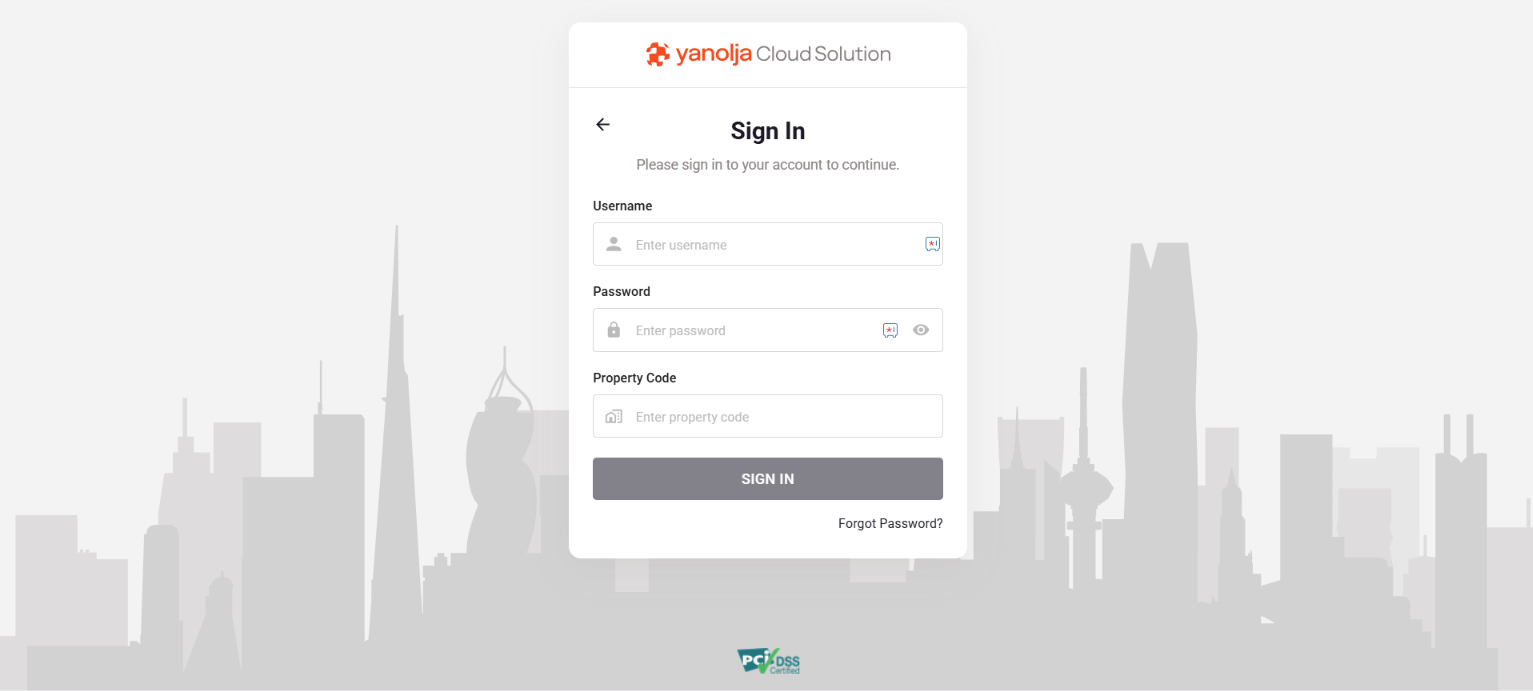
Enter the User ID, password, and property code at the sign in screen.
Choose a method, Authenticator App, WhatsApp OTP, SMS OTP, or Email OTP, and enter the one time code it sends to verify the username.
Once verified, full access is granted. No device is marked as trusted at this stage, that option only appears on a later sign in.
The sign in screen: User ID, password, and property code
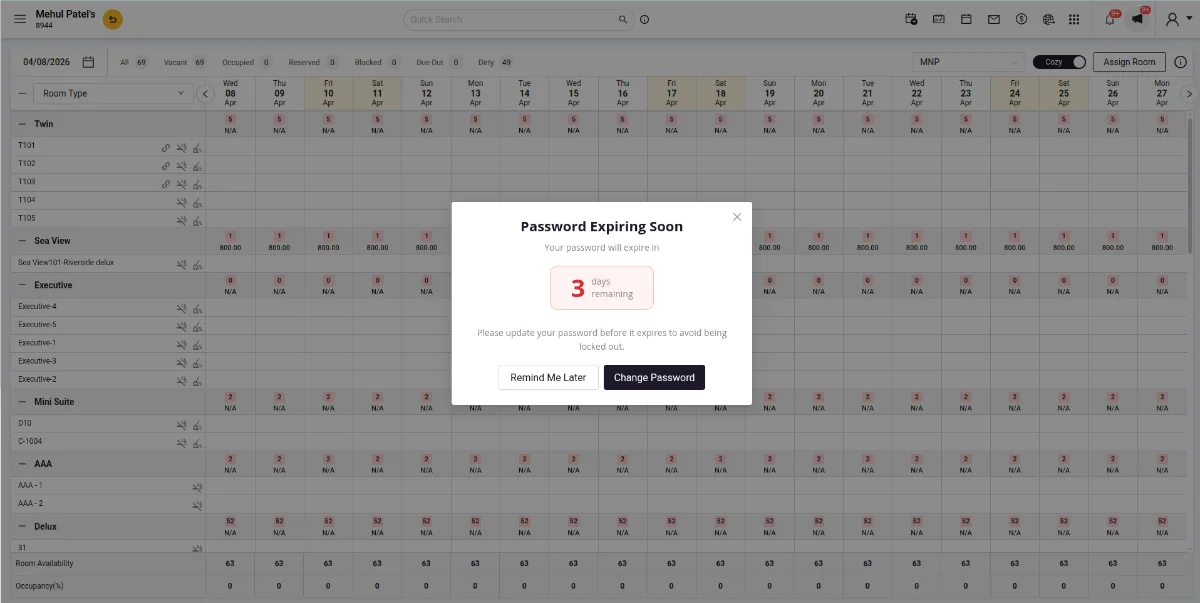
A reminder appears 7, 3, 2, and 1 day(s) before password expiry, with a one click Change Password option.
First Time, Verify Your Username
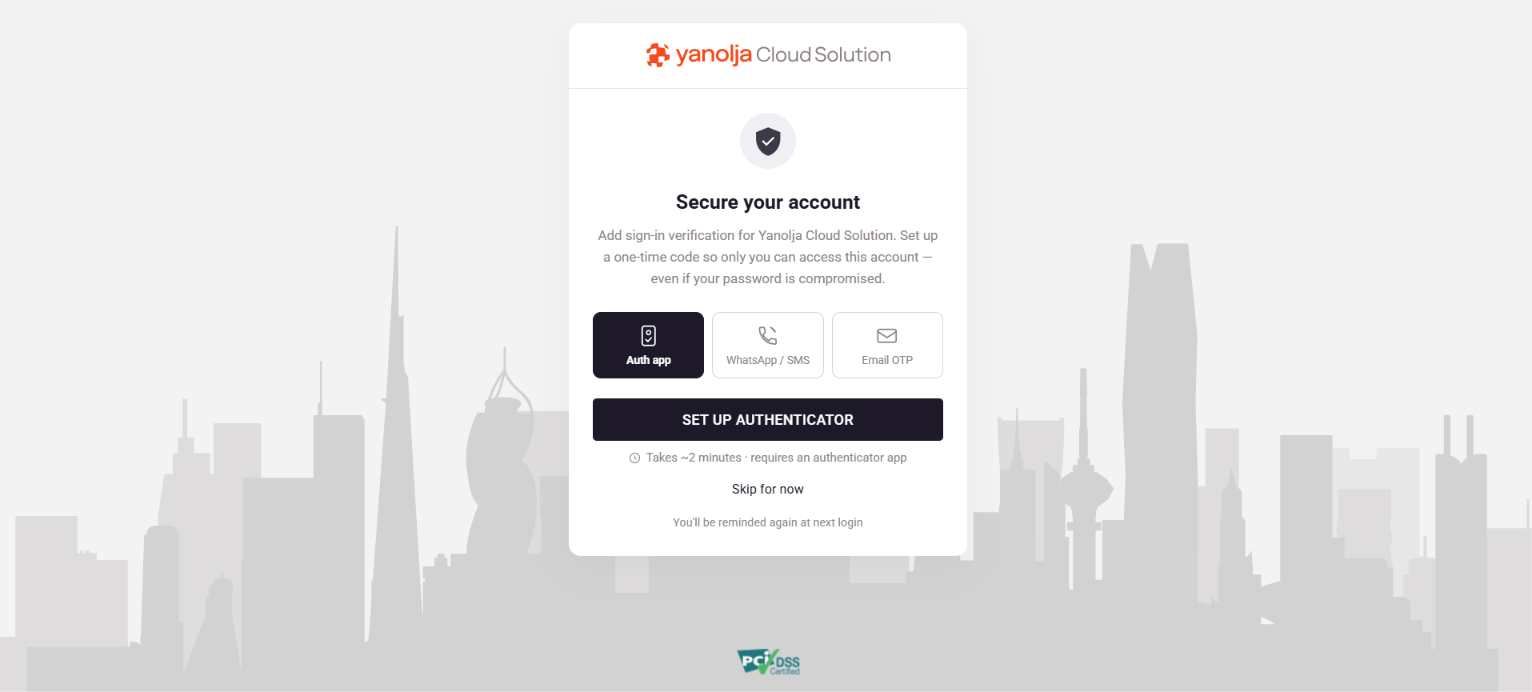
The first time anyone signs in after Secure Login is enabled on their account, their username is verified using one of the available methods: SMS OTP, WhatsApp OTP, Email OTP, or an Authenticator App. Verification is mandatory for every user, and setting up more than one method is strongly encouraged for the strongest protection and the easiest recovery.
The Secure Your Account screen shown right after first login
The verification process, step by step
The walkthrough below uses Phone (SMS or WhatsApp) as the example. Email OTP works the same way, and the Authenticator App is set up by scanning a QR code.
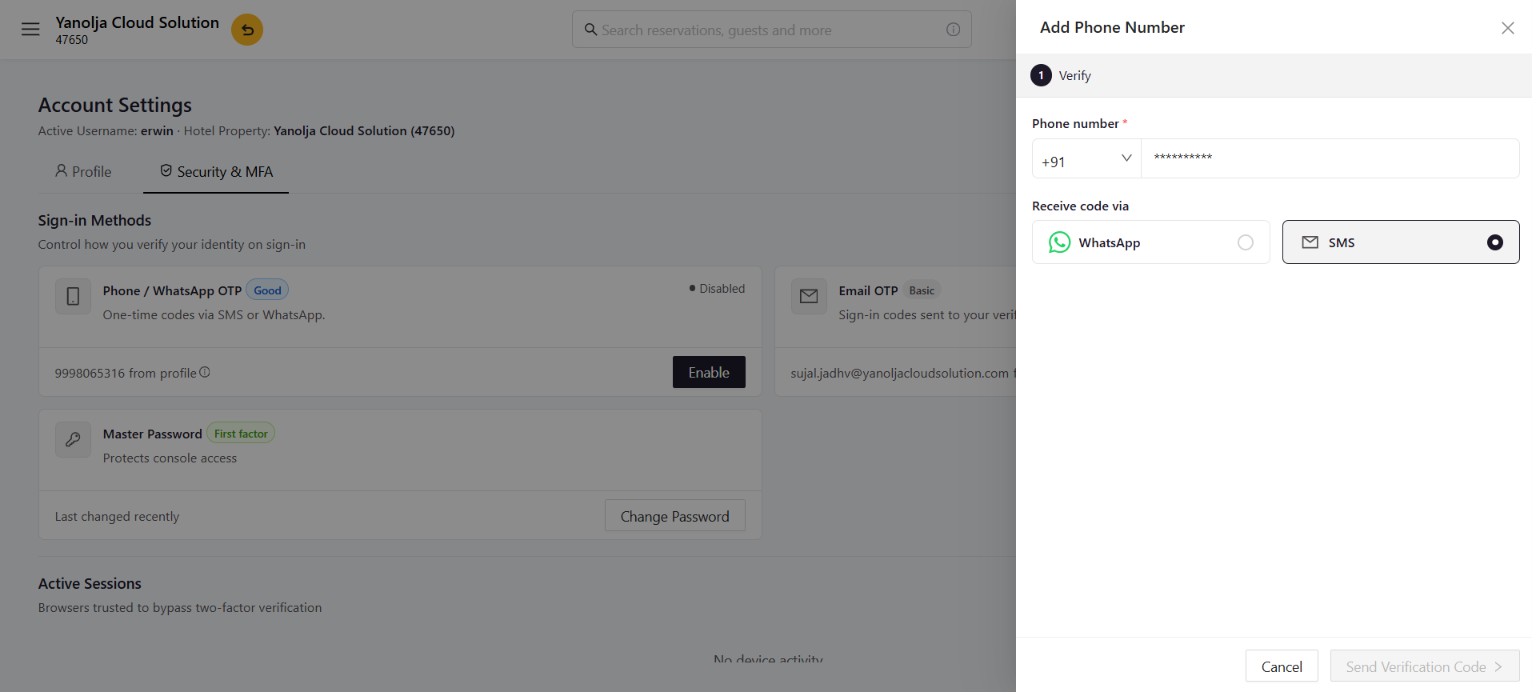
On the Secure Your Account screen, choose a method. The Account Settings page opens, showing the phone number or email address already on file.
Confirm the number, choose WhatsApp or SMS, and select Send Verification Code.
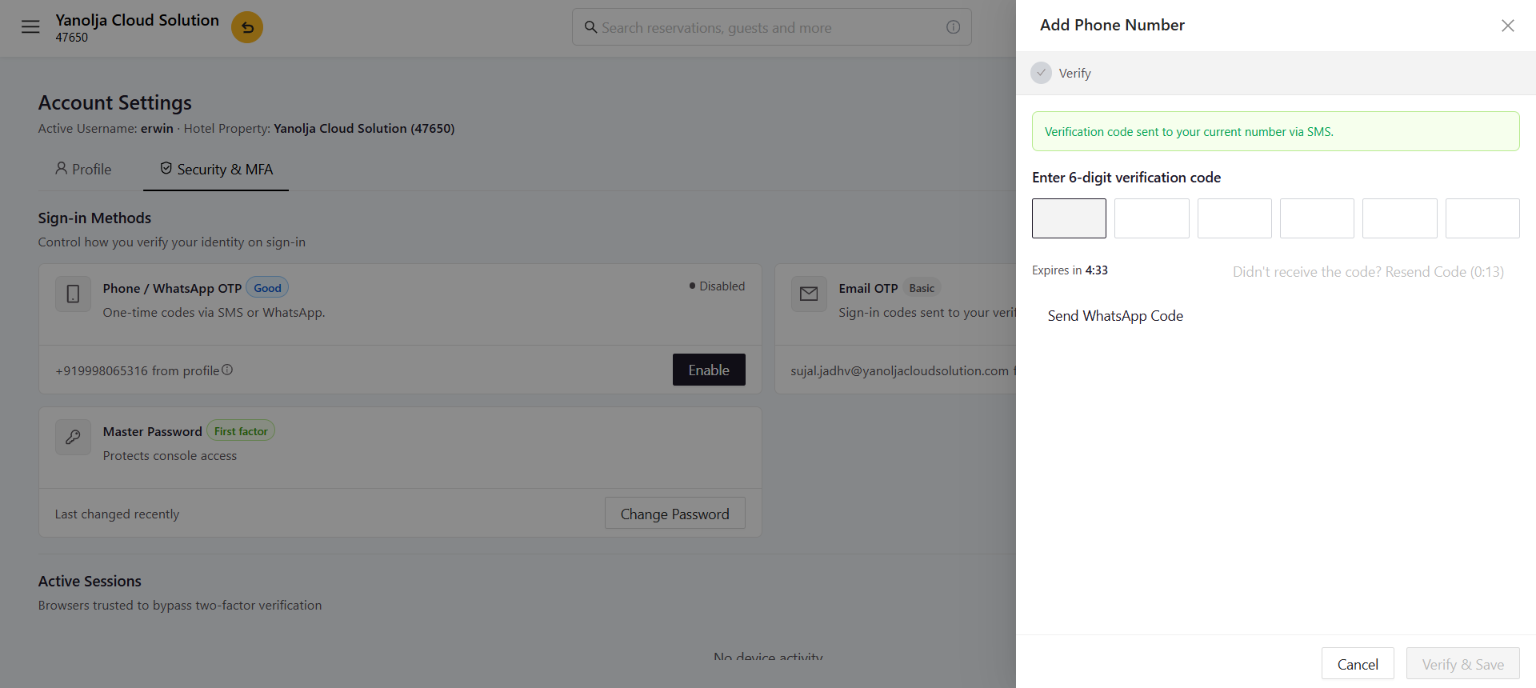
Enter the 6 digit code sent to you. A live countdown shows how long it stays valid, and it can be resent or switched to another channel if it does not arrive.
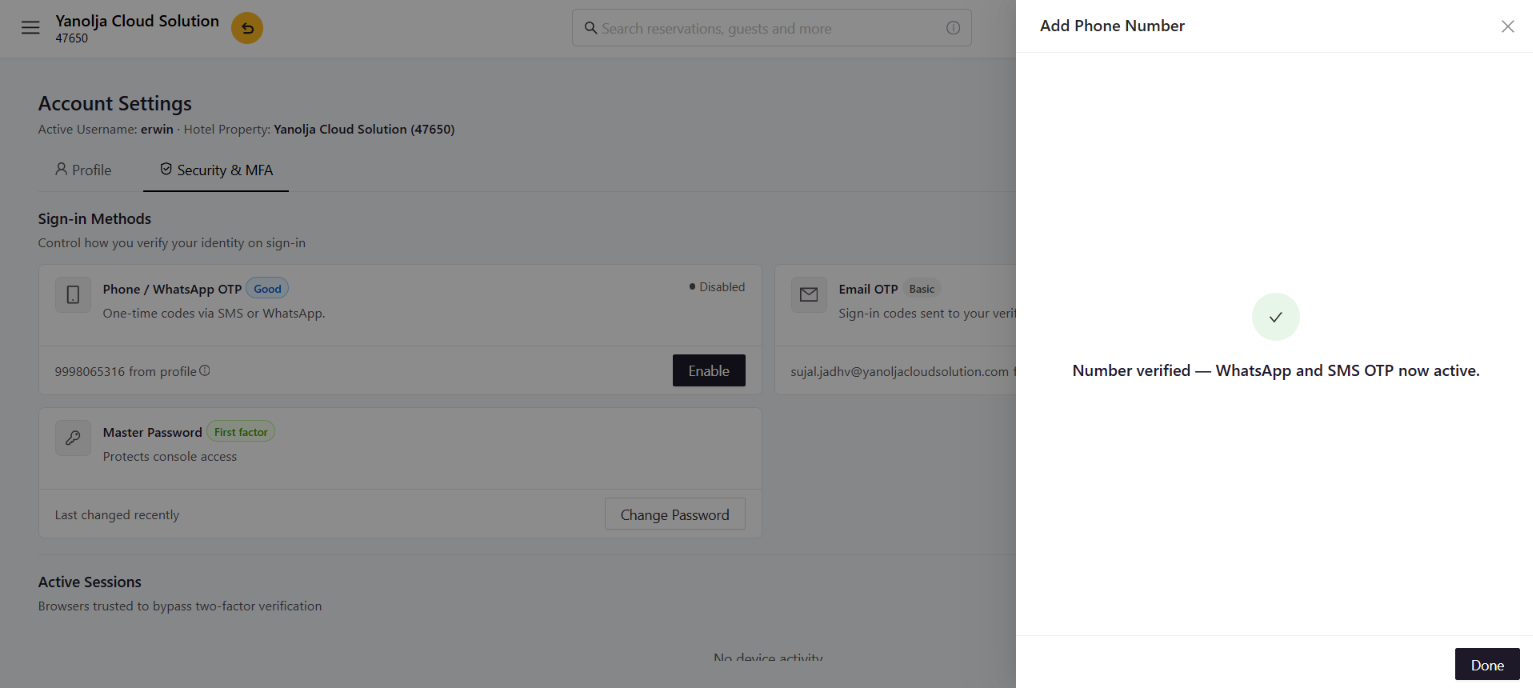
Once the code is verified, the method becomes active and sign in is complete.
Confirm the number and pick a channel
Enter the 6 digit code within the countdown
Verified: the method is now active
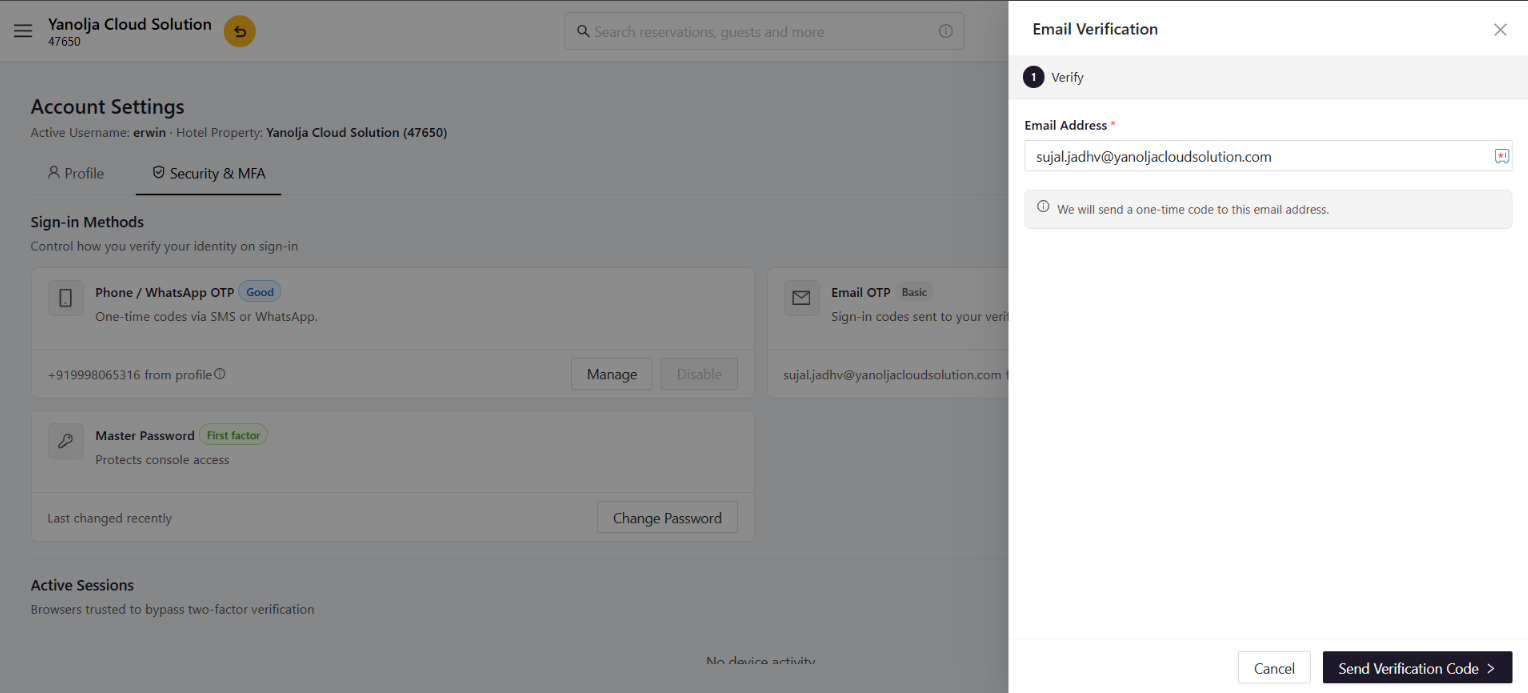
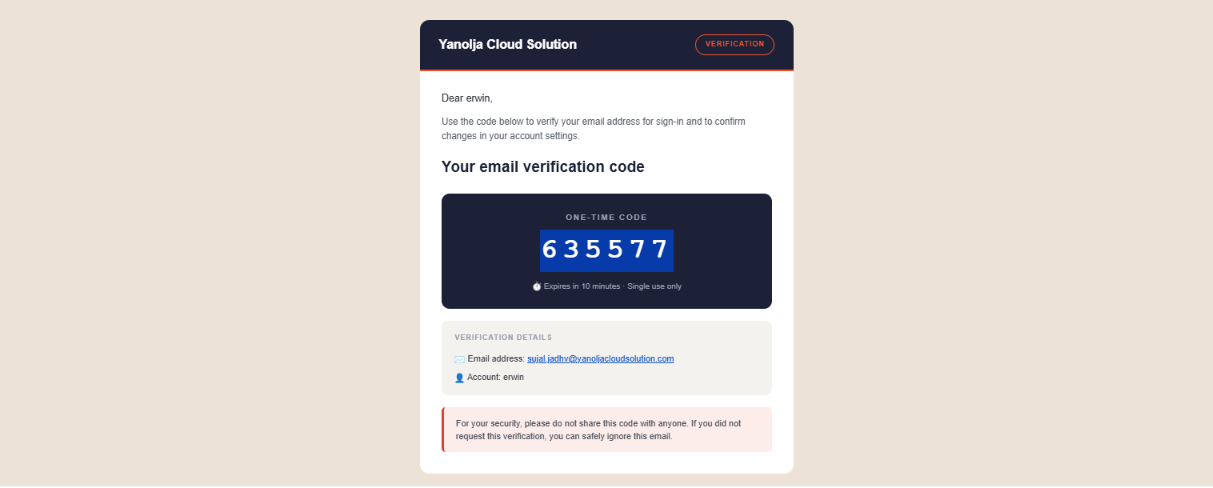
Email OTP follows exactly the same pattern. Confirm the address already on file and select Send Verification Code, open the email containing the 6 digit code, then enter it to activate the method.
Confirm the address and request a code
The code arrives by email
Verified: Email OTP is now active

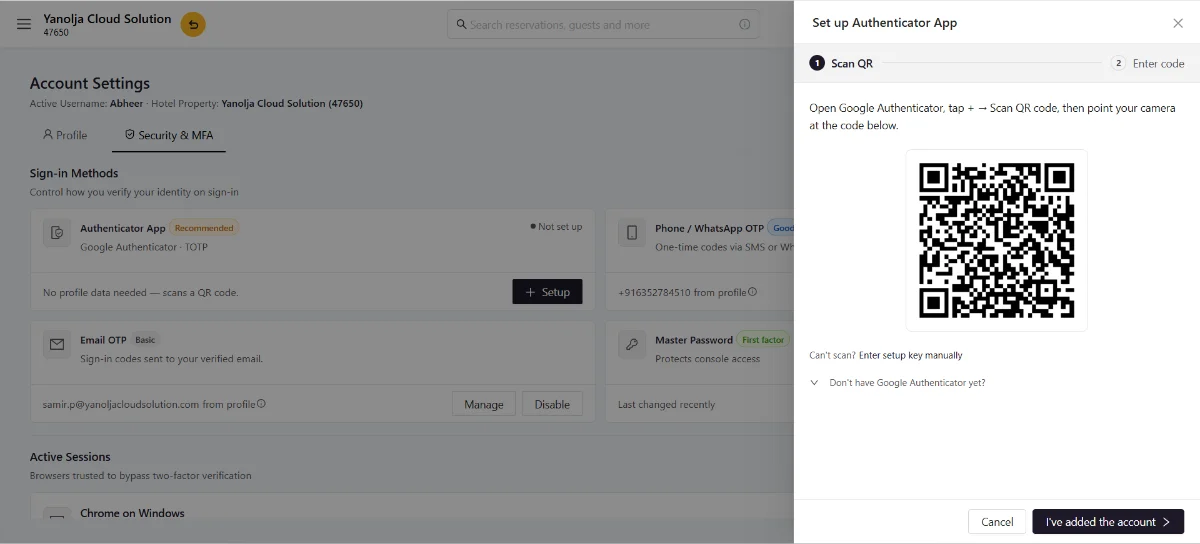
The Authenticator App needs no phone number or email. Select Setup on the Authenticator App card, scan the QR code with an app such as Google Authenticator, Authy, or Microsoft Authenticator, then enter the 6 digit code it generates to confirm. From then on the app produces a fresh code every 30 seconds, even offline.
Scan the QR code, then confirm with a generated code
Trusted Device
Trusting a device is never offered during the first sign in or method setup. It only appears the next time sign in happens, once at least one method is already active and verified.
With at least one verification method already set up, sign in as usual on a later occasion.
A one time code is sent to any previously verified source, such as the Authenticator App, WhatsApp, SMS, or Email.
A Trust This Device for 30 Days checkbox now appears next to the code entry field. Ticking it before verifying marks that browser as trusted for the next 30 days, allowing sign in with just an OTP, no password required.
The OTP entry screen, where the Trust This Device option appears
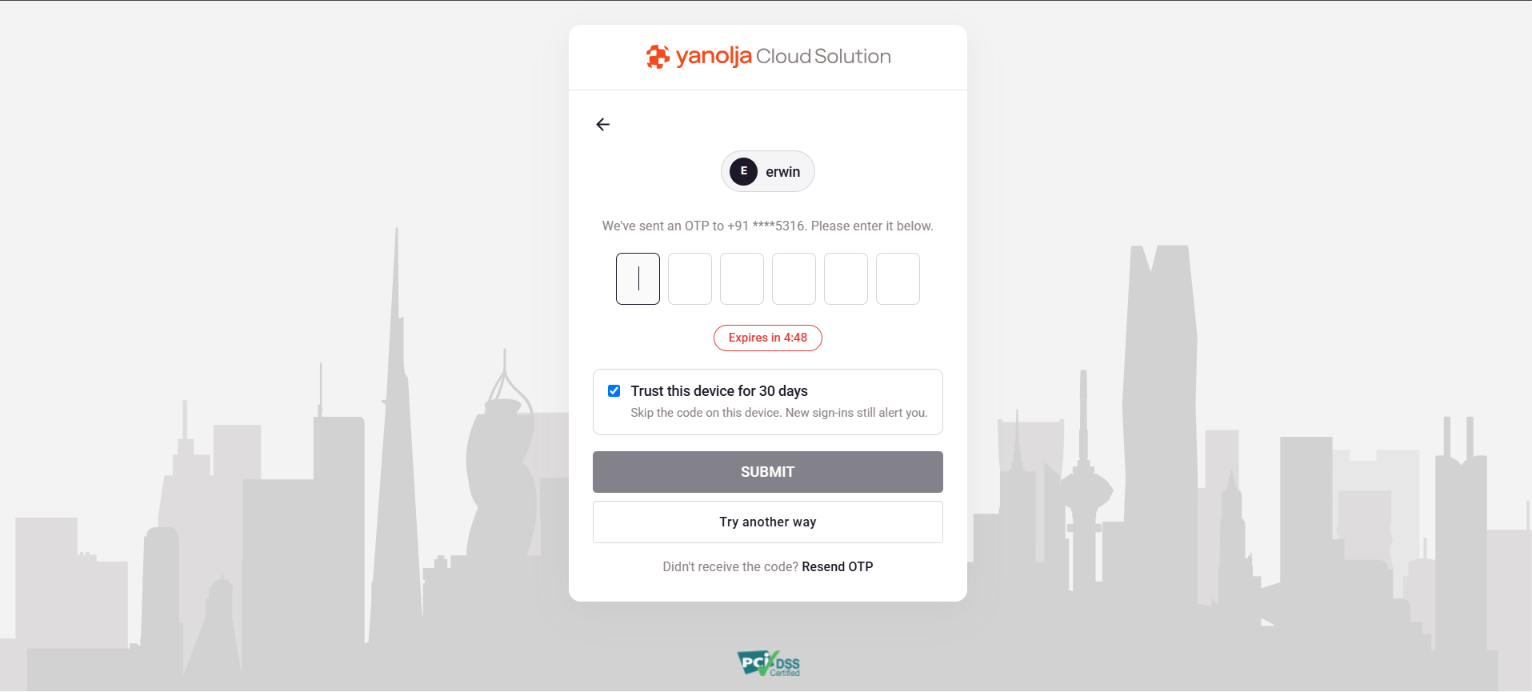
Trust applies to one browser on one device only. Never trust shared or public computers.
After the 30 days
Once the trusted period ends, the next sign in simply asks to verify again, and trust can be renewed in the same step. Sign in with the usual credentials or Login with OTP, enter the code from any verified source, tick Trust This Device again, and the device is trusted for another 30 days. If the box is left unticked, verification is simply required again next time. Nothing is lost, and the account stays protected either way.
Login with OTP
Login with OTP allows sign in using a one time code instead of typing a password. On a trusted device, this becomes the fast everyday way to sign in. This option is available only after at least one verification method has been set up and verified.
Choose this option on the sign in screen instead of entering a password.
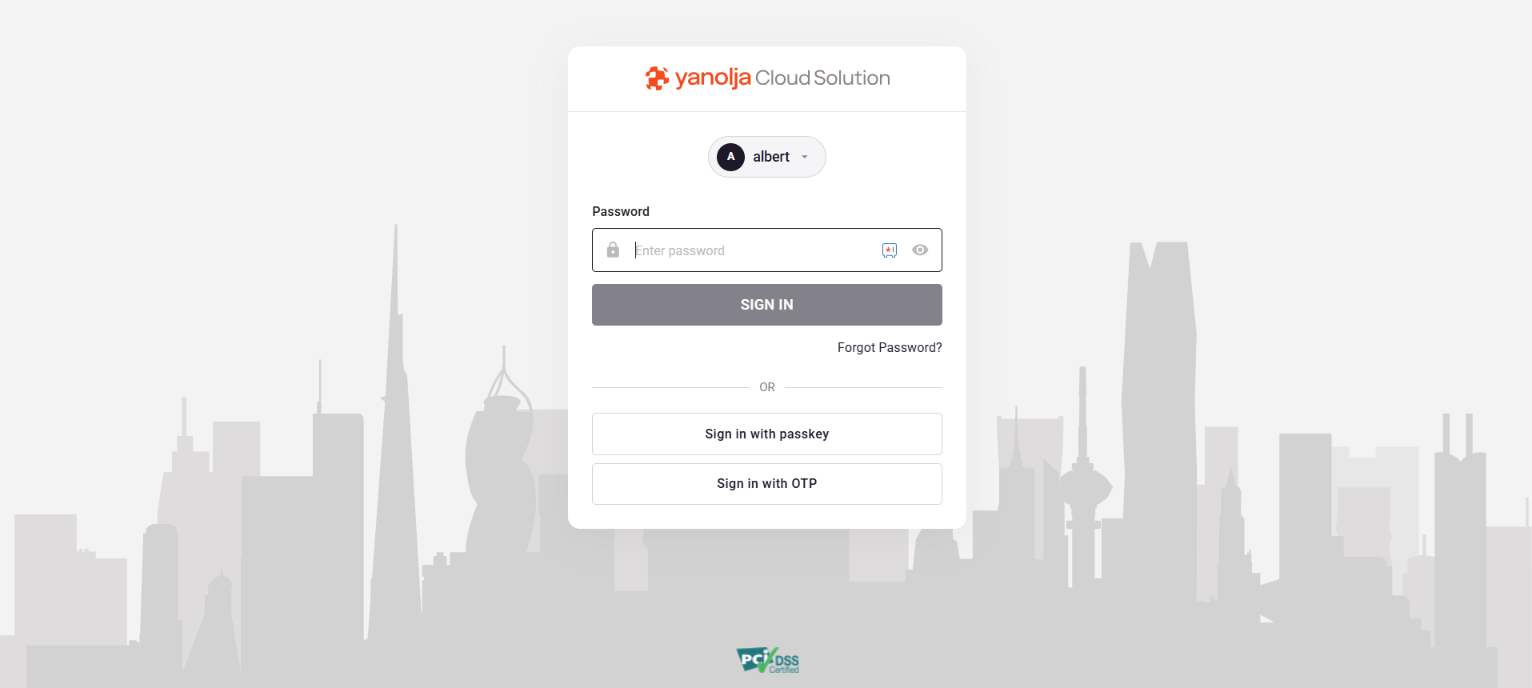
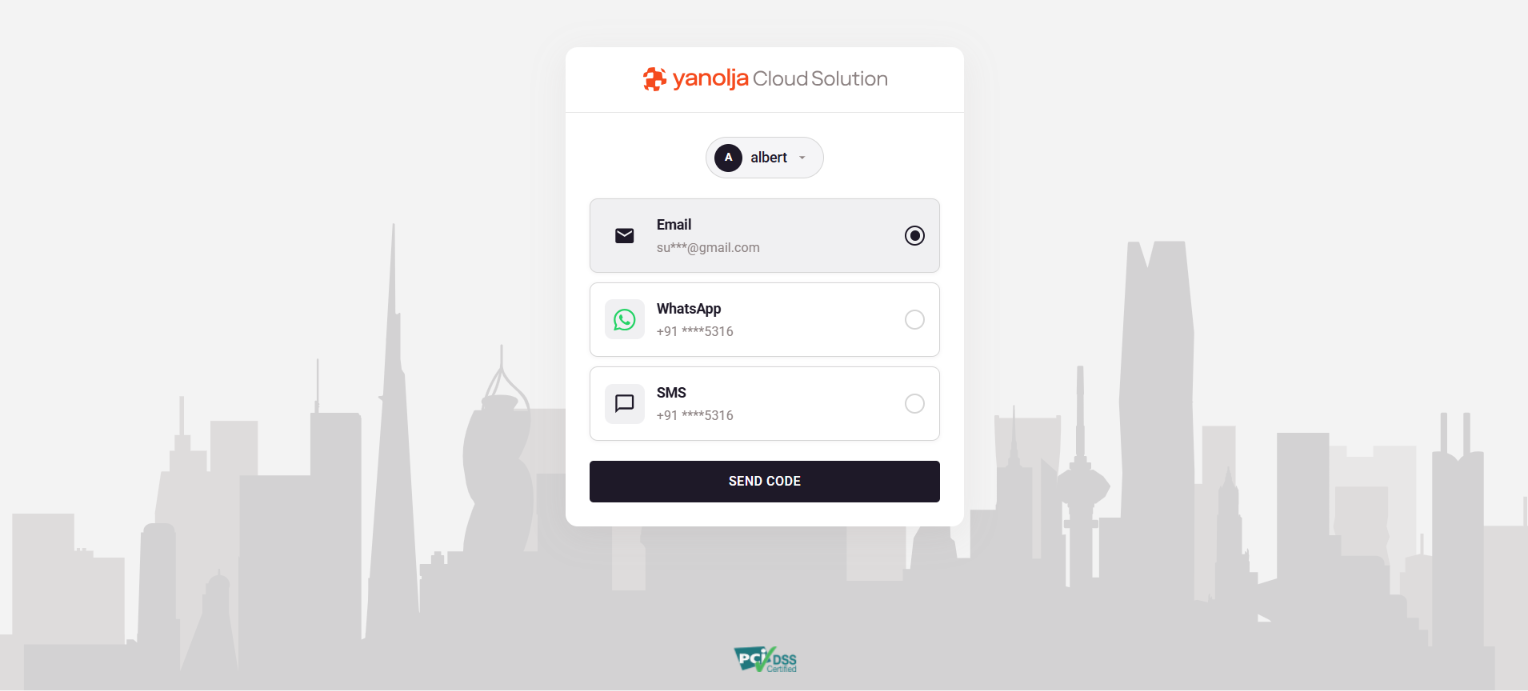
Every verified source is shown with a masked preview of the destination. Choose where to receive the code and select Send Code.
Enter the 6 digit code received. Once verified, sign in is complete, no password required.
The sign in screen offers Sign in with passkey and Sign in with OTP
Choose where to receive the code, then select Send Code
Passkeys
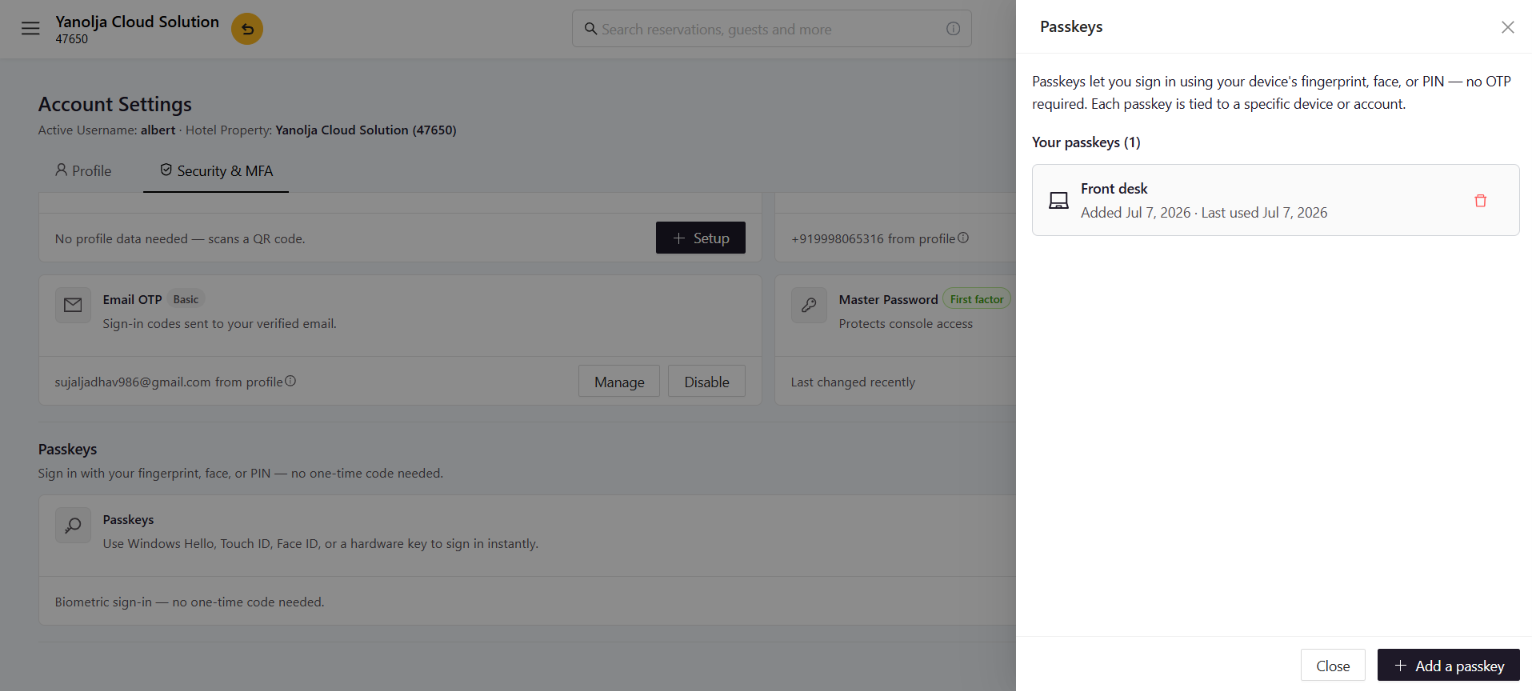
A passkey allows sign in with a device fingerprint, face, or PIN, with no one time code needed. Each passkey is tied to a specific device, for example a front desk computer. Once one is added, a Sign in with passkey button appears on the sign in screen.
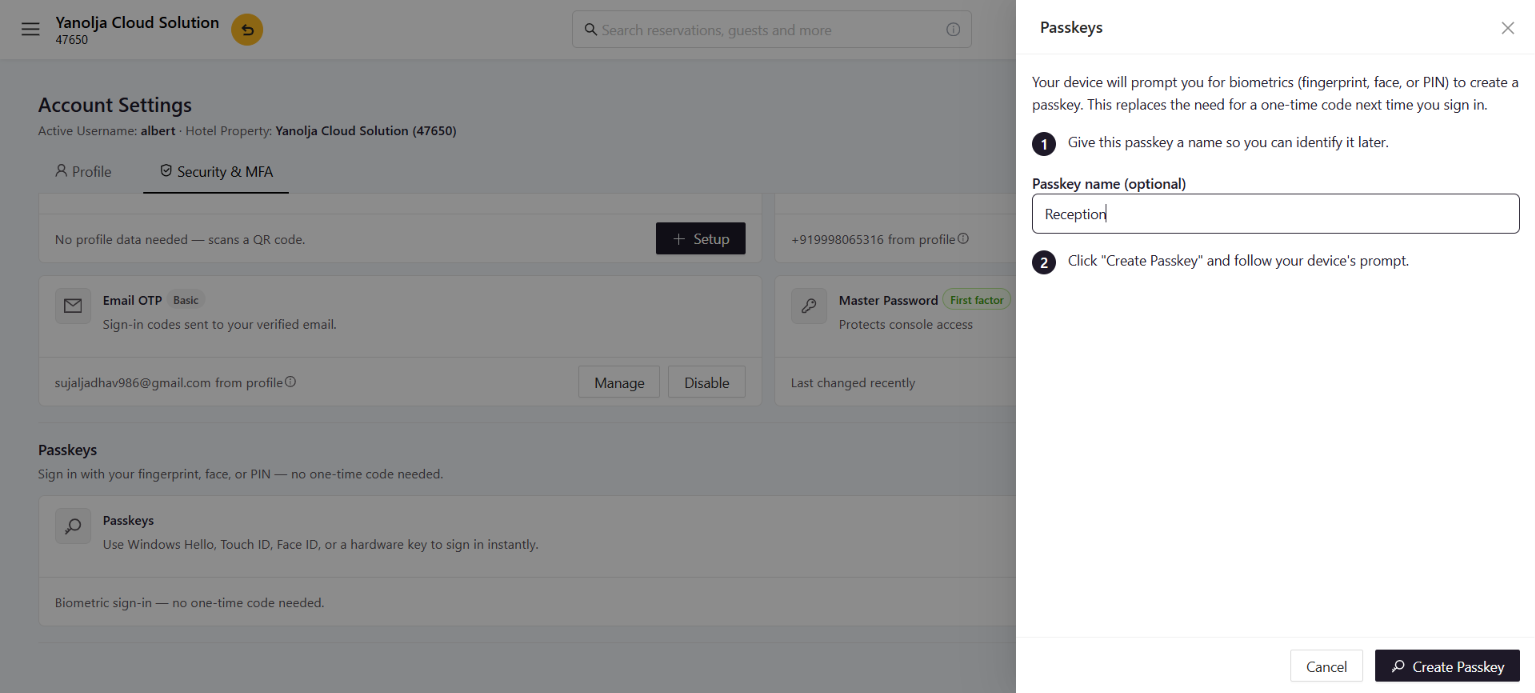
Setting Up a PasskeyFrom Account Settings, open Security and MFA, then Passkeys, and select Manage Passkeys. Select Add a Passkey, give it a name to recognise the device later (for example Reception or Front Desk), then select Create Passkey and follow the device prompt (Windows Hello, Touch ID, Face ID, or a hardware key). The passkey is saved and listed with the date it was added and last used.
The Passkeys panel: saved passkeys and the Add a Passkey button
On the sign in screen, select Sign in with passkey, then confirm with a fingerprint, face, or PIN. Sign in happens instantly, with no OTP required.
Naming a passkey before creating it
A passkey lives on one device. Keep at least one OTP method active as a backup.
Account Settings
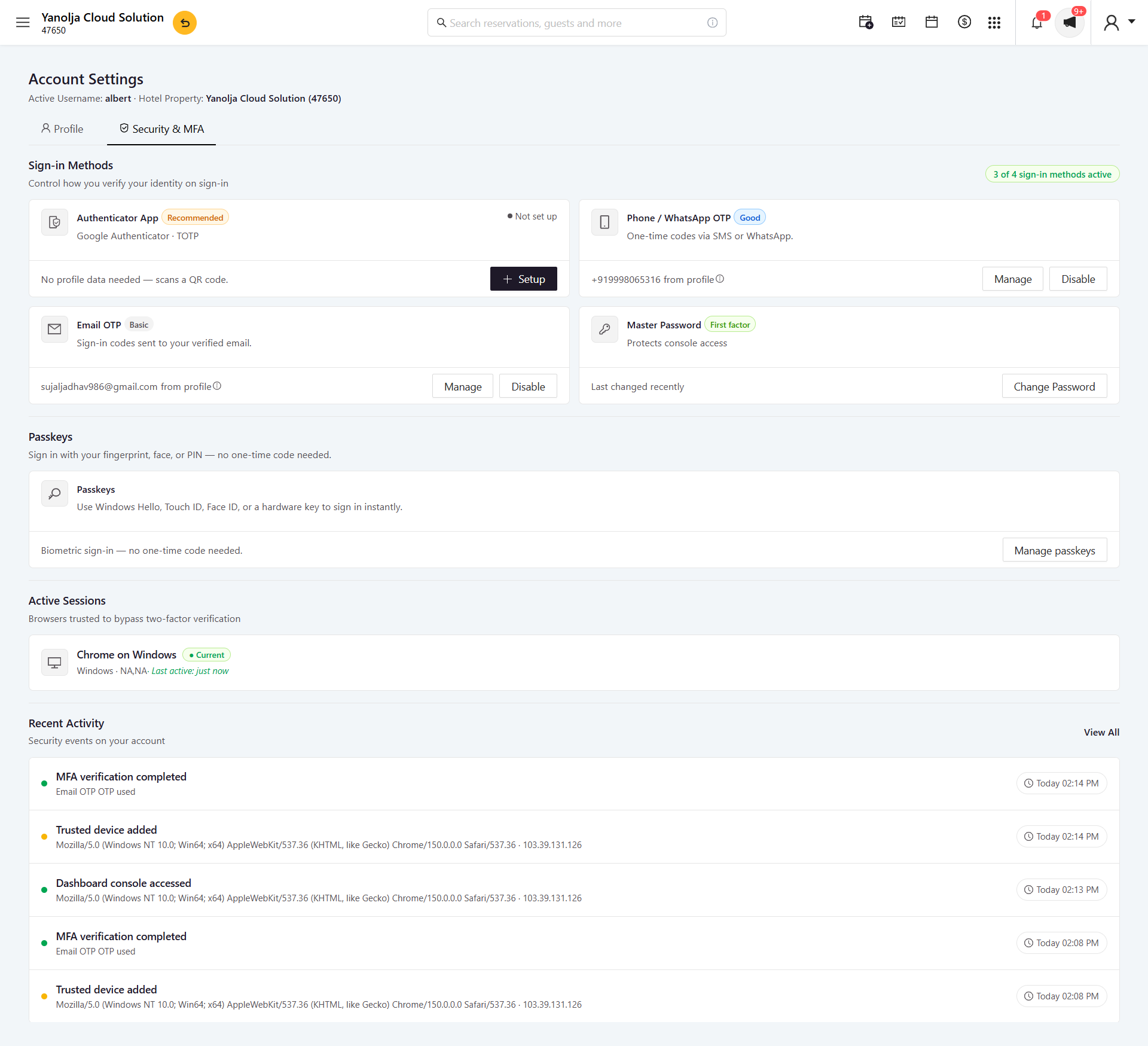
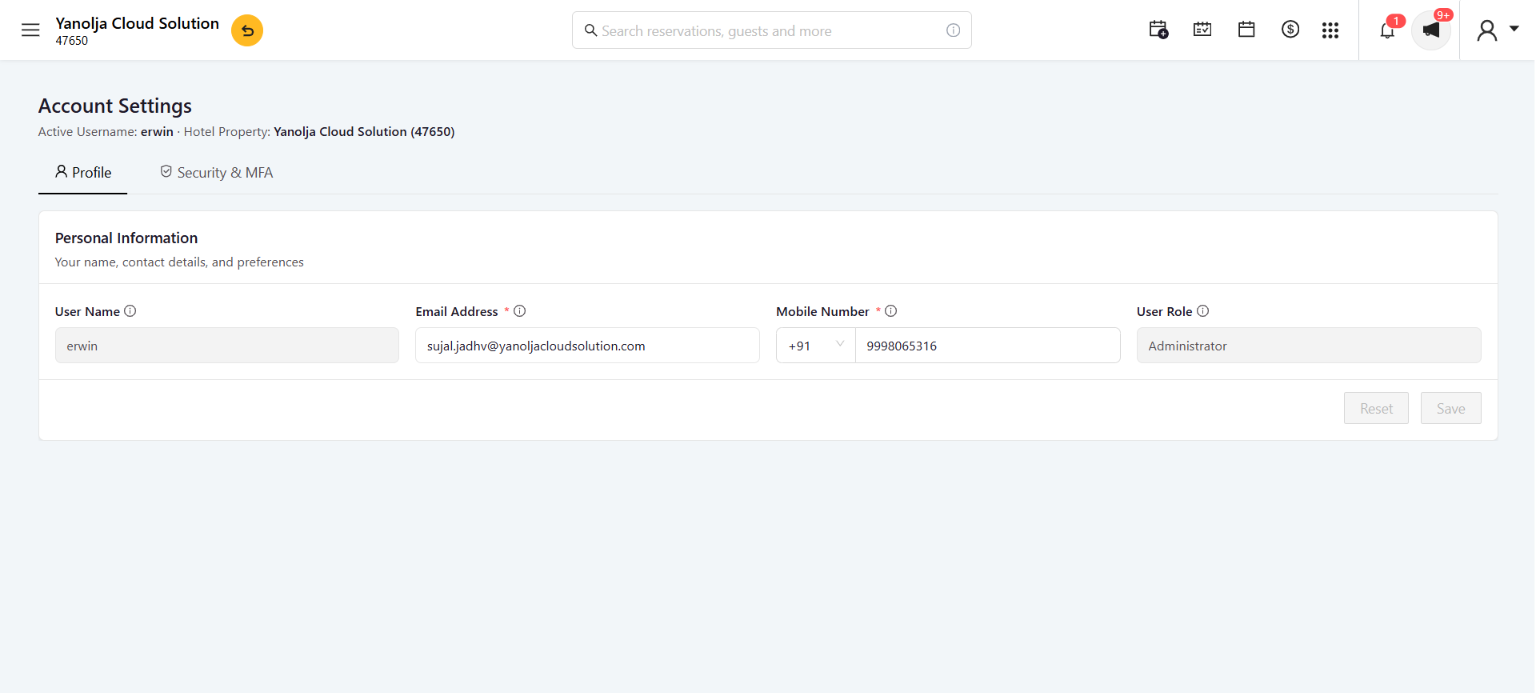
Account Settings is the security home base for every user. It has two tabs: Profile, holding name, email address, mobile number, and role (the source of every OTP), and Security and MFA, holding verification methods, passkeys, password, signed in devices, and recent activity.
The Security and MFA tab: sign in methods, passkeys, active sessions, and recent activity in one place
The Profile tab, where contact details are stored
Reading the status badges
| Badge | What it means |
|---|---|
| Recommended | The strongest available method. The product nudges toward it, without forcing it. |
| Good | A strong second factor that is enabled and actively protecting sign in. |
| Basic | A lighter weight method, available as a useful backup. |
| Not Set Up | The method exists but is not currently protecting the account. |
| First Factor | The starting point, the password, that every other method builds on. |
Updating Email and Phone Number
Email address and mobile number live on the Profile tab, the single source of truth for every OTP. When either one changes, a careful two part verification confirms the change so no one can quietly redirect a user’s codes.
Changing an Email AddressFirst, verify the current email: a code is sent to the existing address to confirm the request is genuine. Next, enter the new email address. Finally, verify the new email: a second code is sent to the new address, and entering it activates the change.
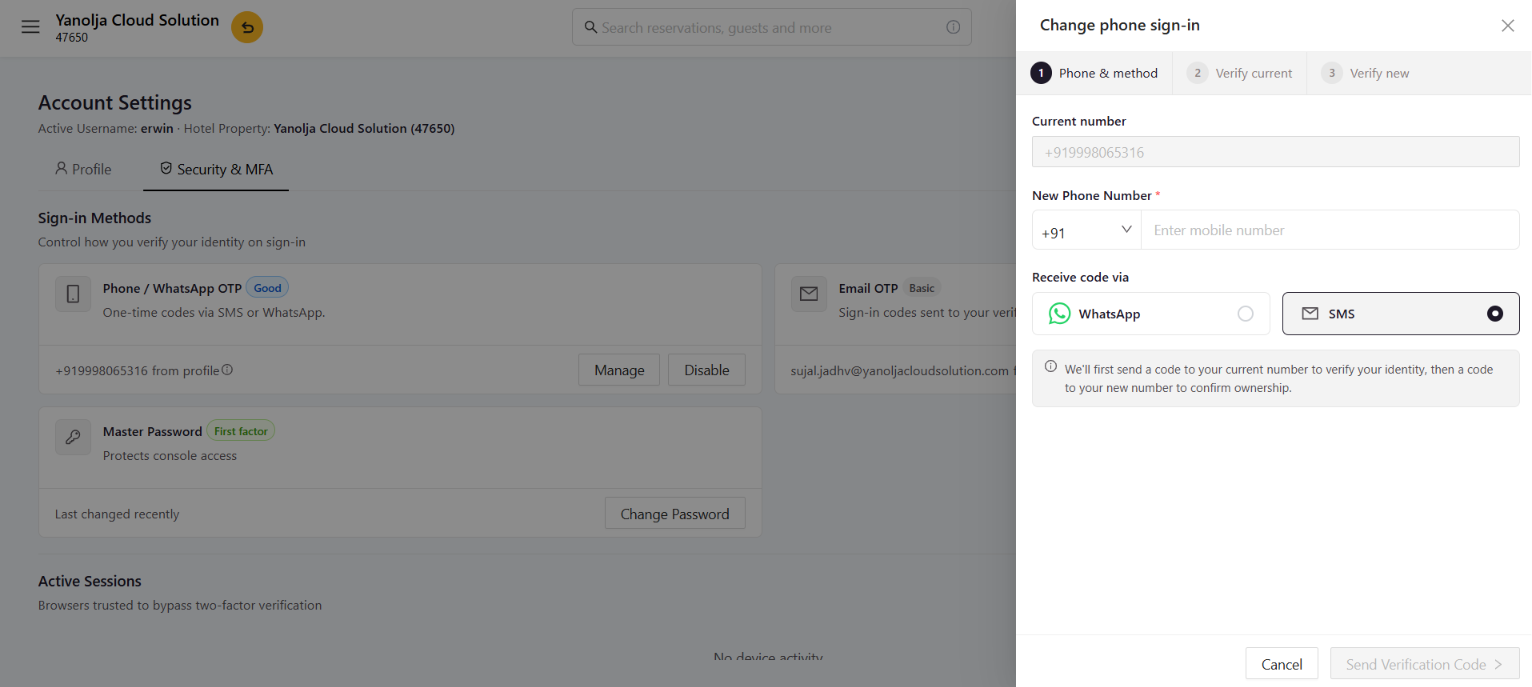
Changing the number tied to sign in is a deliberate 3 step wizard: enter the new number and pick WhatsApp or SMS, verify the current number to prove ownership, then verify the new number before it replaces the old one. To start, go to Security and MFA, then Phone / WhatsApp OTP, then Manage, then Change Phone Sign In.
Change phone sign in: enter number, verify current, verify new
This stops anyone with just a password from redirecting verification codes elsewhere.
Password and Device Management
Passwords and signed in devices can both be managed from Security and MFA, keeping account hygiene simple and quick.
Password ManagementA password can be changed at any time from Security and MFA, then Change Password, or directly from the password expiry reminder that appears after login. Open Change Password, enter and confirm a new password that meets the on screen requirements, then select Save. The new password takes effect immediately, and no current password needs to be re entered while already signed in through an active session.
The password expiry reminder popup
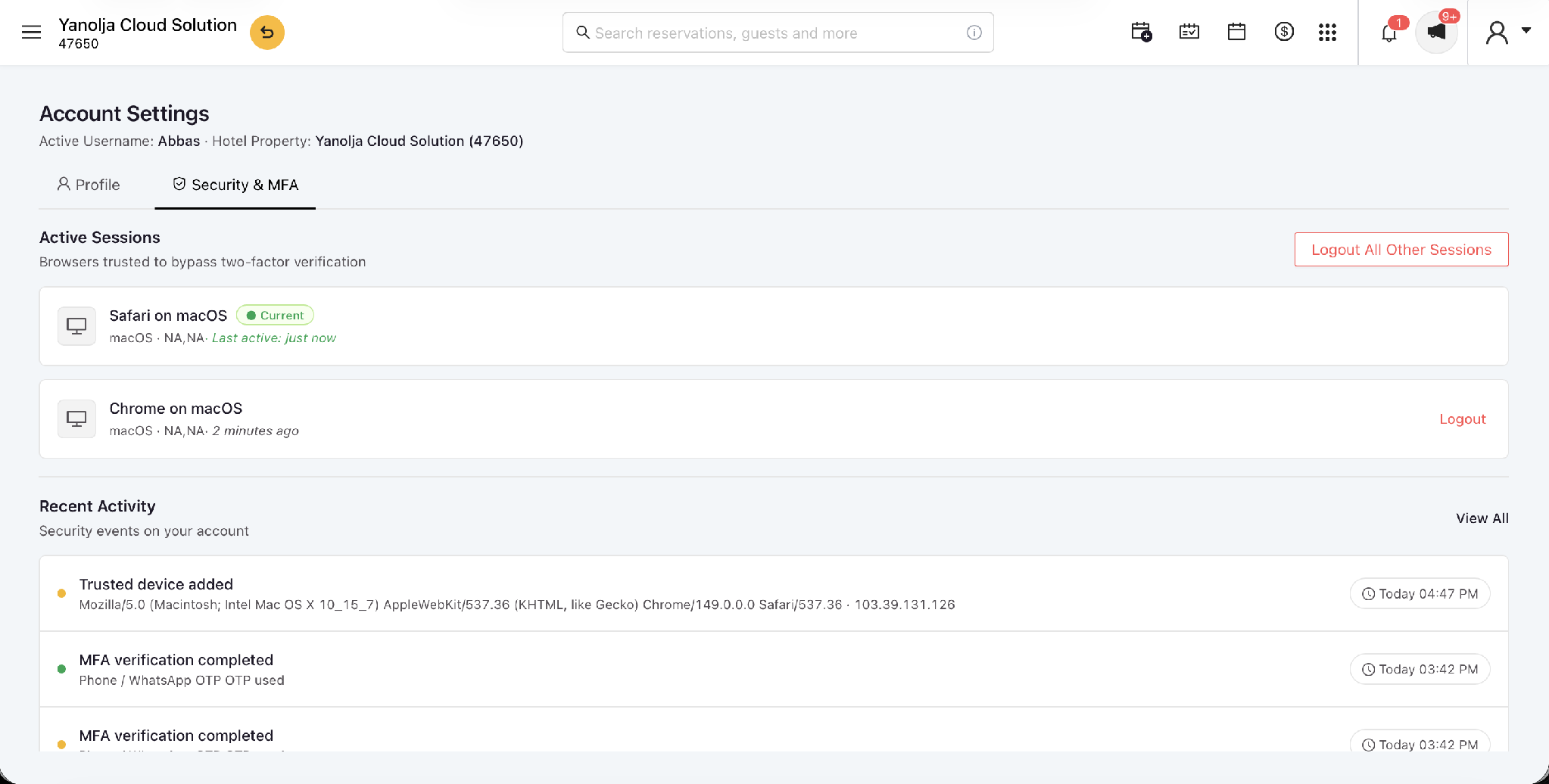
Under Security and MFA, then Active Sessions, every browser currently trusted to bypass repeat verification can be reviewed, and any unrecognised entry can be removed. Each entry shows the browser, device, and when it was last active, with the current session clearly labelled. A single device can be signed out with Logout, or every other session can be ended at once with Logout All Other Sessions, the fastest way to lock out a lost or stolen device.
Active Sessions, with Logout and Logout All Other Sessions options
Signing out removes trust. The next sign in on that device will ask for verification again.
Recent Activity
Just below Active Sessions, Recent Activity is a timestamped log of security relevant events on an account. Each entry shows what happened, the device or browser and IP address where available, and when it occurred. Typical entries include recent logins and sign in attempts, authentication events such as MFA verification completed, device activity such as trusted device added, and other security actions such as password changes and method updates.
A quick check now and then makes any unfamiliar login or device easy to spot and sign out.
Why This Matters
Fast sign in, strong protection, and full visibility into every account.