
Introducing the
Simplified StayView
The Stay View screen has been comprehensively redesigned to improve clarity, visual consistency, and ease of use for hotel staff and property managers.
Changes at a Glance
A summary of every change introduced in the new Stay View.
| What Changed | Before | After |
|---|---|---|
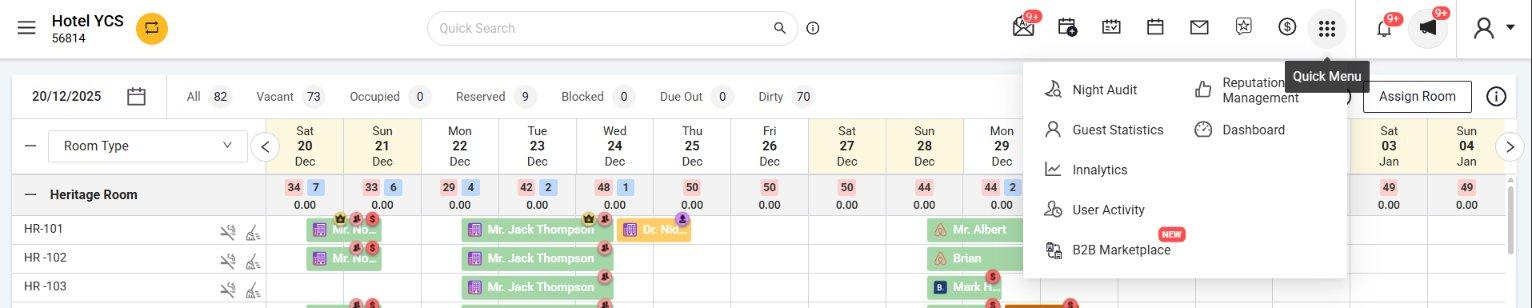
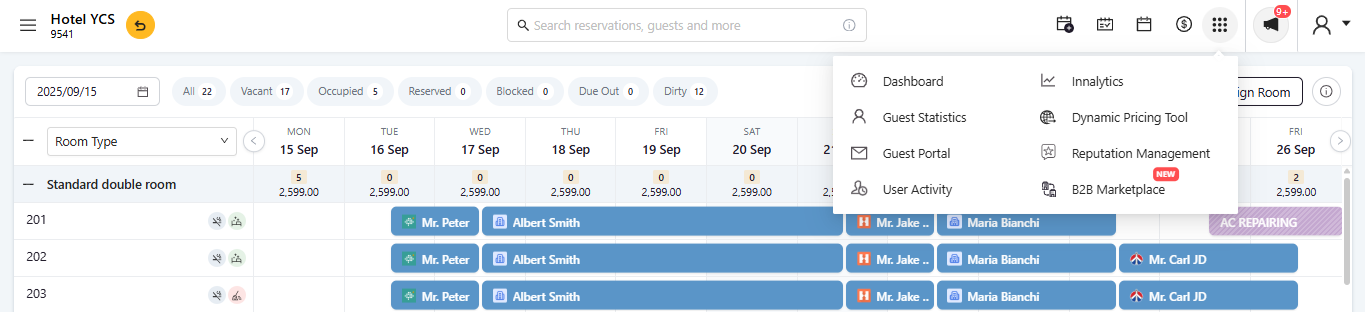
| Header & Quick Access | Many module icons directly in the top bar | 5 key shortcuts in header; rest in 9-dot Quick Menu |
| Search Bar | Inline filter on Stay View grid by field type | Cross-module search modal (Bookings, Guests, Travel Agents, Business Sources, Companies) |
| Reservation Bar Icons | All booking indicator icons always visible cluttered | Only source icon + guest name shown; indicators revealed on hover |
| Color Coding | Free-form picker for Status & Reservation Type (unlimited colors) | 16 fixed predefined colors for Status & Reservation Type; Business Source unchanged |
| Maintenance Blocks | Solid dark bar labeled “MAINTENANCE BLOCK” | Diagonal-striped bar showing actual reason (e.g. “AC Repairing”) |
| Occupancy Footer | Occupancy shown as plain number only | Percentage with color-coded progress bar added |
Header & Quick Access Menu
The header has been simplified to reduce visual noise. Previously, many module shortcuts were directly visible in the top navigation bar. In the new design, only five commonly used access points remain in the header. All other modules have been moved to the 9-dot Quick Menu.
Search Bar
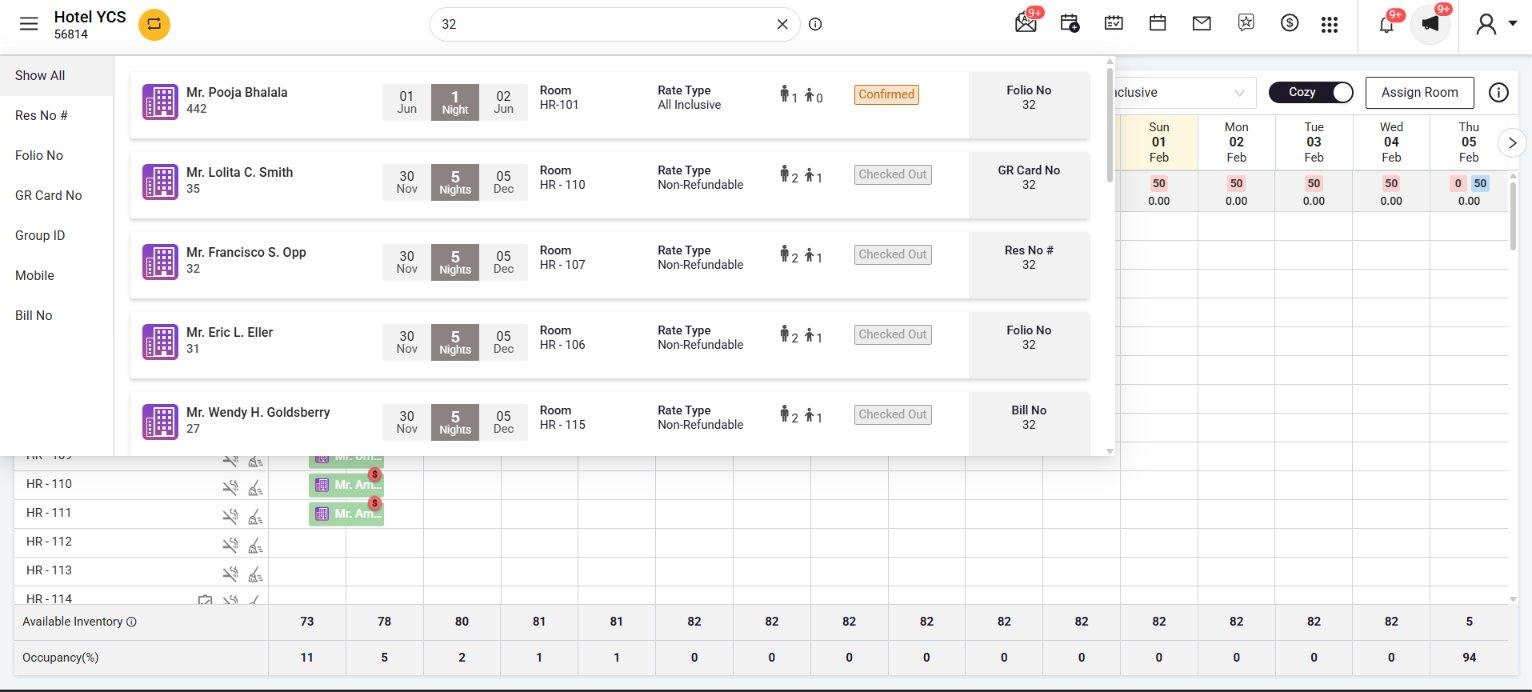
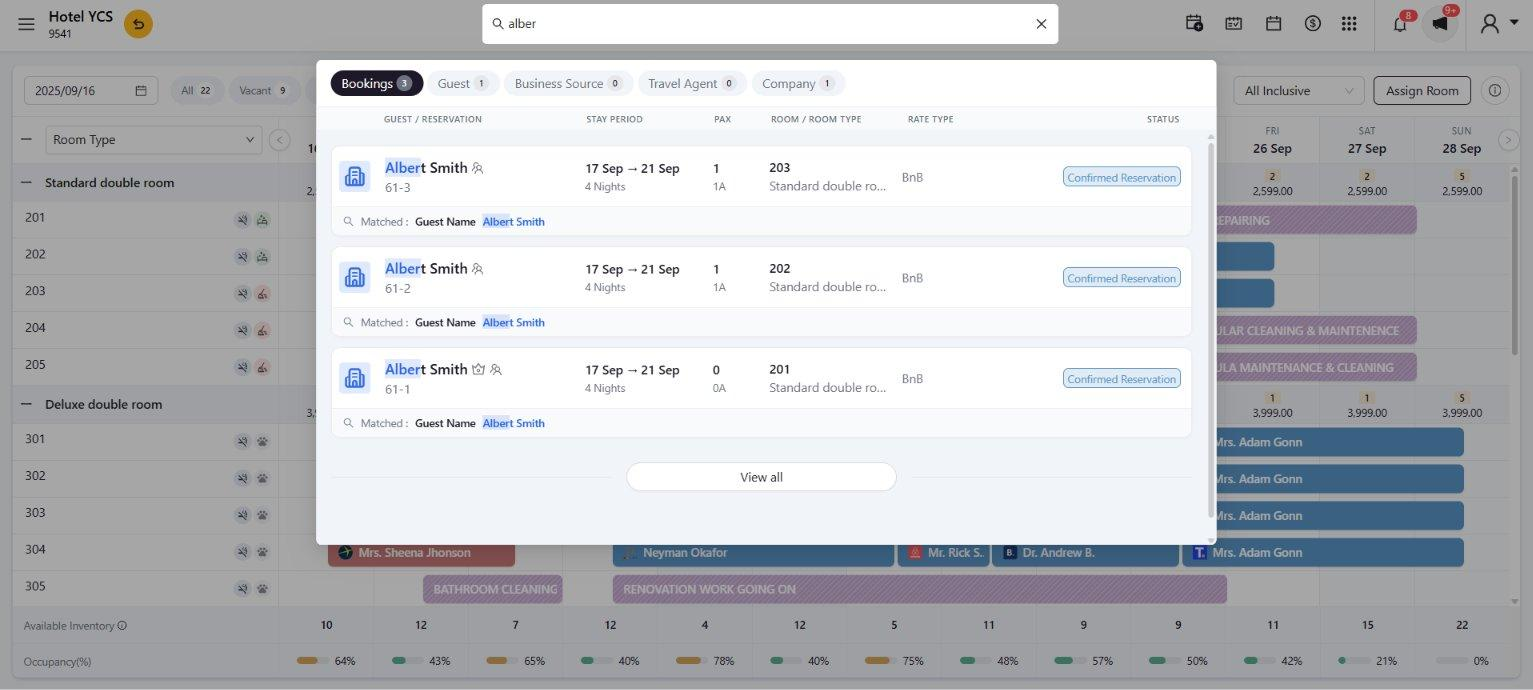
The search bar has been completely redesigned. The previous search acted as an in-grid filter you would select a field type from a sidebar (Folio No, GR Card No, Group ID, Mobile, Bill No, Reservation No) and the Stay View calendar would filter accordingly. The new search opens a modal that simultaneously searches across Bookings, Guest database, Business Sources, Travel Agents, and Companies showing exactly which field matched the query and allowing direct editing of results.
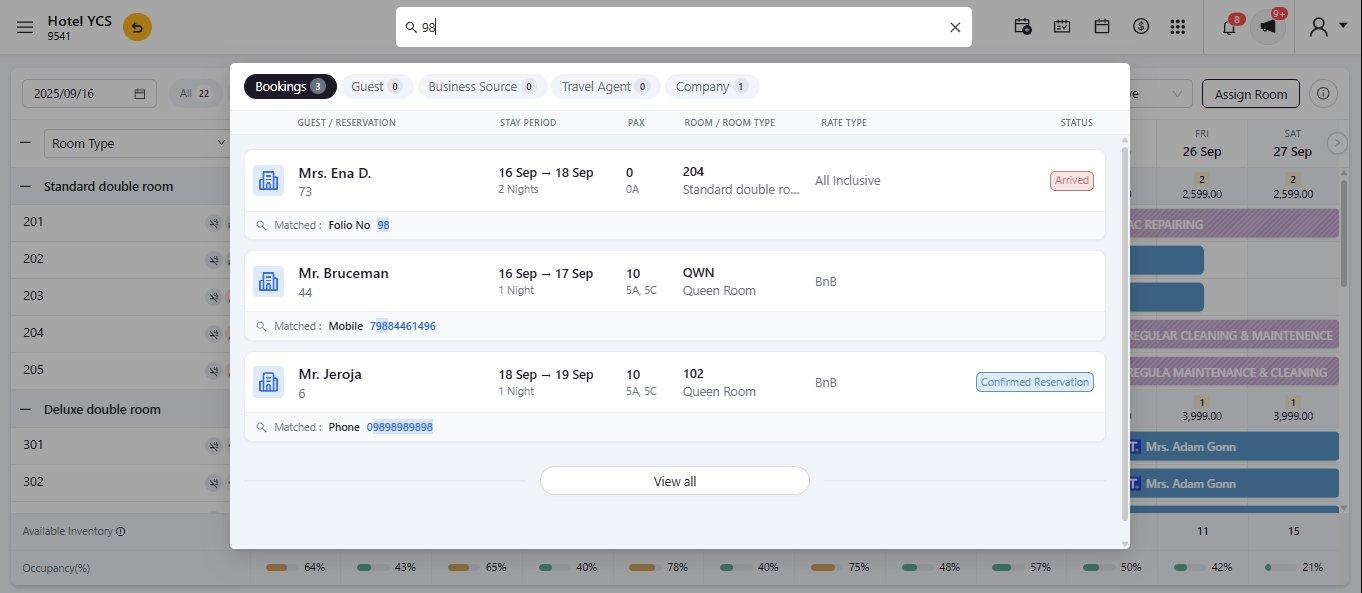
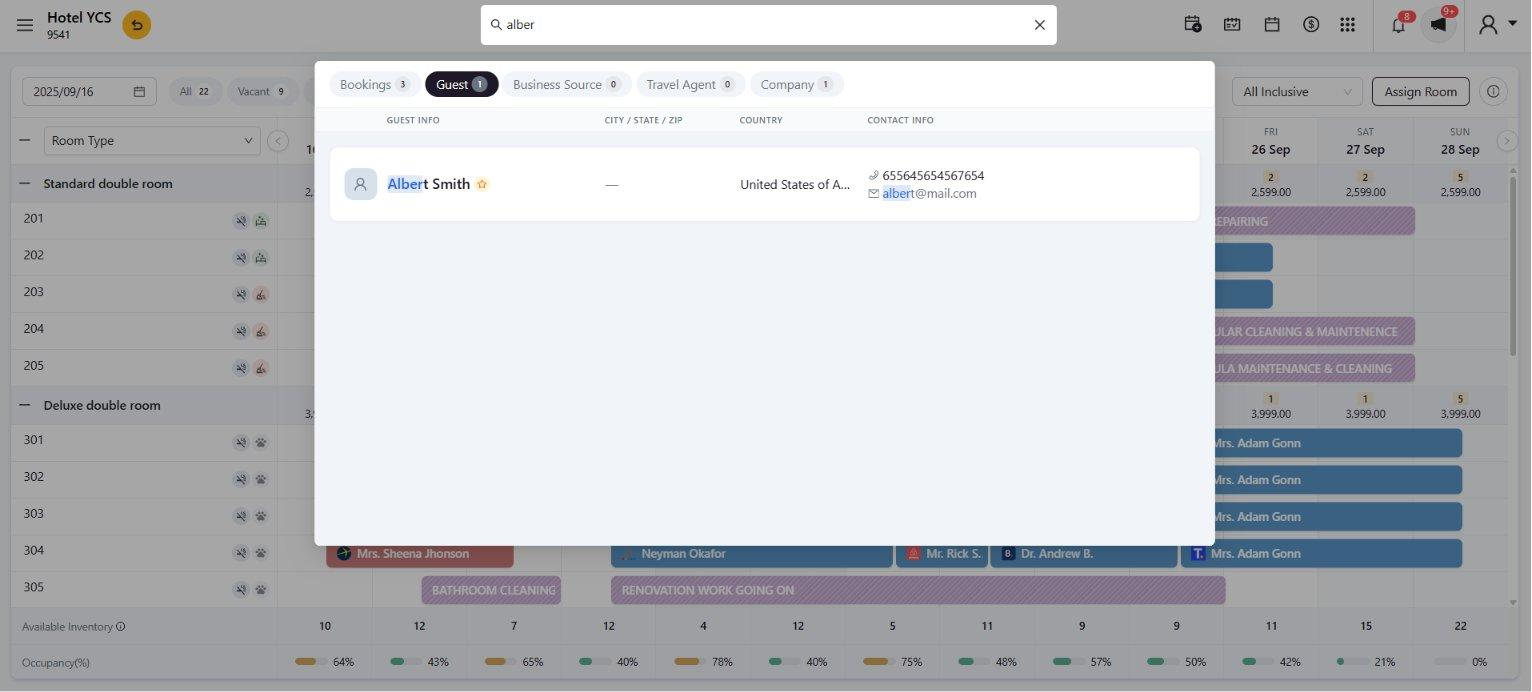
here is what Changed in the New Search bar and How it is different than previous one
| Change | Before | After |
|---|---|---|
| Scope | Bookings only | Bookings, Guests, Business Sources, Travel Agents, Companies |
| Match Visibility | No indicator of matched field | Matched field name and value highlighted in each result |
Reservation Colors & Status Indicators
The reservation bar colors and status legend have been updated with a more distinct, accessible, and consistent color scheme. The new palette uses softer, better-differentiated colors that are easier to identify at a glance across a busy calendar view.
Status Legend

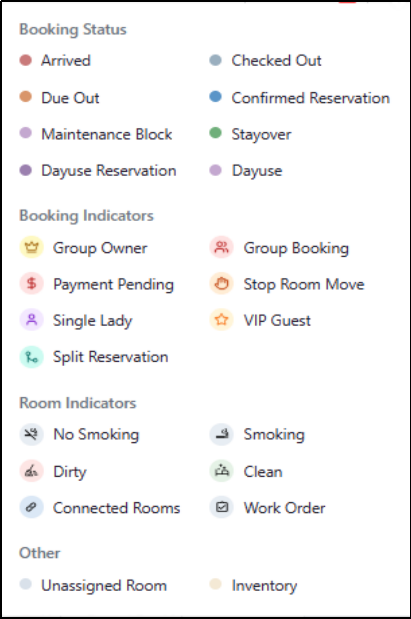
Reservation Bar & Booking Indicators
Previously, all booking indicator icons were permanently displayed on every reservation bar. This created visual clutter, particularly for properties with many rooms. In the new design, each bar shows only the booking source icon and guest name. All other indicators appear in a clean hover tooltip when you move the cursor over a reservation.
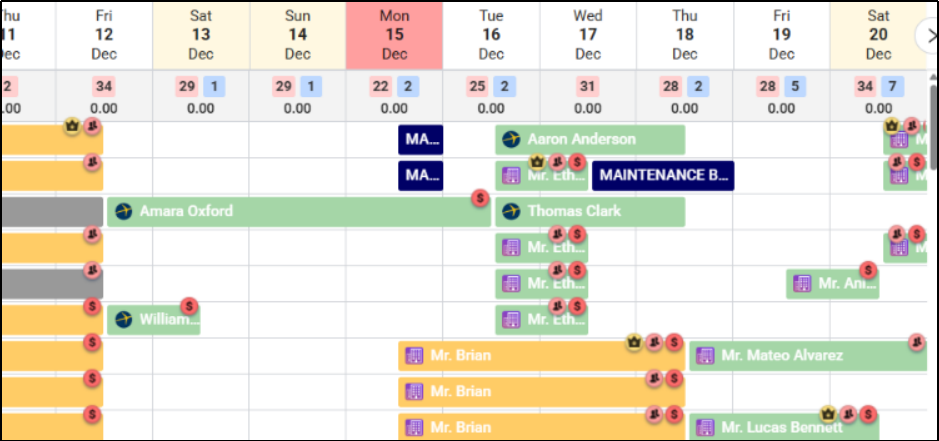
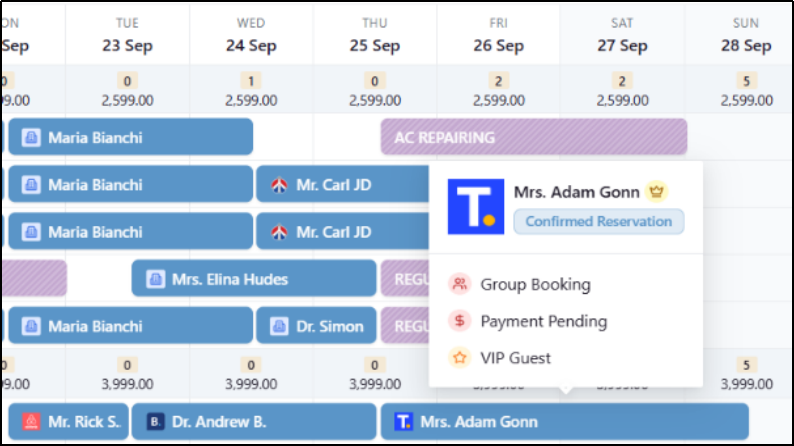
- Group Owner
- Group Booking
- Payment Pending
- Stop Room Move
- Single Lady
- VIP Guest
- Split Reservation
Maintenance Blocks
Maintenance blocks on the Stay View calendar have been visually improved. Previously they appeared as a plain solid dark bar with the generic caption “MAINTENANCE BLOCK”, giving no context about the reason. In the new design, maintenance blocks use a distinctive diagonal stripe pattern with the actual block reason shown directly on the bar (e.g. “AC REPAIRING”, “PAINTING WORK IS GOING ON”, “BATHROOM CLEANING”).
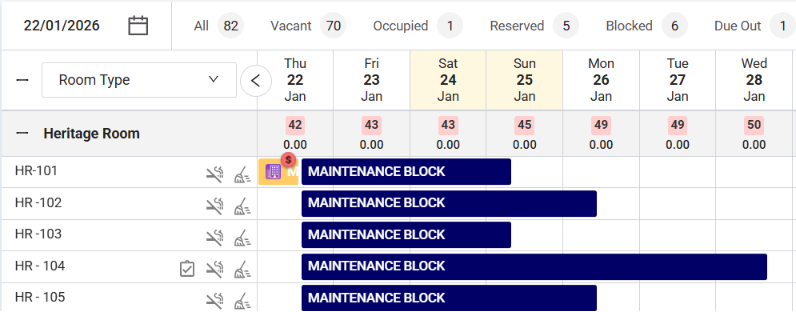
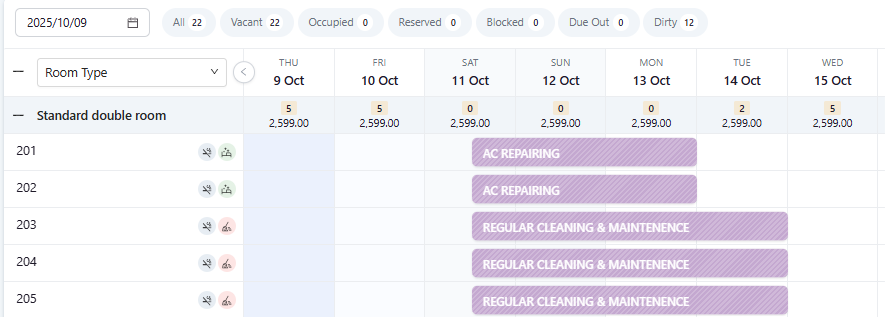
| Feature | Before | After |
|---|---|---|
| Visual Style | Solid dark-colored bar | Diagonal stripe (hatched) pattern |
| Label | Generic “MAINTENANCE BLOCK” text | Actual reason (e.g. “AC REPAIRING”, “BATHROOM CLEANING”) |
| Readability | No context visible without opening | Reason immediately visible on the bar |
| Differentiation | Could be confused with reservations | Visually distinct from all reservation bar types |
Daily Occupancy Footer
The footer row at the bottom of the Stay View calendar shows daily occupancy per date column. Previously only a plain number was shown. The updated design adds a color-coded progress bar alongside each percentage, allowing staff to visually scan availability across dates without reading every individual number.


What This Means for Your Team
The Simplified StayView delivers a cleaner, faster, and more intuitive calendar experience so your front desk team can focus on guests, not the interface.