
Introducing
Cash Drawer
Manage cash sessions, balances, and accountability — all in one place. The Cash Drawer module is your property’s central tool for managing physical cash across the Front Desk or any other department, from shift open to shift close.
What is Cash Drawer?
A Cash Drawer is the system-managed cash repository used by a cashier, front desk agent, or outlet staff to handle daily cash transactions. It lets your team start a cash session at the beginning of a shift, track every transaction that flows through the drawer in real time, and close out the session cleanly at the end of the day with a full report ready to go. No more guesswork at end of shift — every penny that goes in or out is tracked against the session.
Key Benefits for Your Property
Whether you run a small boutique hotel or a large resort with multiple drawers, Cash Drawer is designed to make your team’s daily cash management faster, more transparent, and more reliable.
Always know exactly how much cash is in each drawer — live, not at end of day.
Handle USD, AUD, AED and more in the same session — each currency tracked independently.
Every session is tied to a specific staff member. No shared responsibility means no confusion.
The system instantly flags if a drawer is over or short when closing out — green for overage, red for shortage.
Generate or export session reports in PDF or Excel with one click. Perfect for end-of-day reconciliation.
Every action — opening, closing, adding, removing cash — is logged permanently. Managers always have the full picture.
Understanding Sessions
A Session is the core idea behind Cash Drawer. Think of it as a shift for your cash drawer. When a staff member starts their shift and opens the drawer, a new session begins. When they close out, the session ends. Everything is attached to that session.
One complete open-to-close cycle of a cash drawer, with a unique ID automatically generated (e.g., 1S661QWW).
The amount of cash physically counted and entered when opening the drawer.
Live running total calculated as: Starting Balance + Cash Received − Cash Paid Out.
Cash removed from the drawer to transfer to the safe — recorded at closing.
What remains in the drawer after the cash drop is taken out: Physical Count − Cash Drop.
The difference between what the system expects and what was physically counted. Overage = more than expected. Shortage = less.
A drawer can only have one active session at a time. Once a session is started, the drawer is locked to that staff member until the session is ended. If your property uses multiple currencies, each currency in the drawer is tracked completely separately — the system does not mix them.
The Drawers Tab
The Drawers Tab is the first thing you see when you open Cash Drawer. It shows all the drawers configured at your property — their current status, live balances, and quick action buttons.
The Drawers Tab — overview of all cash drawers at the property
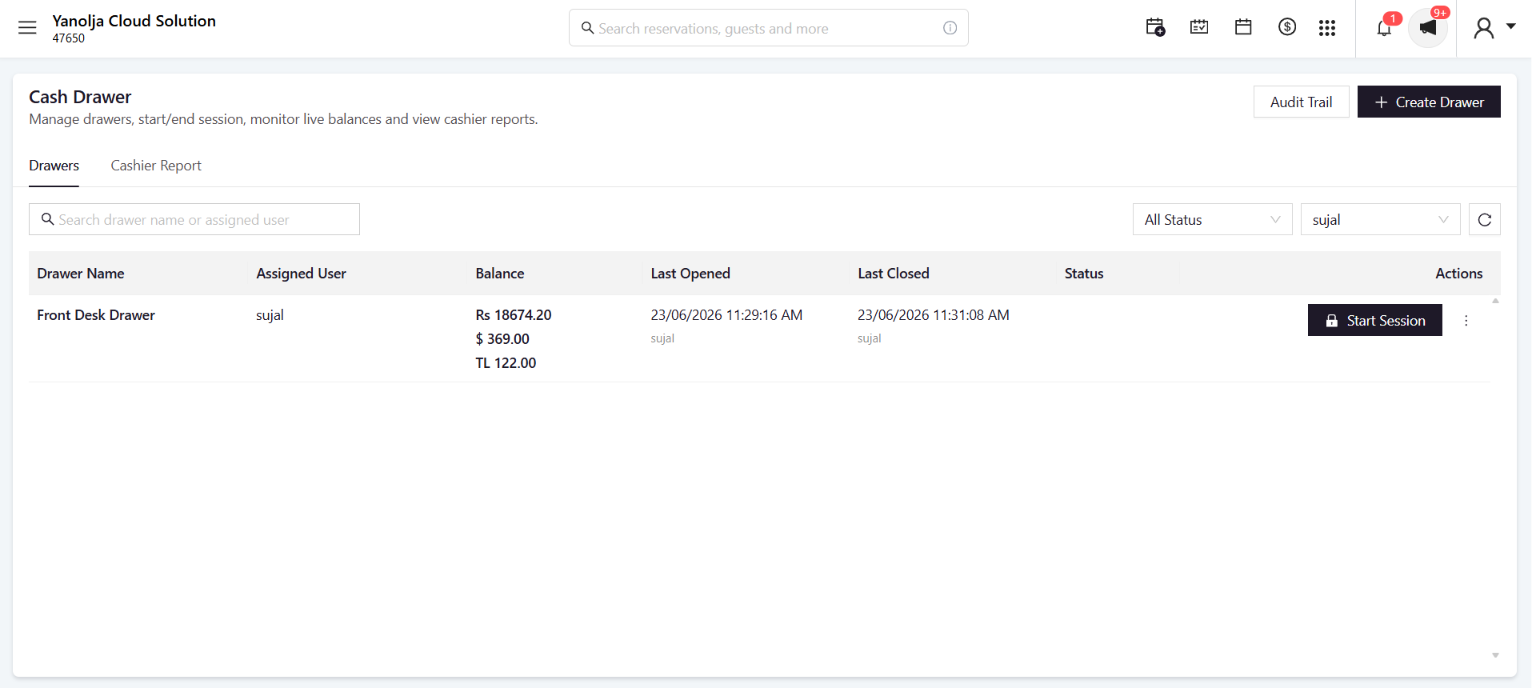
The name of the cash drawer (e.g., Front Desk Drawer).
The staff member responsible for this drawer. If a session is active, its Session ID appears here as a clickable badge.
The current cash balance. Updates after each session is closed.
In Progress = a session is currently running. Locked = no active session, ready to be started.
Creating a New Drawer
Before anyone can start a session, a drawer needs to exist. Managers can create new drawers at any time using the Create Drawer button at the top right of the Cash Drawer screen.
You will find it in the top-right corner of the Cash Drawer screen. A panel slides in from the right.
Give it a clear name based on its location or purpose — for example, ‘Front Desk Drawer’. Multiple physical drawers can be created accordingly.
Choose the staff member responsible for this drawer from the dropdown. A staff member can be assigned to more than one drawer.
The drawer is created and immediately appears in the Drawers list.
The Create New Drawer panel
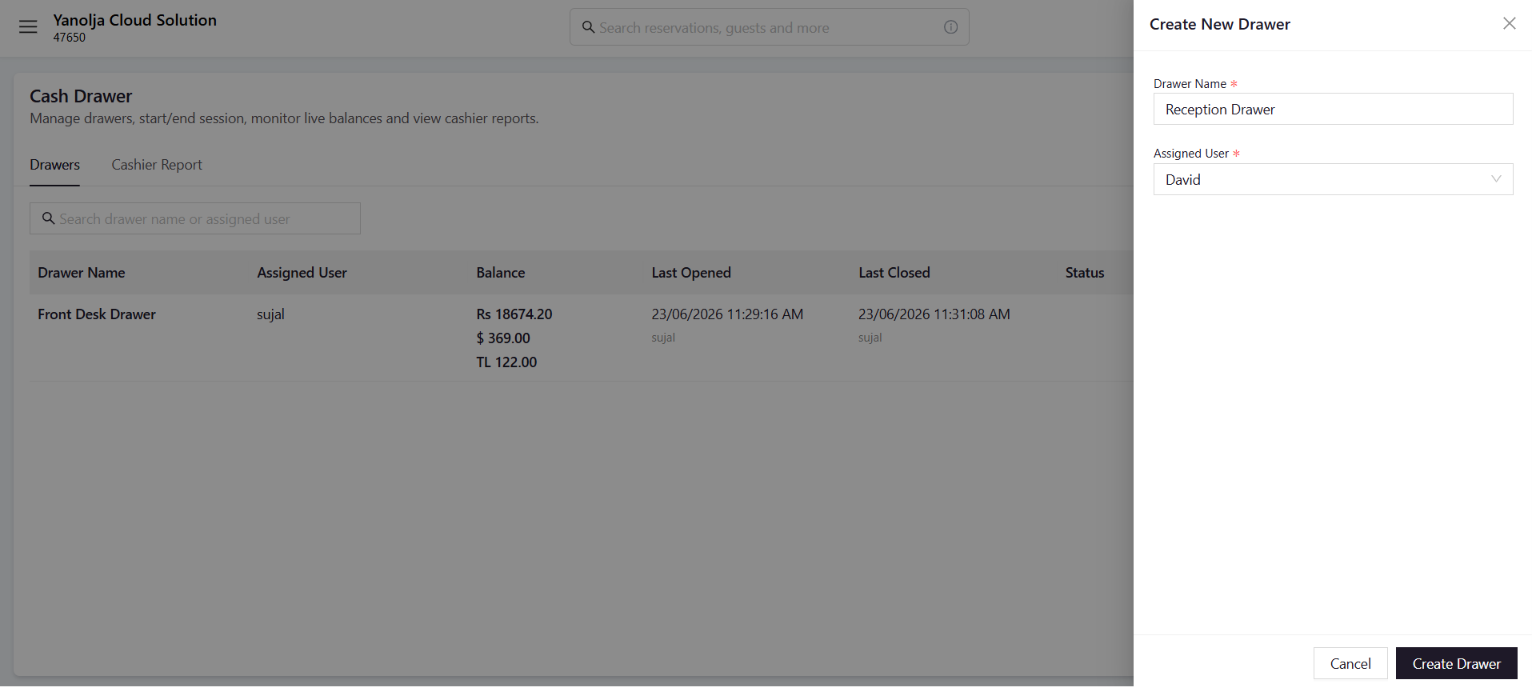
You can edit a drawer’s name or assigned user at any time — as long as there is no active session on it. Once a session is running, the drawer cannot be changed until the session is closed.
Starting a Session
Starting a session is the first thing a cashier does at the beginning of their shift. It tells the system that a specific staff member is now responsible for this drawer and officially kicks off cash tracking.
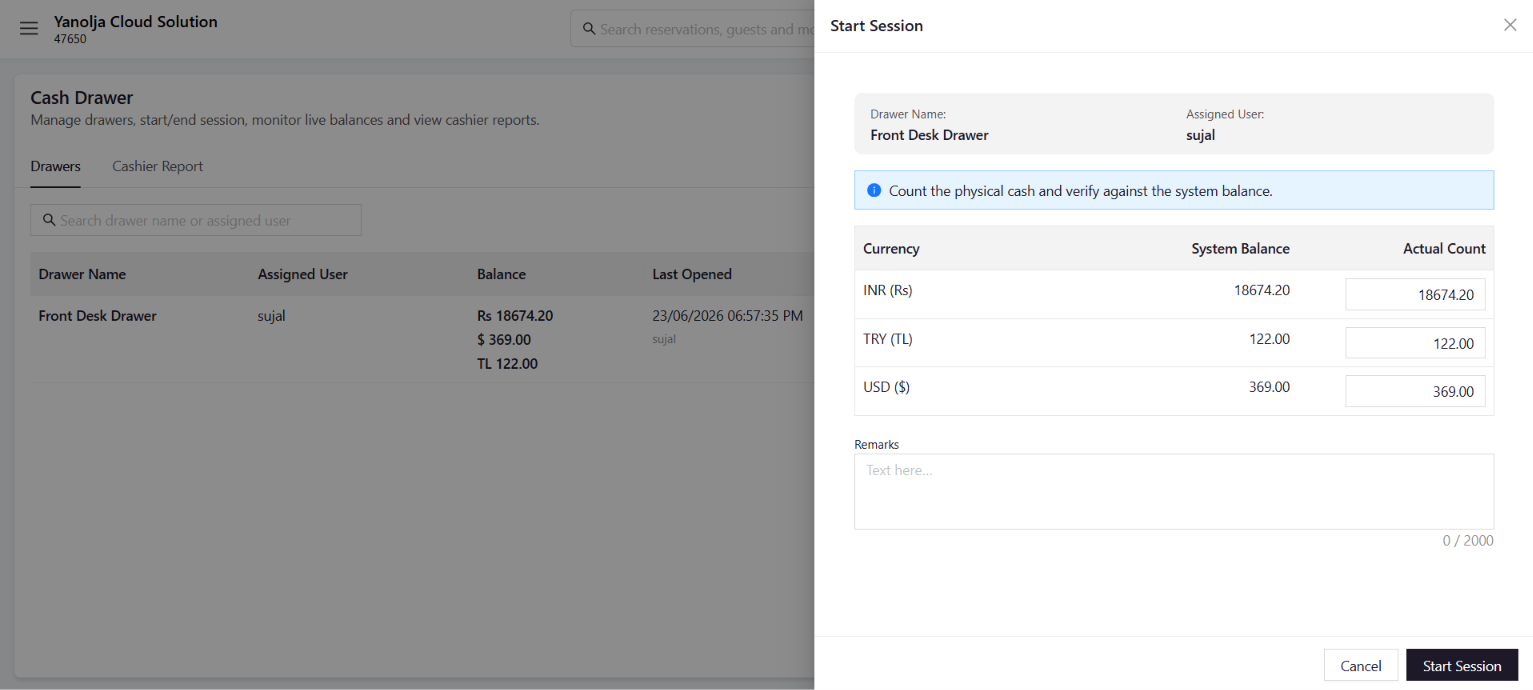
Before starting, count the actual cash in the drawer for each currency. Have the amounts ready.
The panel shows the system’s expected balance (last closing balance) alongside an Actual Count field. Enter what you physically counted for each currency.
If you have any opening notes — for example ‘Took change from safe’ — you can add them in the Remarks field.
The session begins immediately. A unique Session ID is assigned. The drawer status changes to In Progress.
Start Session — enter physical cash count and begin
Inside an Active Session
Once a session is running, you can view it at any time by clicking View Session. This opens the live session screen — your real-time window into everything happening in the drawer.
The Live Session Screen — session summary, balances, and toolbar actions
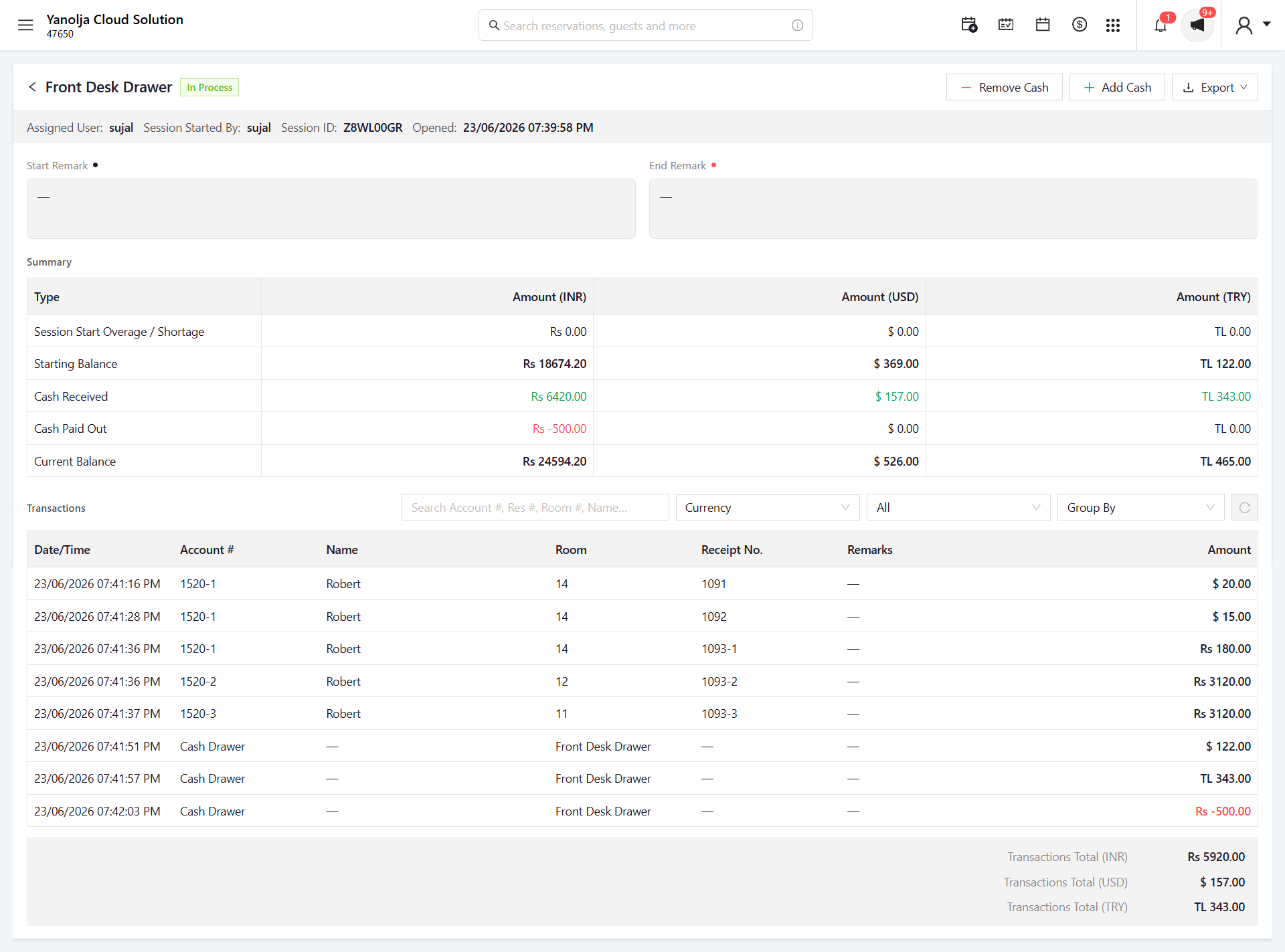
The cash amount you entered when the session was opened.
Total cash that has come in during this session, with a transaction count badge alongside the amount.
Total cash that has gone out, shown in red with a transaction count badge.
Your live running total — updates automatically as transactions are posted.
Below the summary, every transaction in the session is listed in full — date and time, account number, guest name, room number, receipt number, remarks, and the amount. You can search, filter by currency, payment for, or reservation, and scroll through the full history.
Adding & Removing Cash
During an active session, authorised staff can manually add cash to or remove cash from the drawer. This is used for things like petty cash top-ups, cash drops to the safe, or recording a cash refund.
Add CashRecord Cash Coming In
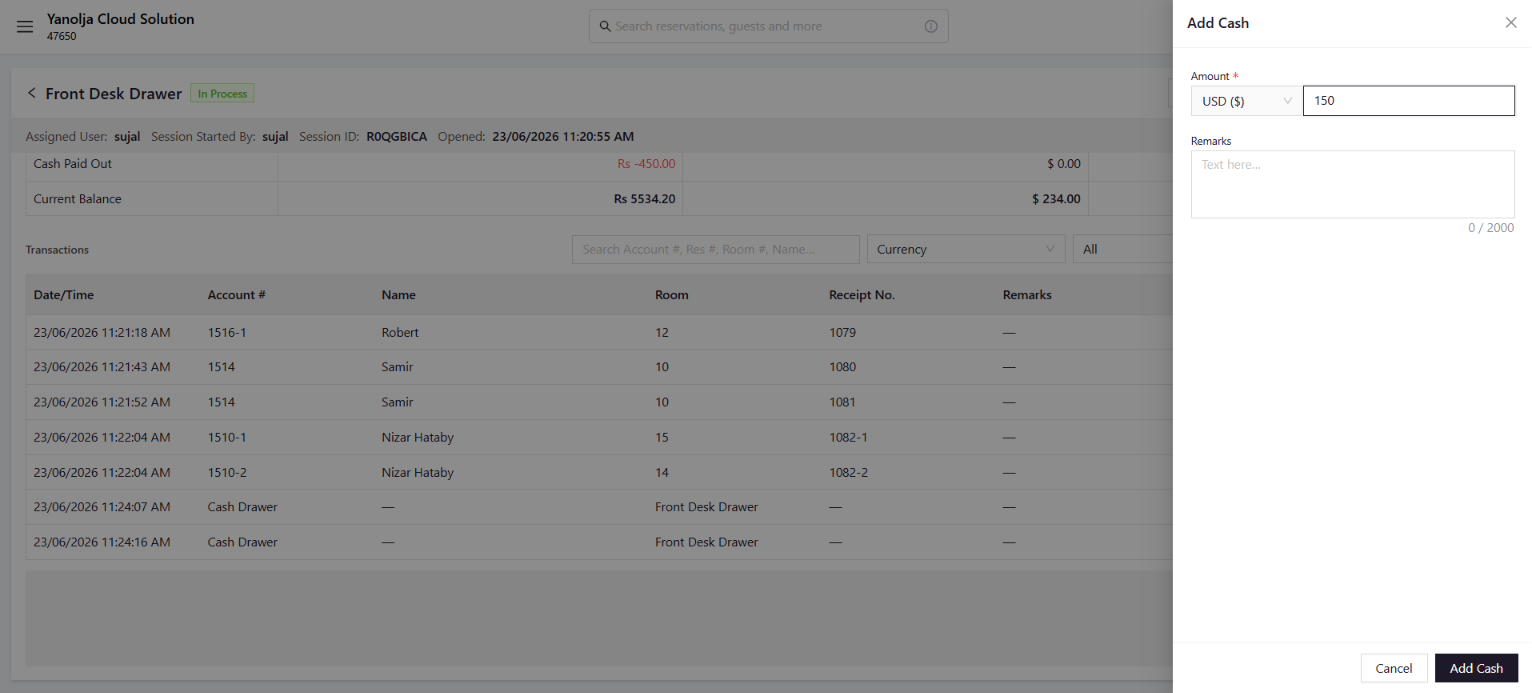
Click the Add Cash button in the top-right toolbar of the live session screen. Select the currency, enter the amount, and add a remark to explain why — for example, ‘Petty Cash Top-Up’ or ‘Cash from safe’.
Add Cash panel — select currency, enter amount, add remark
Record Cash Going Out
Click the Remove Cash button in the same toolbar. The process is identical — select the currency, enter the amount, and add a remark. The amount is deducted from the current balance and recorded in the transaction list immediately.
Remove Cash panel — for mid-session cash drops or payouts
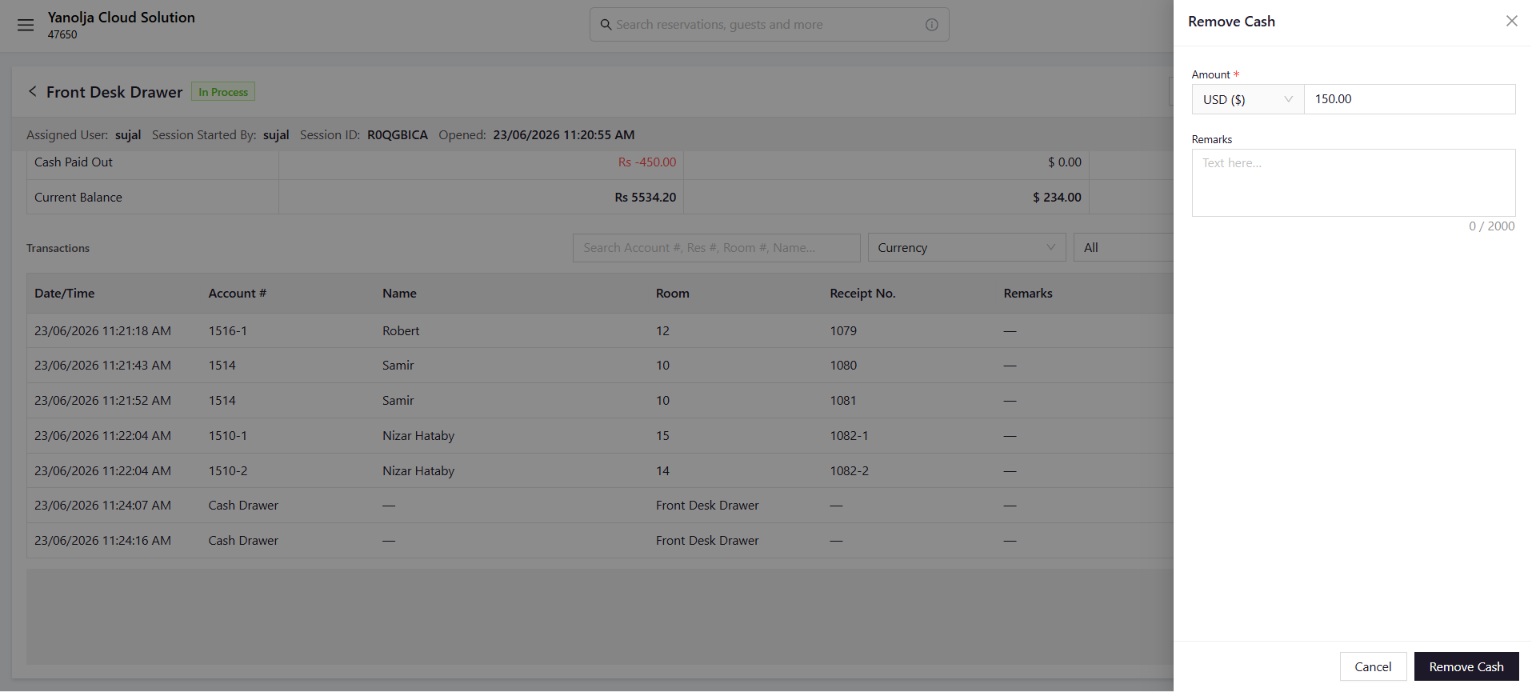
All Add Cash and Remove Cash entries appear in the transaction list with the entered remark, so there is always a clear record of why cash was added or removed during a session.
Export Without Ending the Session
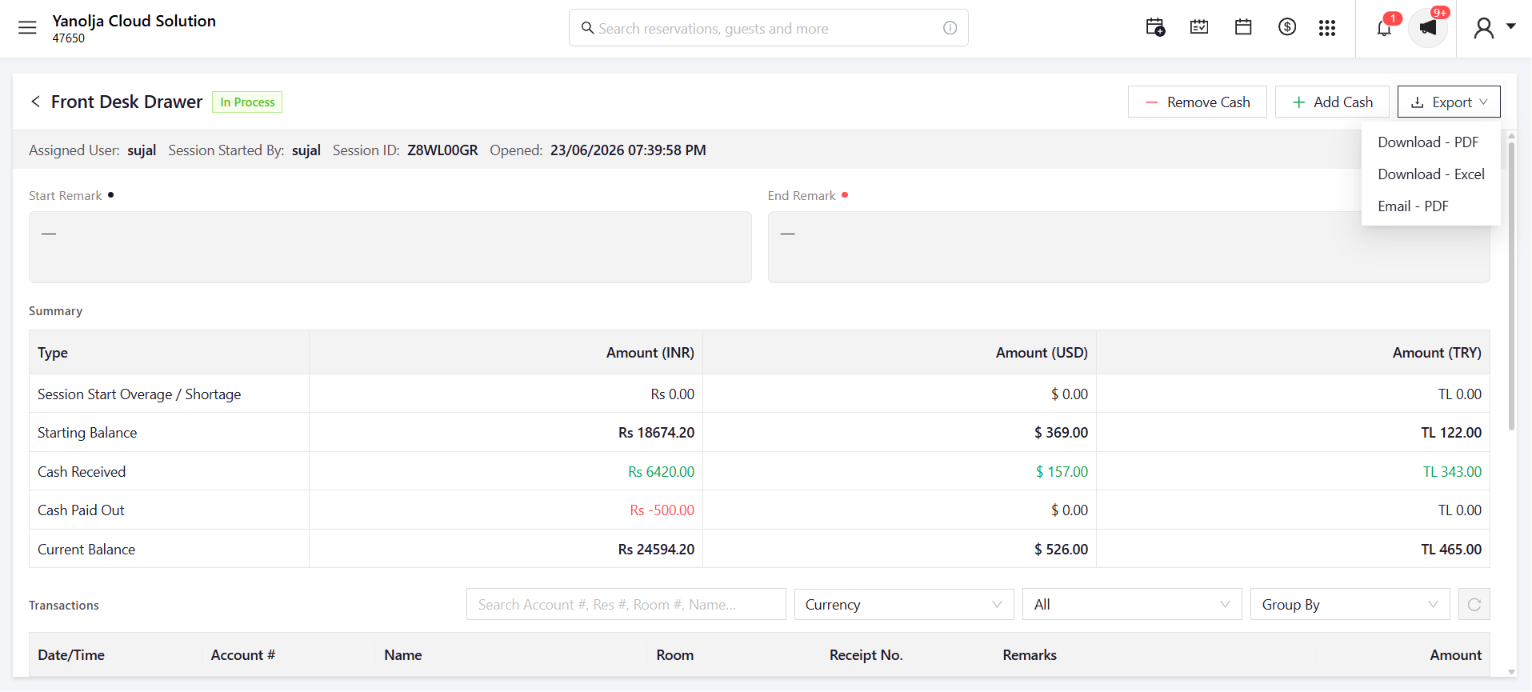
You can export or email the current session’s report at any time — without ending the session — using the Export button. Download as a formatted PDF, download as an Excel spreadsheet, or send the report directly via email to a recipient.
Export options — download as PDF or Excel, or send directly via email
Ending a Session
Ending a session is what you do at the close of a shift. It locks in the final balances, records any variance, and moves the session into the Cashier Report for historical access. The drawer then becomes available for the next session. The End Session flow has two steps.
Step 1 — Verify BalanceCount Your Cash and Record the Drop
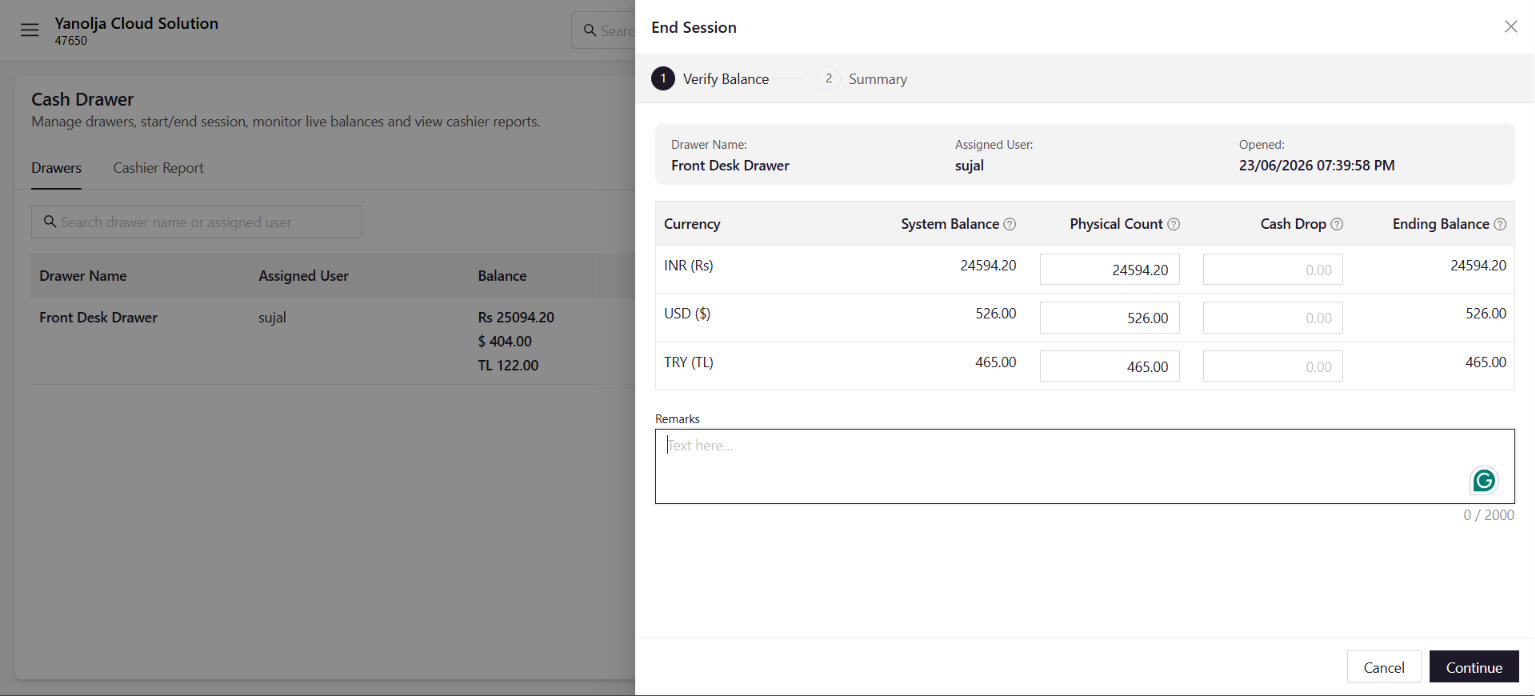
Physically count the cash in the drawer for each currency and enter the amount. If you are taking cash out to the safe, enter that as the Cash Drop. The Ending Balance is automatically calculated for you: Physical Count minus Cash Drop.
End Session — Step 1: Count physical cash, record cash drop, Ending Balance auto-calculated
Review and Close Out
A read-only summary is displayed showing the full session figures — starting balance, cash received, cash paid out, cash drop, and final ending balance. Review everything, then click End Session to close out.
End Session — Step 2: Read-only summary for final review before closing
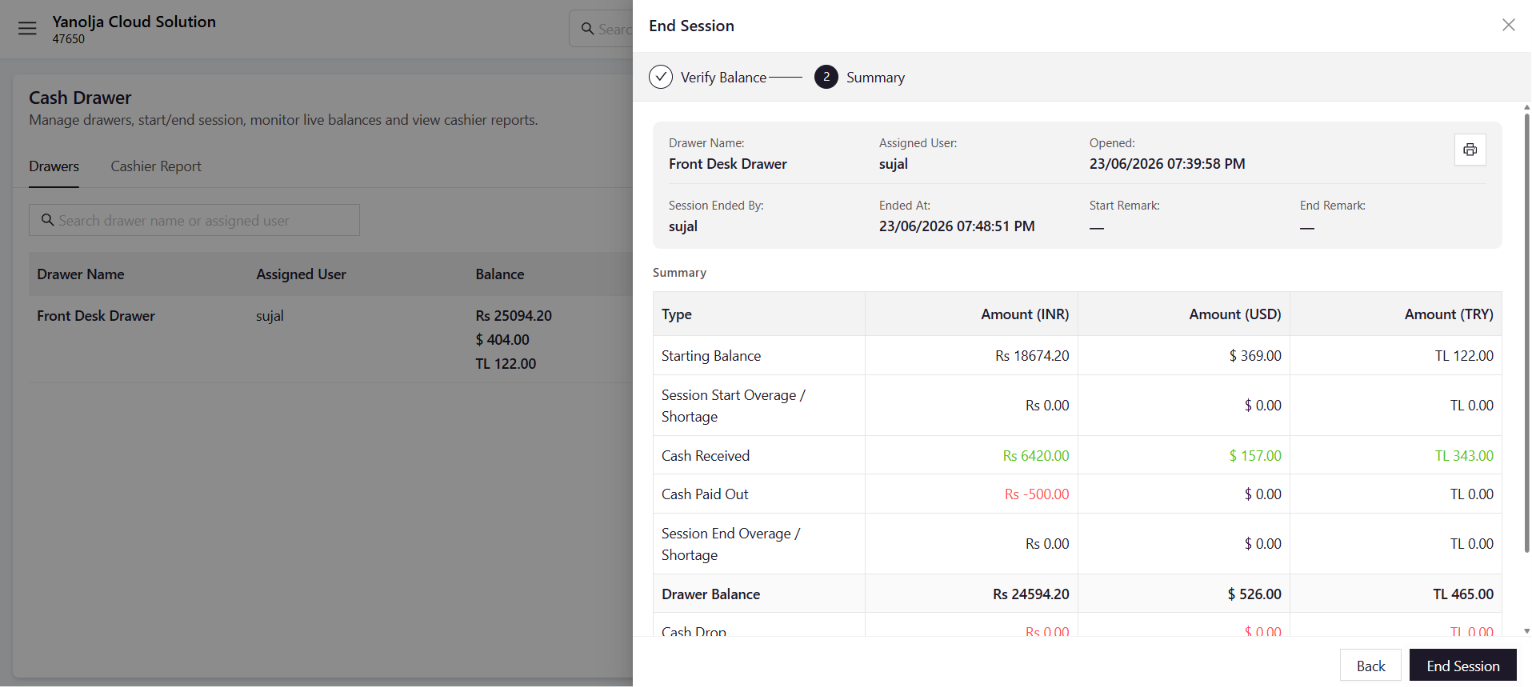
After you end the session, the drawer status changes to Locked and it is ready for the next person to start a fresh session. The session is saved permanently in the Cashier Report tab for historical access and reconciliation.
The Cashier Report Tab
The Cashier Report tab is your historical record of everything. Every completed session — and every active one — appears here. It is the go-to place for reconciliation, auditing, and reviewing how drawers have performed over time.
The Cashier Report Tab — filter by date, drawer, user, or report type
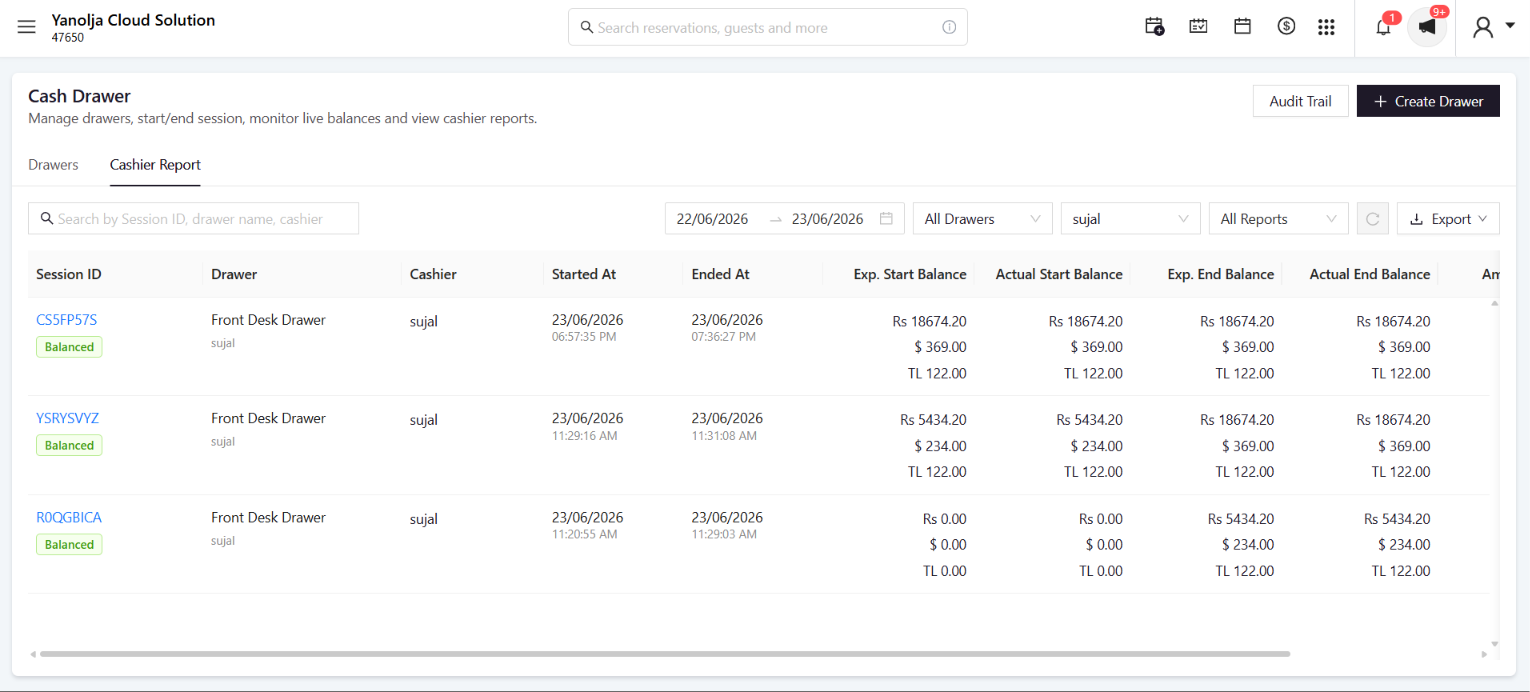
Search by Session ID, drawer name, or cashier name.
Set a from-to date range to view sessions within a specific period.
Filter to a specific drawer or a specific staff member. Historical sessions for staff who have left the property are still accessible.
View All Reports, or filter to show only sessions with Overages (yellow) or only sessions with Shortages (red).
In the report table, each Session ID shows a variance badge below it — green for overage, red for shortage, neutral if balanced. Clicking any Session ID opens the full Session Detail panel for a deep dive.
The Audit Trail
The Audit Trail is a permanent, tamper-proof log of every single action that has ever taken place in the Cash Drawer module. It is accessible via the Audit Trail button at the top of the Cash Drawer screen.
The Audit Trail — every action, every drawer, every user, timestamped and colour-coded
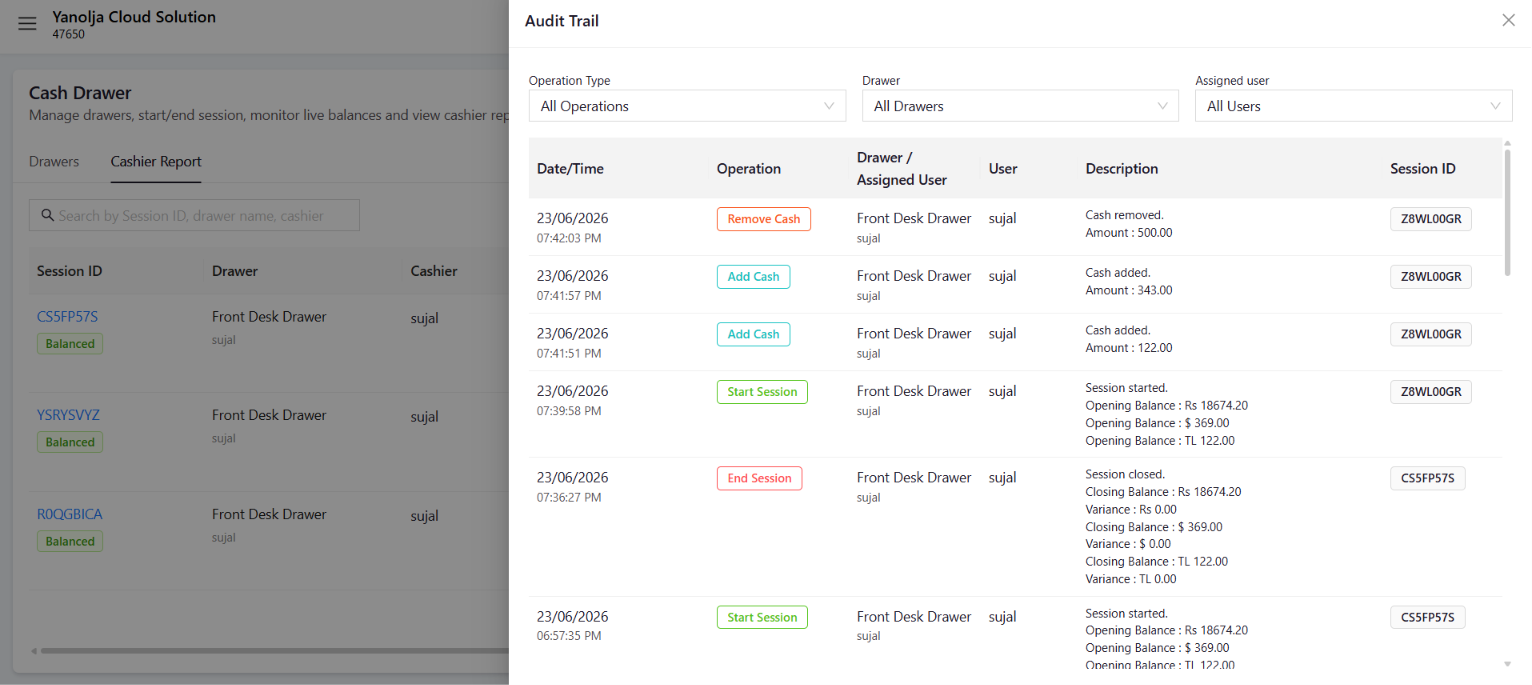
Exact date and time of the action.
The operation performed — Start, End, Add Cash, Remove Cash, Create, Edit.
The specific drawer affected by the action.
The staff member’s name who performed the action.
Full context — for example ‘Shift SH-001 opened. Opening balance: $680.00’ or ‘$200.00 added. Balance now $1,012.75’.
The Session ID linked to the action, where applicable.
Audit Trail entries are permanent and cannot be modified or deleted. Whether you are investigating a discrepancy, handling a complaint, or simply reviewing a team member’s activity — the Audit Trail gives you complete, reliable answers without any grey areas.
User Permissions
The Cash Drawer module has a built-in permission system. Managers can grant or restrict access for each staff member based on their role. Permissions are assigned per user in the User Settings area.
User Permissions — control access per role
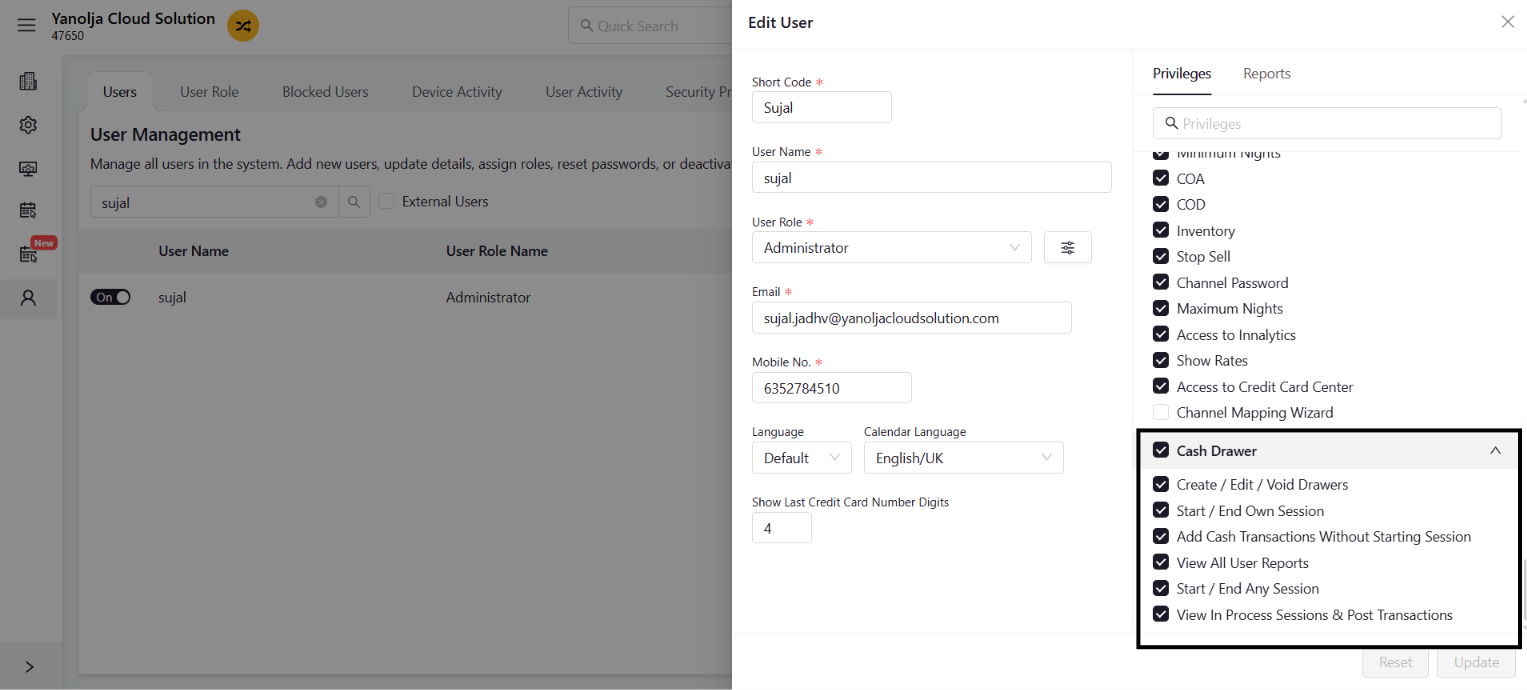
Create new drawers, rename them, and void unused ones. Not possible while a session is active.
Start and end a new session on their assigned drawer at the start or end of their shift.
See cashier reports for all users, not just their own.
Post cash transactions without having an active session open. Useful for specific back-office roles.
Start or end any session assigned to a different user. Allows managers to handle end-of-session closing on behalf of staff.
View any active session in the property and add or remove cash from it.
If a staff member cannot see a button or access a feature, check their permissions first in User Settings — the answer is usually there.
Why This Matters
Designed to eliminate guesswork, enforce accountability, and give your finance team a clear paper trail for every rupee, dollar, or dirham that moves through your property.