
Introducing
Kiosk Mode
Self Check-In, Your Way. Your guests no longer have to wait at the front desk. With Kiosk Mode built right into the Mobile App, checking in has become as easy as tapping a screen — fast, contactless, and completely self-serve.
What is Kiosk Mode?
Kiosk Mode transforms a tablet or iPad into a dedicated self-service terminal for your guests. Placed at your hotel lobby or reception area, the kiosk lets guests handle everything on their own — from checking in and verifying their identity to making payments and accepting hotel policies — without needing a staff member to guide them through every step. Think of it as giving your guests a private, digital concierge that is available 24/7, never busy, and always patient.
What Guests Can Do at the Kiosk
Guests can walk up to the kiosk and complete the entire check-in process in just a few minutes.
Guests find their booking using a confirmation number or QR code, verify their details, and complete check-in independently.
The kiosk uses the tablet camera to scan government-issued IDs for all guests in the booking. No paperwork, no manual entry.
Guests can pay using saved cards, tap-to-pay via NFC, or by scanning their card. Fully PCI-compliant and secure.
Guests sign right on the screen before completing their check-in.
The Guest Journey, Step by Step
Here is exactly what a guest experiences when they walk up to the kiosk.
Step 1 — Welcome ScreenGreet Guests and Choose a Path
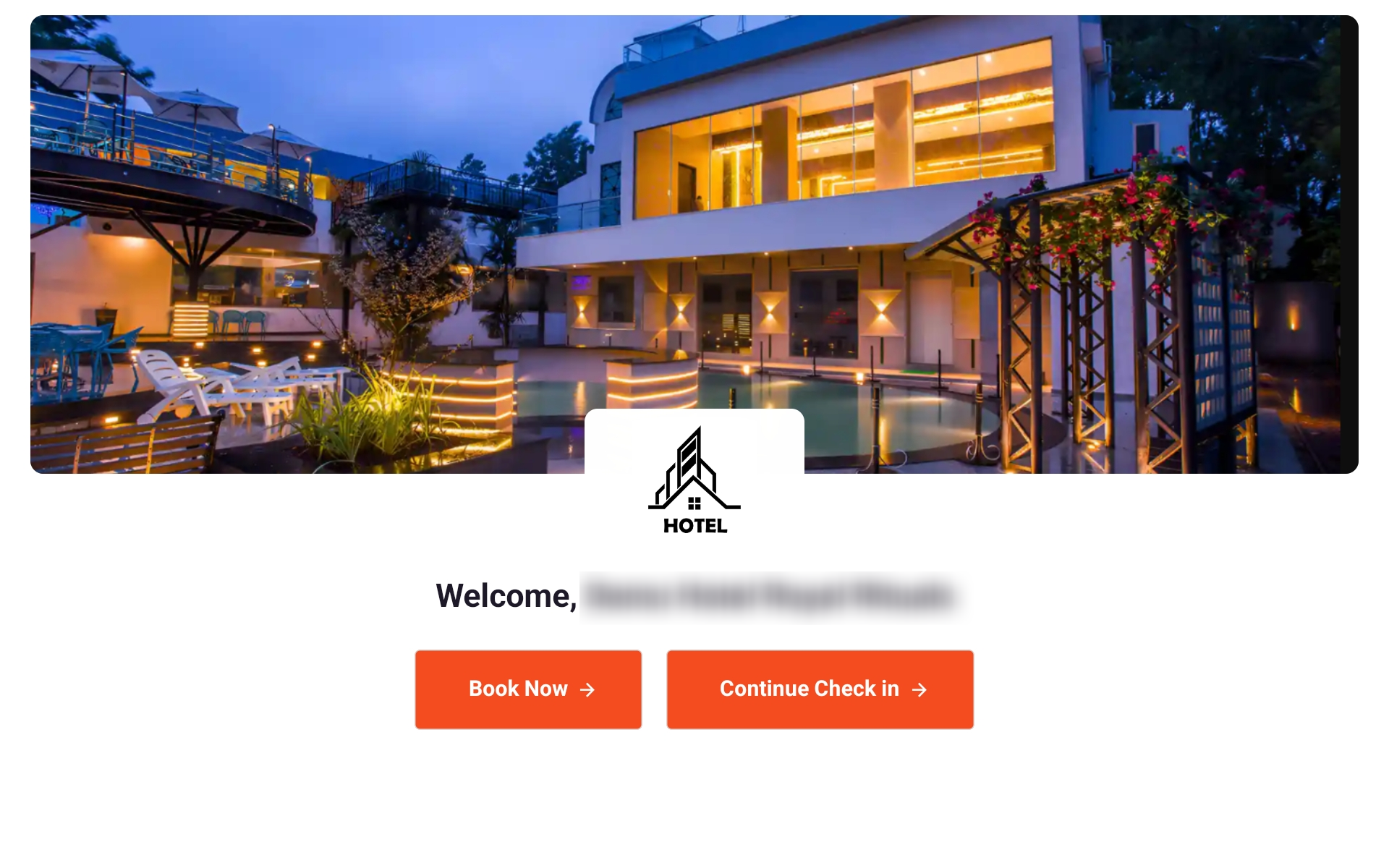
The kiosk greets guests with the hotel name and two clear options: Book Now (for walk-ins) or Continue Check-In (for guests with an existing reservation).
Tab view — The welcome screen
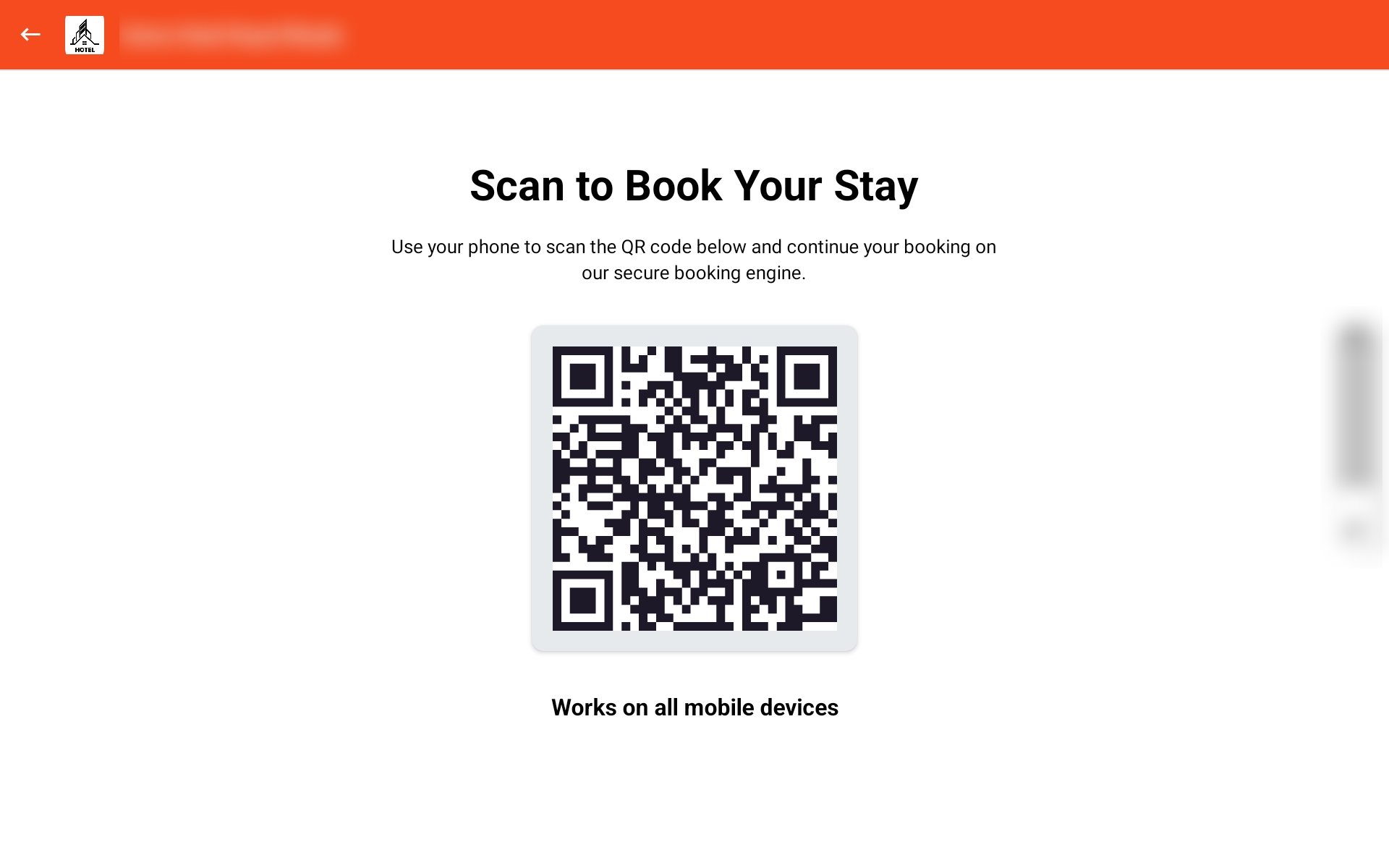
Even guests without a prior reservation can use the kiosk. They can scan a QR code to book their stay instantly through the hotel’s booking engine, right from the kiosk screen.
Tab view — Scan the QR Code for walk-in
Tab view — Choosing how to check in
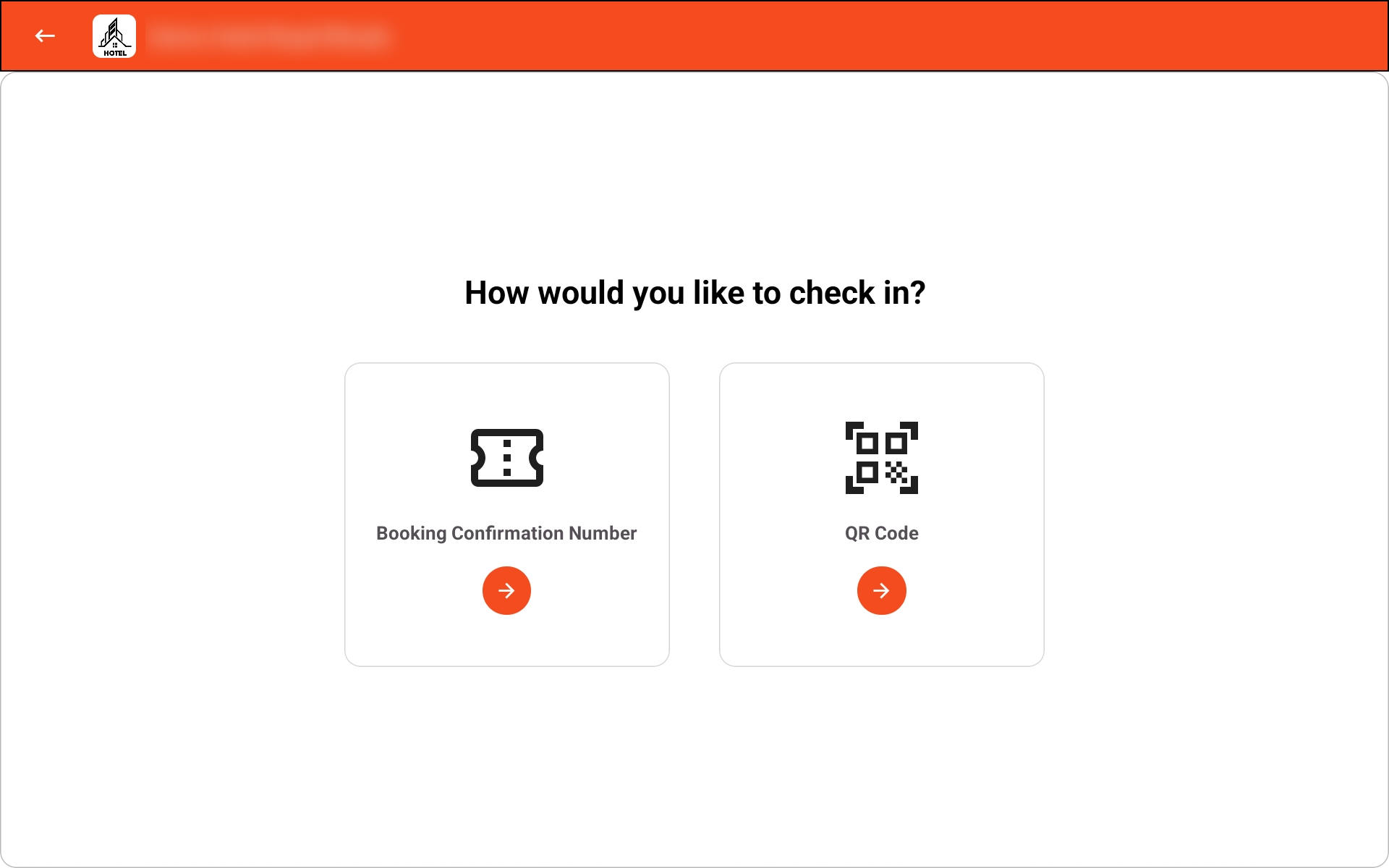
Look Up a Reservation Instantly
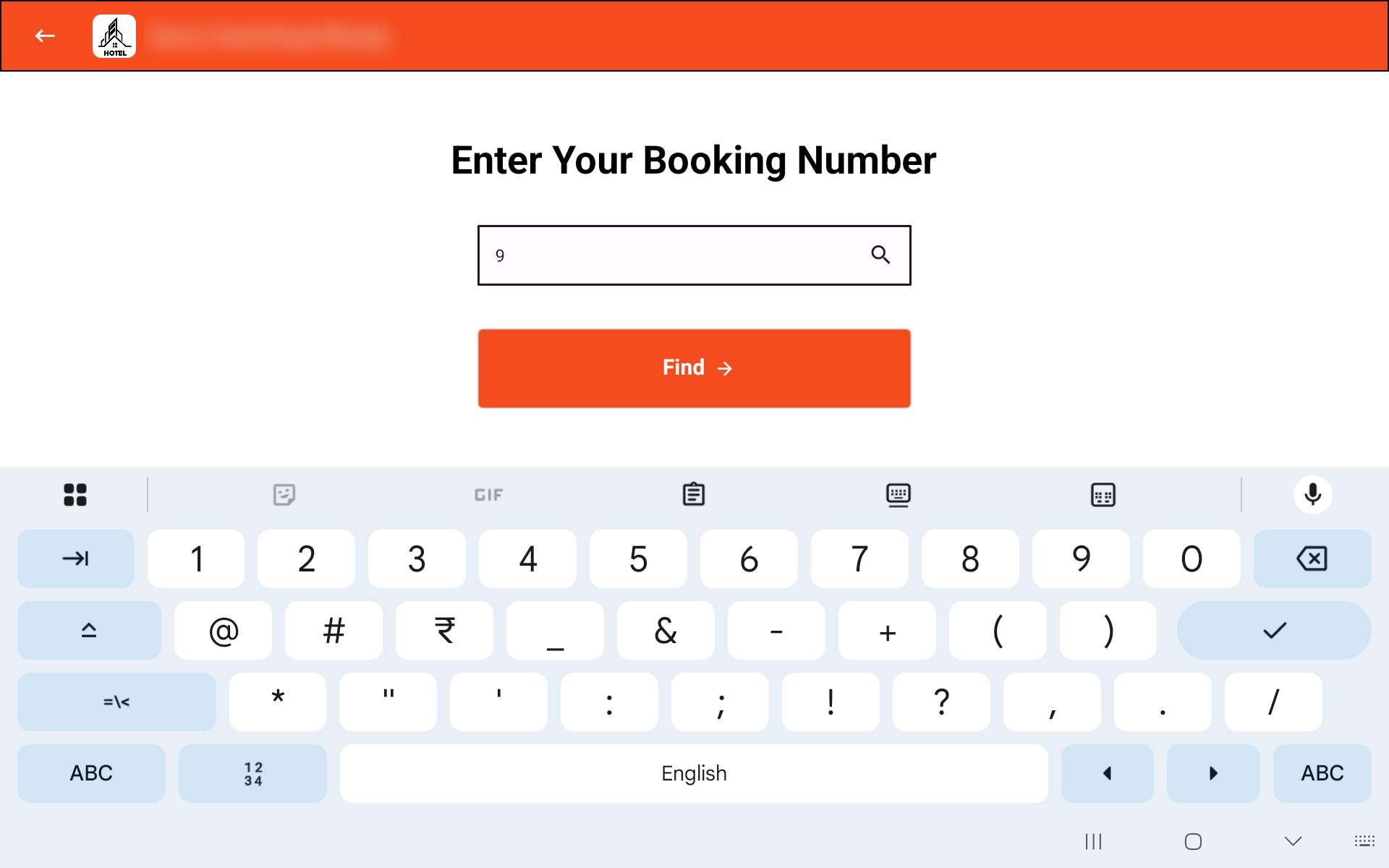
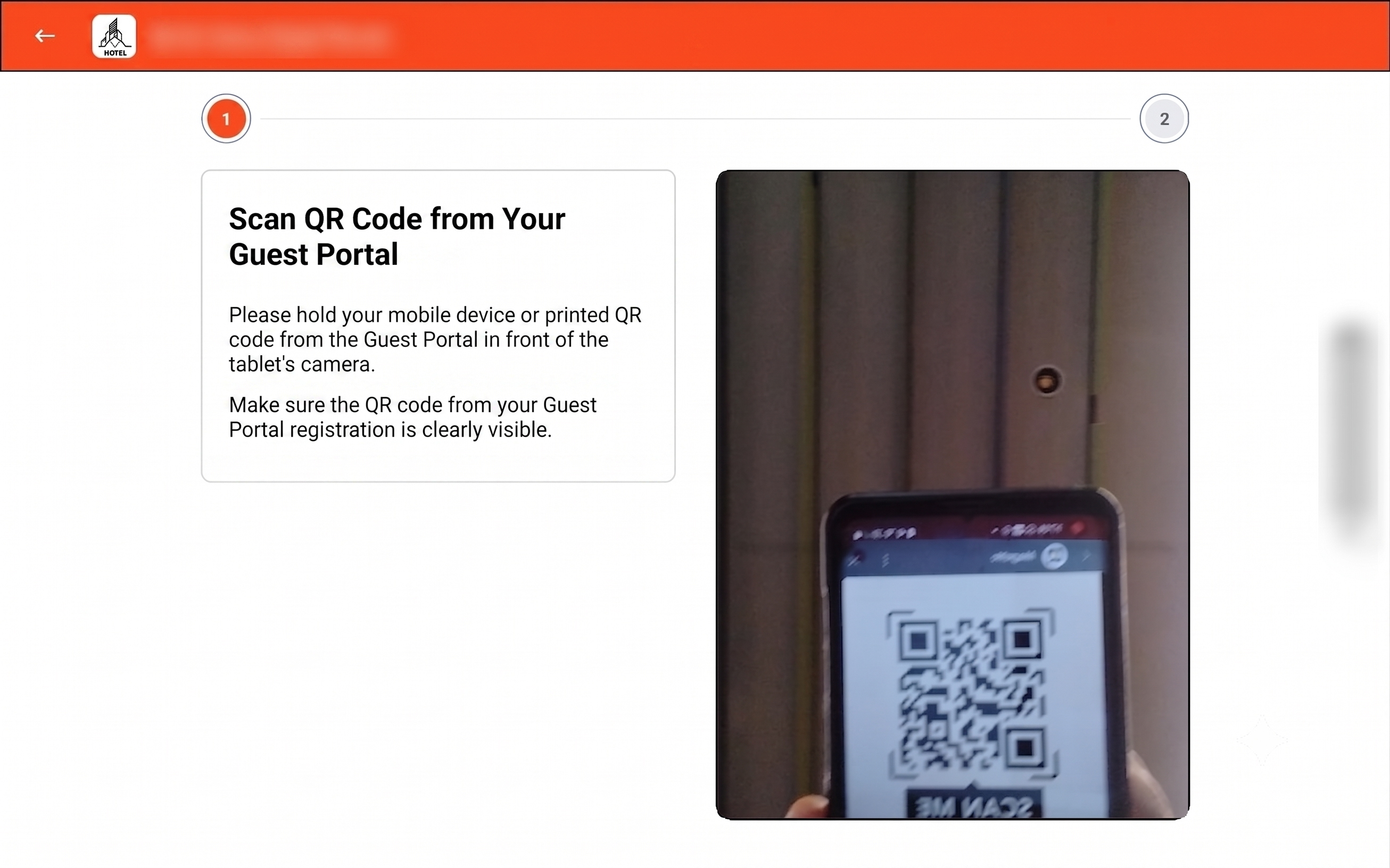
Guests enter their booking confirmation number or scan the QR code they received in their booking email. The system instantly looks up their reservation.
Tab view — Entering the booking number
Tab view — Scanning QR Code
Tab view — Booking found successfully
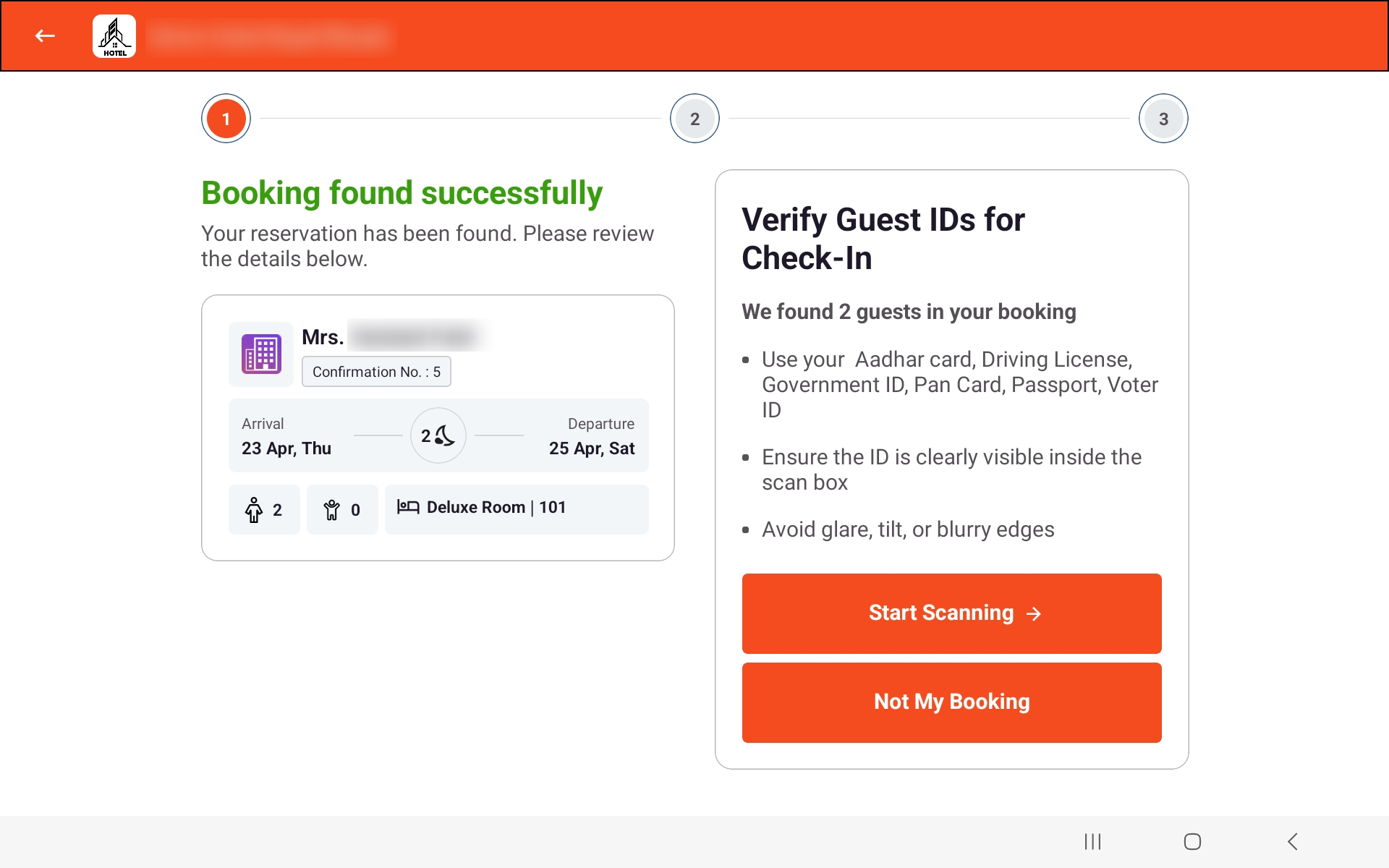
Scan Government-Issued IDs
For each guest in the booking, the kiosk camera activates and scans the front and back of their government-issued ID. The system automatically reads the details — no manual typing needed.
Tab view — Scanning the main guest ID (front)
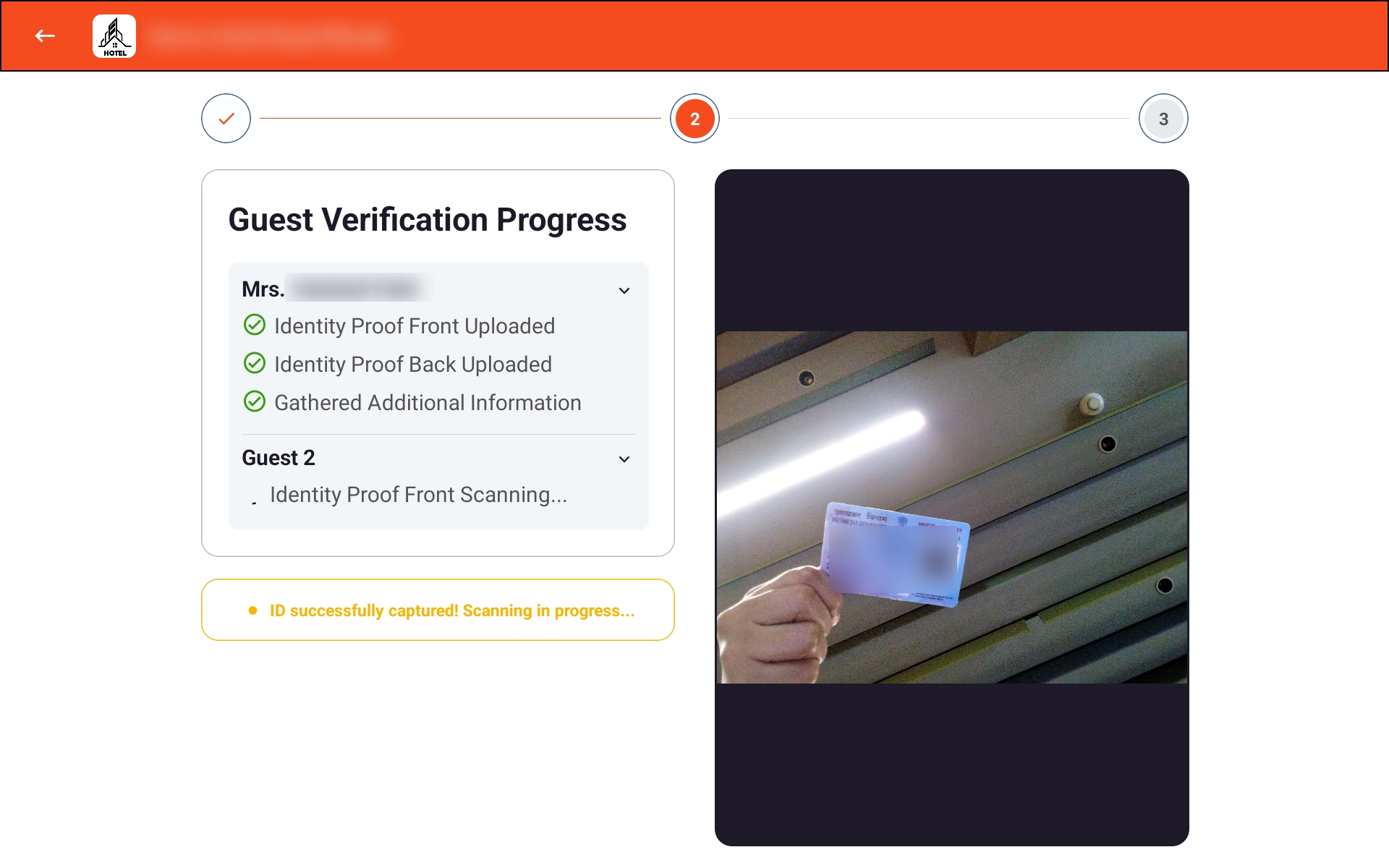
Tab view — Scanning the back of the ID
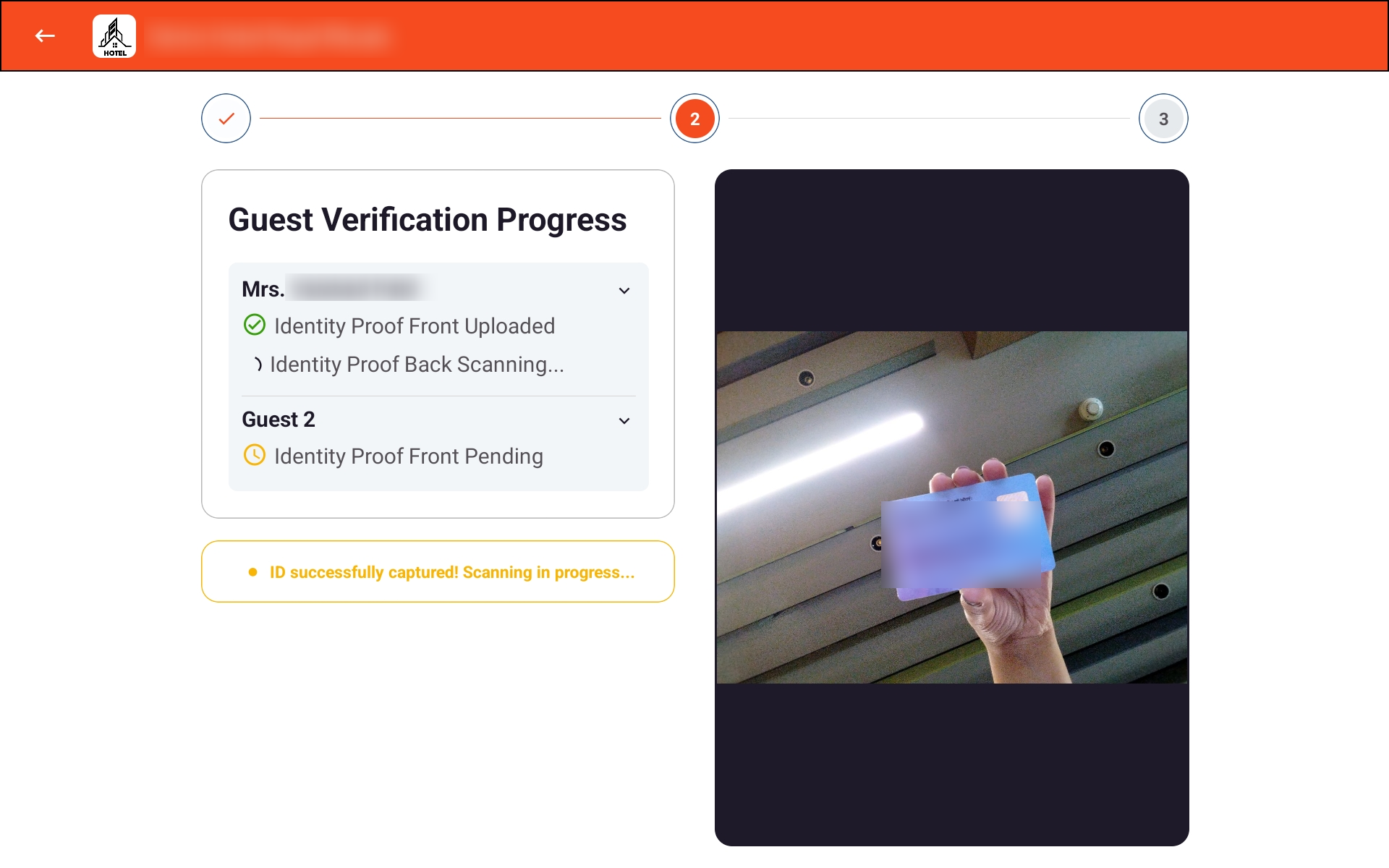
Tab view — Scanning a co-guest ID
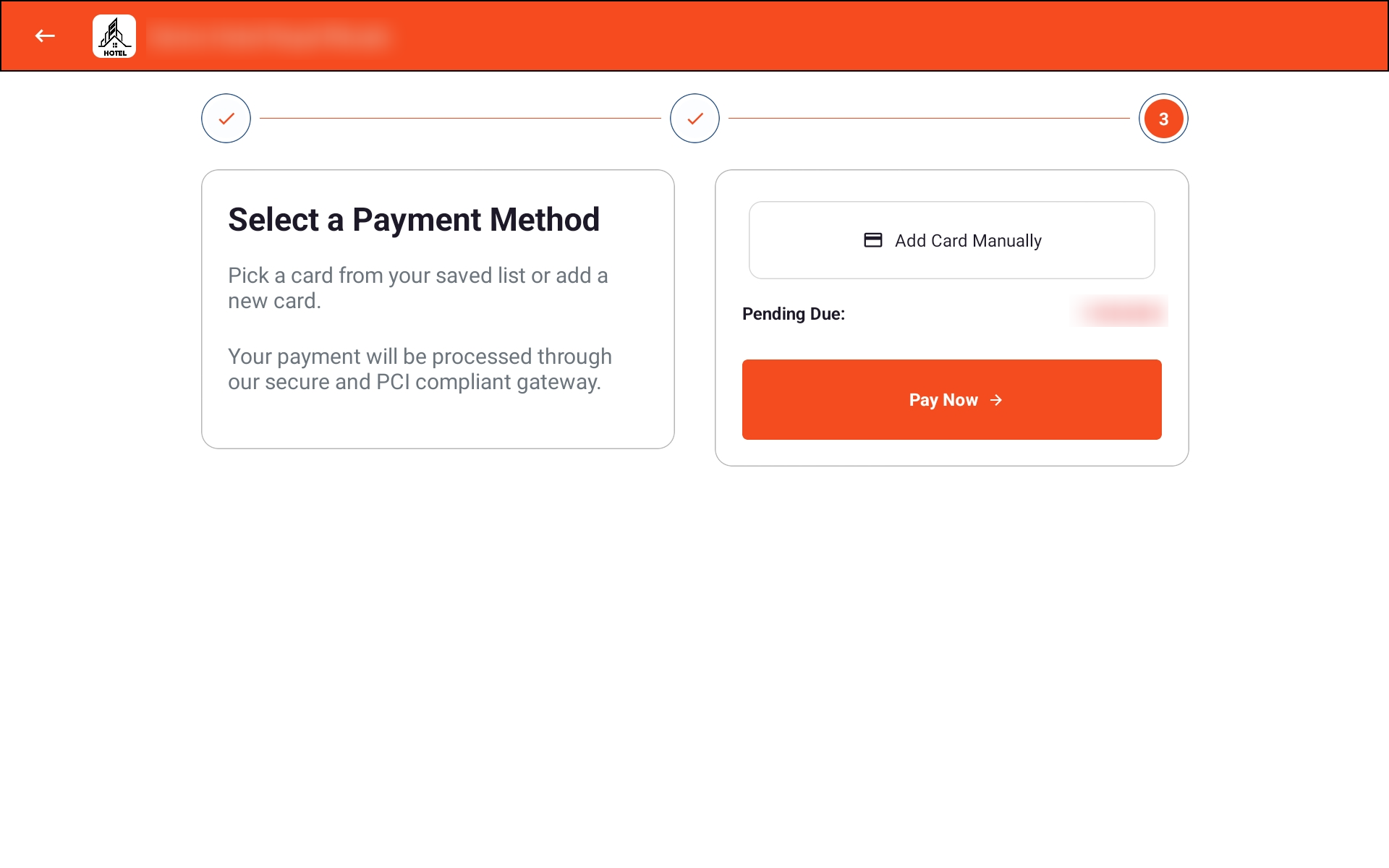
Pay with Saved Card, New Card, or NFC
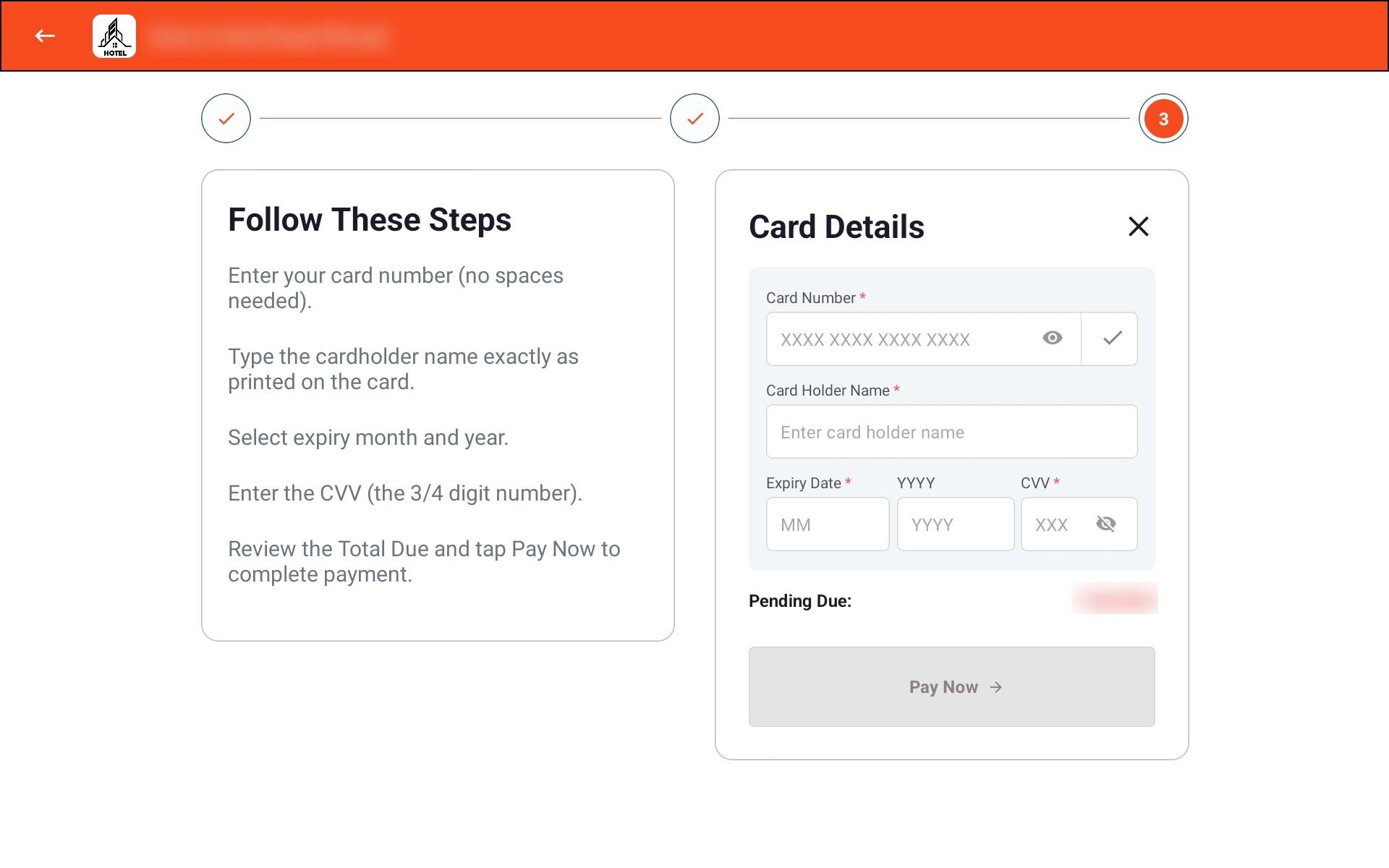
Guests select their payment method — a saved card, a new card entered manually, or tap-to-pay by holding their NFC card near the device. The total amount due is shown clearly before confirming.
Tab view — Selecting a saved card
Tab view — Adding a new card
Sign Digitally — No Paperwork Needed
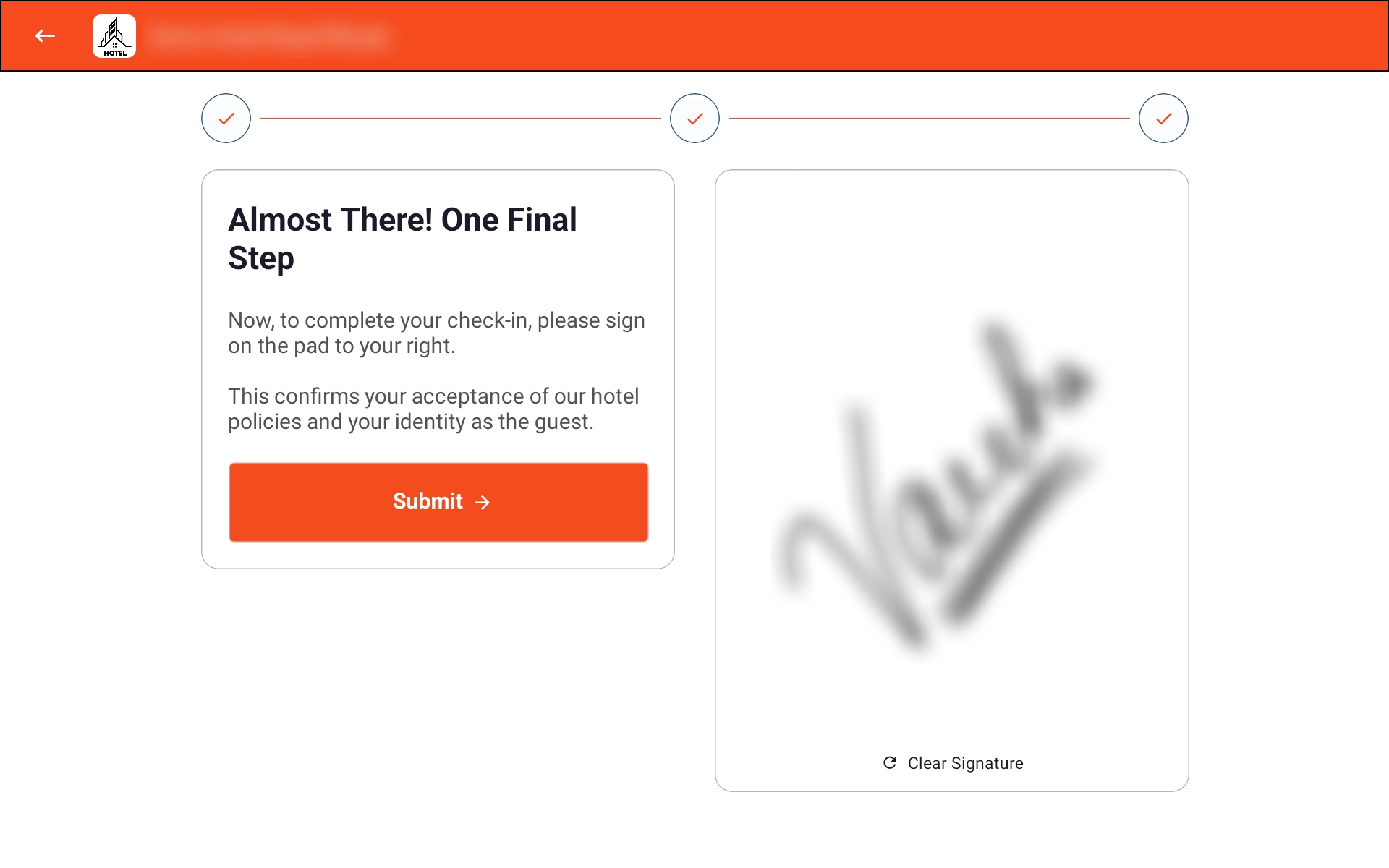
As the final step before check-in is confirmed, guests are presented with a signature pad directly on the screen. Signing digitally confirms their identity as the registered guest. No printed forms, no pens, no paper trails.
Tab view — Digital Signature pad
Confirmation and Next Steps
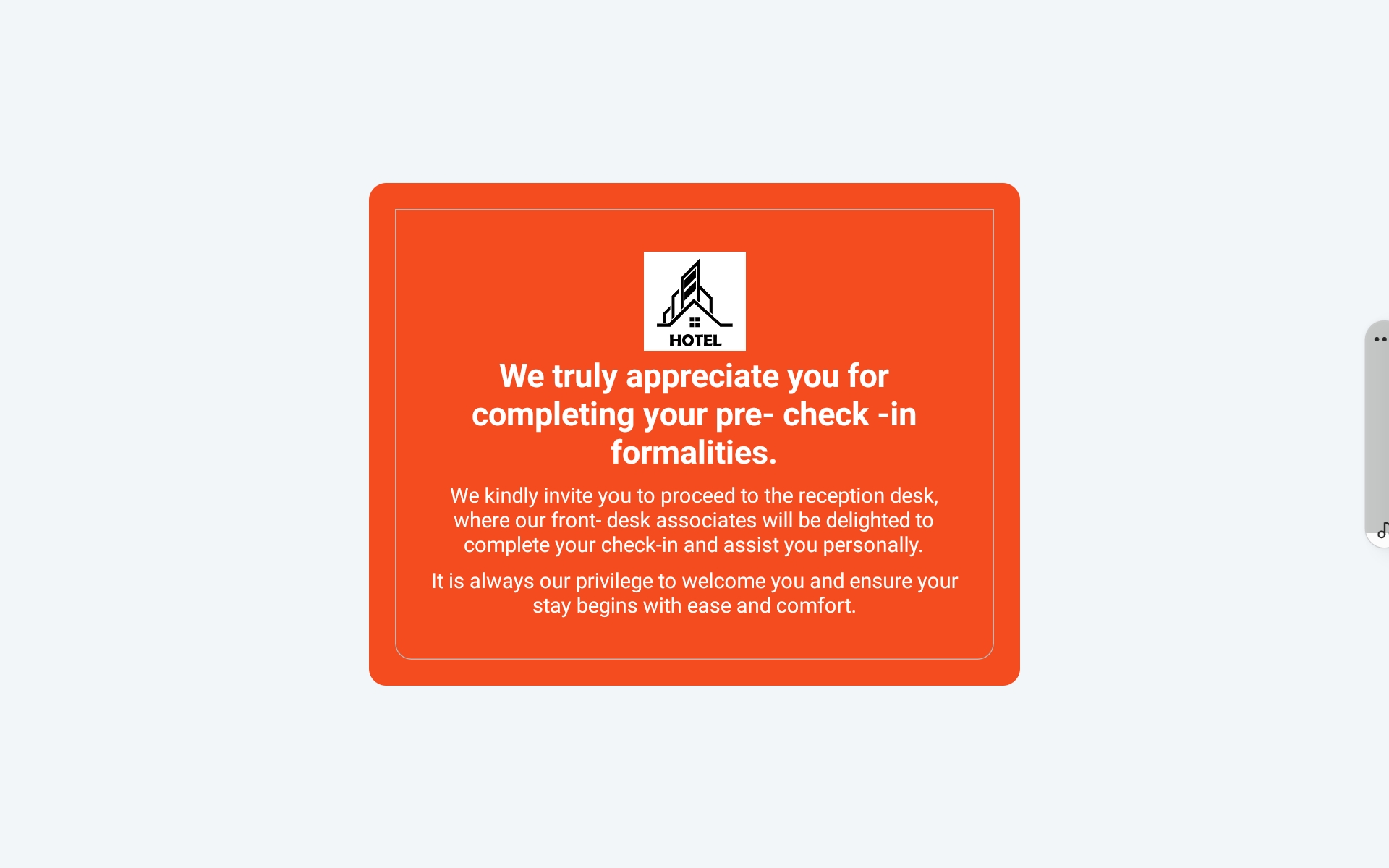
Done. The screen confirms the check-in and prompts guests to collect their key card from the reception desk. A receipt is sent to their registered email automatically.
Tab view — Check-in complete
Security First
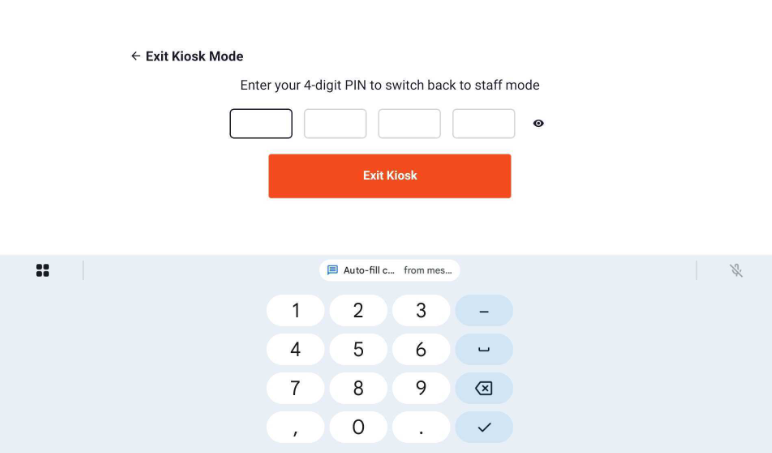
The kiosk is designed to be completely secure. Exiting Kiosk Mode requires a password, and only a specific gesture — tapping the hotel logo five times — can trigger the exit prompt. The screen stays active and locked in landscape mode so the experience is never interrupted.
Exit Kiosk Mode — 4-digit PIN prompt
Why This Matters
Designed to give guests full control of their arrival while freeing your front desk team to focus on what matters most.